
If your Windows laptop shuts down without warning or any Low battery notification, then this post will effectively fix the issue. There could be several reasons why your Windows 11/10 PC shuts down instantly. Let’s learn a bit more about this problem and its solutions.
No Low battery notification in Windows 11
Laptops pop up a warning message when the battery level is low. Normally, we receive two warnings: one when the battery is low and the second when the battery level is critically low, allowing us to either save our work or quickly connect the charger. If you are not receiving these warning messages, you may need to check certain settings on your PC.
Windows laptop shuts down without warning
Before checking the battery and power settings, ensure that the PC shuts down due to low battery. There may be other possible reasons why your laptop shuts down instantly.
To check this, work with your charger plugged in and see if the computer still shuts down without any warning. If no, then the issue is certainly with the battery or the power settings of your machine. There could only be two reasons: either your power plan is incorrect or your battery is faulty.
Low battery notification not working on Windows laptop
If you do not see Low battery notification in Windows 11/10 laptop follow these suggestions to resolve the issue:
- Run Power Troubleshooter
- Restore Power Plans
- Check your Power Plan
- Create a New Power Plan
- Reinstall Battery Driver.
1] Run Power Troubleshooter
Run Power Troubleshooter and see if that helps. This Power Troubleshooter will automatically troubleshoot Windows power plans and detects your system settings that can affect power usages, such as timeout and sleep settings, display settings, and screensavers, and restore them to their default settings.
2] Restore Power Plans
Open Control Panel > All Control Panel Items > Power Options > Edit Plan Settings and restore the default Power Plan settings by clicking on Restore plan defaults for this plan. Do this for all your Power Plans.
3] Check your Power Plan
The default power-plan in Windows laptop has a set value for your low battery level and the critical battery level.
To check or change the Power Plan, you will have to open Power Options.
Right-click on the battery icon in your taskbar and click on Power Options.
It will open the Power Options in Control Panel, click on Change Plan Settings–>Change Advanced Power Settings.
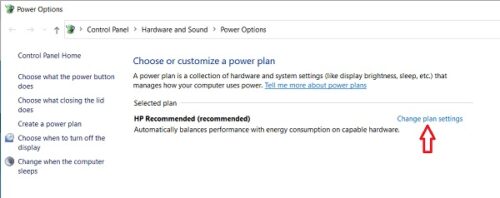
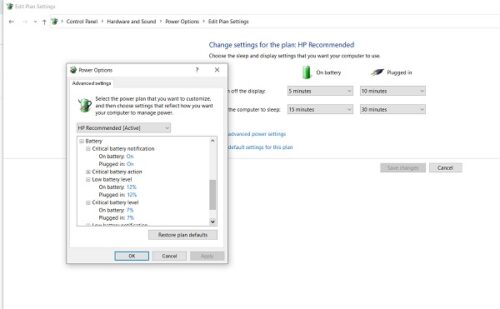
Scroll down and open the Battery tab. Click on the Critical Battery Notification and Low Battery Notification and check if they are On or not. You can also change the Low Battery Level and Critical Battery Level from here. Furthermore, you can edit the Low Battery level and the critical battery level from the dropdown menu. It is set at 12% and 7% respectively by default, you can increase it as per your requirements.
Note: Try keeping it at 20%-25% and see if your laptop starts giving you the warning message before shutting down.
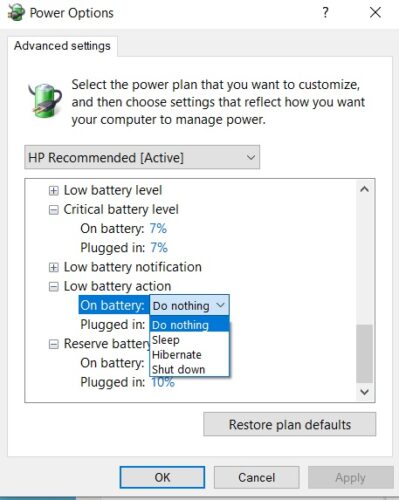
You can configure and set your preferences for what your PC should do when the battery level is low. The default is set at Do Nothing for both On Battery and Plugged In. You can change it to Sleep, Hibernate, or Shut down as per your own requirements, .
Read: Yellow triangle with exclamation mark on Battery symbol
4] Create a New Power Plan In Windows laptop
If you are not satisfied with the default Power Plan, you can also create a customized power plan for your Windows 11 or Windows 10 PC.
Right-click on the battery icon and open Power Options. Click on Create a New Plan in the left pane.

Change the settings and hit Create and your new customized Power Plan is ready.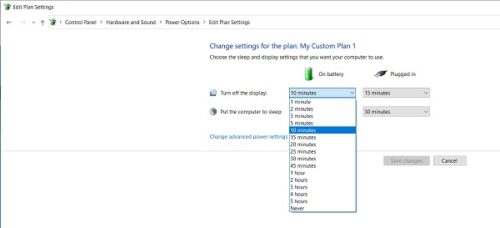
If your problem persists even after changing these settings, it is possible that the issue is with the battery.
- Dead cells in the battery- A laptop battery is made up of multiple cells and if some of the cells are dead while others are charged as a result the battery looks charged on the monitor but dies suddenly. The only fix to this issue is the battery replacement.
- The battery is degrading- Though the laptop batteries have 1000 recharge cycles it normally starts degrading much before that. In this case, your laptop battery will drain very fast. The fix again is the battery replacement.
- Battery temperature- If your laptop cooling system is not working properly or the ventilation is poor, it can increase the battery temperature, and a heated battery discharges quickly and often dies suddenly. Check your laptop’s cooling system to ensure it is functioning properly. As a temporary fix, you can take out the battery, cool it, and insert it back, see if it works.
Read: How to Backup or Restore default Power Plans.
5] Reinstall Battery Driver
- Reinstall your Battery driver and see if that helps.
- Shut down your laptop
- Detach power chord
- Remove battery
- Attach power chord
- Start your laptop.
- Open WinX Menu > Device Manager
- Expand Batteries > Right-click Microsoft ACPI-Compliant System
- Select Uninstall
- Shutdown the laptop
- Remove the power chord
- Attach the battery
- Attach the power chord
- Reboot laptop and let Windows install the battery drive.
Hope something here helps you.
Read: How to charge your Windows laptop without an OEM charger.
How do I turn on Low battery notifications on Windows?
To turn on low battery notifications on Windows, right-click the battery icon in the taskbar and select “Power Options.” Choose “Change plan settings” for your active plan, then click on “Change advanced power settings.” In the pop-up, expand “Battery” and adjust settings under “Low battery notification” to your preference.
How do I set up an alert on my laptop for a Low battery warning?
To set up a low battery warning on your laptop, go to the Control Panel and navigate to “Power Options.” Select “Change plan settings” for your power plan, then click “Change advanced power settings.” Under “Battery,” adjust the low battery level and notification settings to your preference.
