
In this post, we will help you fix Microsoft Teams Error CAA20002 on Windows 11/10 computers. Many users have reported this issue, that when they try to log in to Microsoft Teams using their account or a different user account, they aren’t able to log in and receive this error code CAA20002. This might happen because of cache files or another reason. If you are also facing this issue, then the solutions listed in this post below might be helpful.

Fix Microsoft Teams Error CAA20002
Here are some solutions that might help you fix the CAA20002 error code for your Microsoft Teams account:
- Reconnect your Microsoft Teams account using the Settings app
- Clear Microsoft Teams cache
- Use the web version of Microsoft Teams
- Reinstall Microsoft Teams.
1] Reconnect your Microsoft Teams account using the Settings app
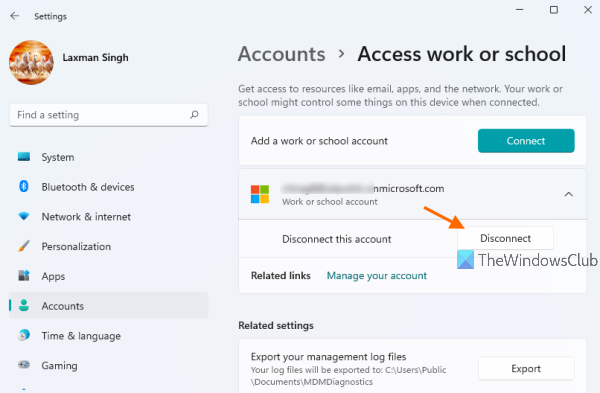
This solution has helped some users and this might work for you also. Reconnecting your Microsoft Teams-associated user account on your Windows 11/10 device may help resolve this issue. So, open the Settings app, sign out of or disconnect from Microsoft Teams, then sign in again or reconnect. After that, try logging in to that account on Microsoft Teams and see if this works. Here are the steps to reconnect your Microsoft Teams account on a Windows 11/10 computer:
- Use Win+I hotkey to open the Settings app of Windows 11/10
- Click on the Accounts category available in the left section
- On the right section, scroll down to the bottom, and click on the Access work or school page
- Select your Microsoft Teams account for which you are having this problem
- Click on the Disconnect button
- Now press the Connect button available on the Access work or school page and enter your Microsoft Teams account login credentials to reconnect it
- Restart your computer.
Now open the Microsoft Teams desktop application and log in with your account. You should be able to log in now.
2] Clear Microsoft Teams cache
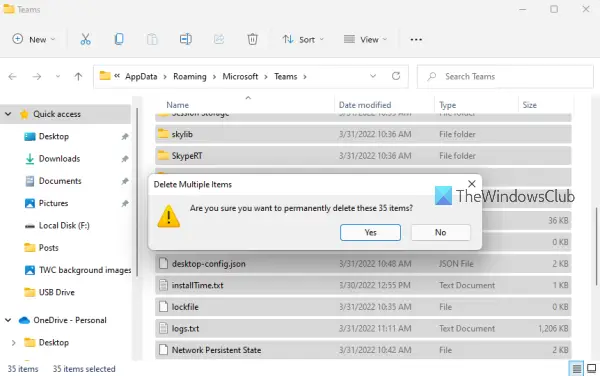
If this problem is occurring because of the cache files of Microsoft Teams, then clearing all those Teams cache files might be helpful to get rid of this error code CAA20002. Before doing that, close the Microsoft Teams application on your Windows 11/10 computer to ensure it is not running in the background. After that, follow these steps to clear Microsoft Teams cache:
- Press Win+R hotkey to open the Run Command box
- Type
%appdata%\Microsoft\Teamsin the text field of that box - Hit the Enter key. This will open the Teams folder. There you will see multiple files and folders
- Select all files and folders
- Delete them.
Also read: Microsoft Teams Error CAA5009D.
3] Use the web version of Microsoft Teams
This is not a direct solution to fix this issue, but it is helpful when you want to log in to the Microsoft Teams account where you are having this problem. What you can do is simply access the web version of Microsoft Teams on any of your favorite browsers, enter the login credentials of your Microsoft Teams account, and start your work.
4] Reinstall Microsoft Teams
This is the last solution when no other option will work. You need to quit Microsoft Teams, uninstall it using the Settings app or Control Panel of your Windows 11/10 computer, and restart your computer. After that, go to the official Microsoft Teams website, download the EXE file and install it. Finally, open the Microsoft Teams interface, enter your login credentials, and now you should be able to use it.
Hope this will help.
How do I fix error code CAA20002?
Windows 11/10 users encounter error code CAA20002 when trying to log in to their Microsoft Teams account. If you want to fix this error, then you try some fixes like clearing cache files of Microsoft Teams, reconnecting your Microsoft Teams account, etc. Some of these fixes are covered in this post above with all the necessary steps. You can try these solutions and your problem might be resolved.
How do I fix MS Teams error?
Microsoft Teams users encounter various issues and errors from time to time. For example, they get login issues, different sign-in error codes, Microsoft Teams error 80090016, and more. The good thing, there are some ways to fix Microsoft Teams login issues and error codes. For example, you can fix MS Teams errors by clearing its cache files, correcting system date and time, reinstalling Microsoft Teams, etc.
Read next: Fix Microsoft Teams Sign-in Error Codes and Problems.
