
Microsoft Teams supports end-to-end encryption for Team calls. End-to-end encryption or E2EE is the encryption of original information followed by its decryption at the said destination so that intermediaries cannot decrypt information midway and it is kept secure.
Now both parties on a one-to-one call can turn on E2EE, and the communication between these parties in the call will be encrypted from end to end. No other intermediate party, including Microsoft, will have access to this decrypted conversation on call.
Also, only the real-time media flow, i.e, video and voice data on Team calls, can be encrypted. Both parties should turn on this setting to enable end-to-end encryption. With encryption in Microsoft Teams, chats, file sharing, presence, and other files stay protected.
Enable end-to-end Encryption for one-to-one Calls in Microsoft Teams
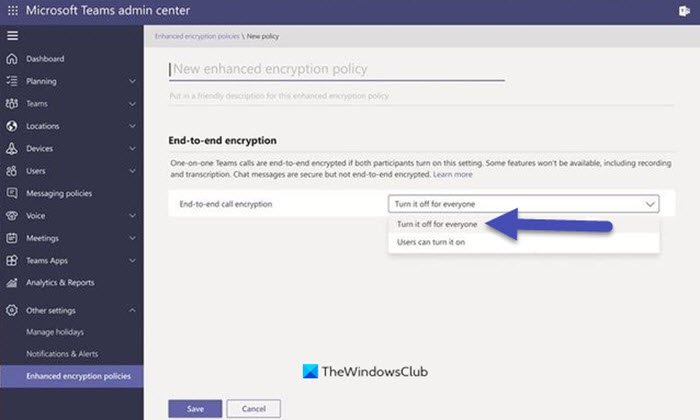
To enable Microsoft Teams end-to-end encryption, follow the below steps (For IT admins):
- Sign in to Microsoft Teams Admin Center
- Go to Other settings > Enhanced encryption policies.
- Name the new policy.
- For end-to-end encryption, you can then choose the users for who the same can be turned on and then choose to save.
- Once, the policy is created, you can assign it to respective users, or groups, or the entire tenant.
But please note that end-to-end encryption is not available to users in the tenant. Once the policy is configured, users must enable end-to-end encryption in their Teams settings before making a call.
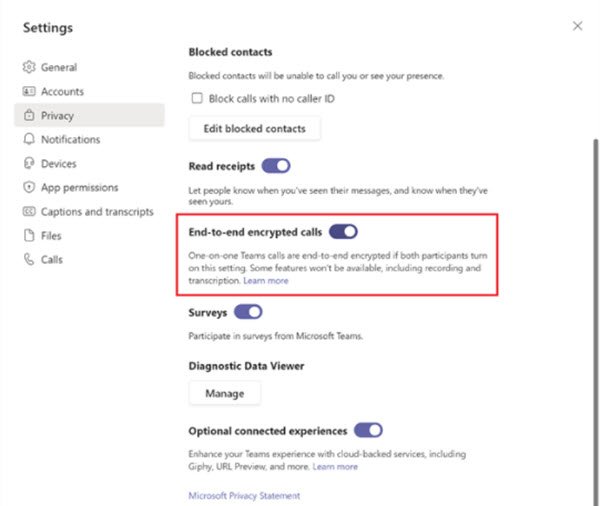
[Image source – Microsoft]
How can users enable end-to-end encryption in one-to-one Team calls?
Once the policy is configured by the IT administrator, users can see a setting to enable end-to-end encryption for their one-to-one calls. Follow the below steps:
- Select the profile picture or the ellipses next to the profile picture. It is located on the top right of the Teams window.
- Select Settings > Privacy.
- The user can then turn on end-to-end encryption by toggling the switch.
How to know if you are on a Teams end-to-end encrypted call?
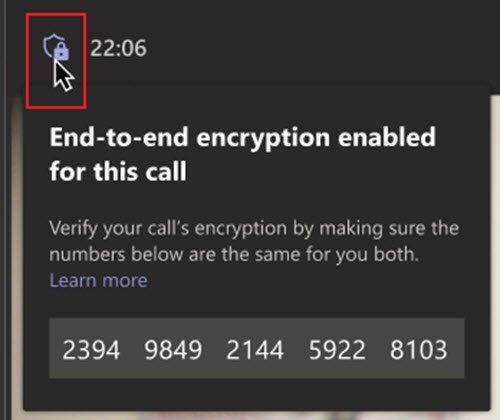
Once the setting is enabled, users can see an encryption indicator in the upper left corner of the Teams call window. Please note that Microsoft 365 encryption technologies encrypt every Teams call. But if a call is end-to-end encrypted, the respective indicator will be seen in the Teams call window for both parties. This indicator is a shield with a lock.
To confirm end-to-end encryption, both parties can also access a security code, which, once verified by both, confirms end-to-end encryption is working correctly on the Teams call. This end-to-end encryption update is available on the latest update of the Teams desktop client for Windows or Mac. It is also available on mobile devices with the latest updates for iOS and Android.
How to turn on Teams end-to-end encryption from mobile?
- In Teams mobile, select Settings > Calling.
- Under Encryption, turn on end-to-end encryption calls.
Once it is on, the mobile call will show a lock + shield icon. The user can tap on the encryption indicator to know the 20-digit security code for the call. Similar to desktop/laptop, both parties can verify that the said code matches on an end-to-end encrypted call.
When end-to-end encryption is not on, the Teams encryption is a regular shield without a lock. This shield shows that the call is protected by Microsoft 365 encryption and there is no end-to-end encryption.
Which features are not available with end-to-end encryption in Microsoft Teams?
The features are:
- Recording
- Call transfer (blind, safe, and consult)
- Call Park and Call Merge
- Live caption and transcription
- Call companion and transfer to another device
- Add participant to convert one-to-one call to a group call.
You can also enable or disable these features by going to Settings and toggling end-to-end encryption.
Can you make one on one calls in Teams?
Yes, it is possible to make one-on-one calls in Microsoft Teams. Regardless of whether the person is in your organization or not, you can call them through Teams. Apart from calling, it is possible to text the person via Teams.
