
Many Windows users are seeing Error Code 0x87E10BD0 in the Microsoft Store when trying to download a game such as Forza Horizon, Sea of Thieves, etc, or some other application. The error is very common and has been appearing on Windows devices.
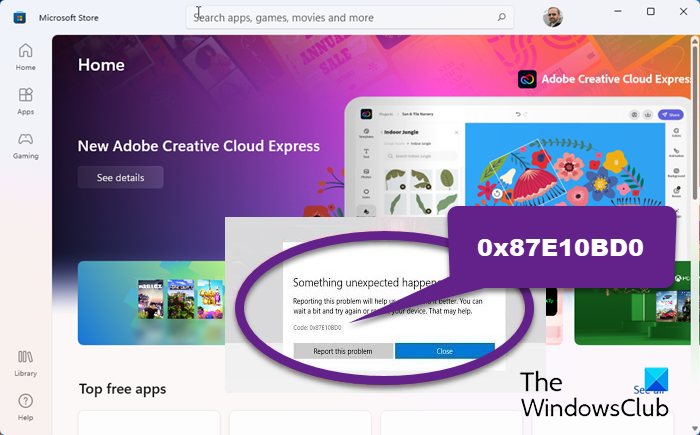
Something unexpected happened and your purchase can’t be completed. Error code: 0x87E10BD0.
What’s causing Microsoft Store Error Code 0x87E10BD0?
A corrupted Microsoft Store Cache or a Store glitch can cause this error. There are some other reasons such as you not being signed in while downloading the application or missing AUInstallAgent which is nothing but a folder that sometimes goes missing and you need to recreate it to resolve the issue. We will discuss all of them in detail and explore solutions for every potential cause.
Fix Microsoft Store Error Code 0x87E10BD0
If you need to resolve Error Code 0x87E10BD0 in the Microsoft Store on your Windows 11 or Windows 10 PC, first of all, update your computer. Sometimes, installing the latest build is enough to fix the issue. You do that, and if the issue persists, try these solutions.
- Log in to your Microsoft Account
- Rereate AUInstallAgent
- Reset Microsoft Store
- Try downloading some other application
- Troubleshoot in Clean Boot
Let us talk about them in detail.
1] Log in to your Microsoft Account
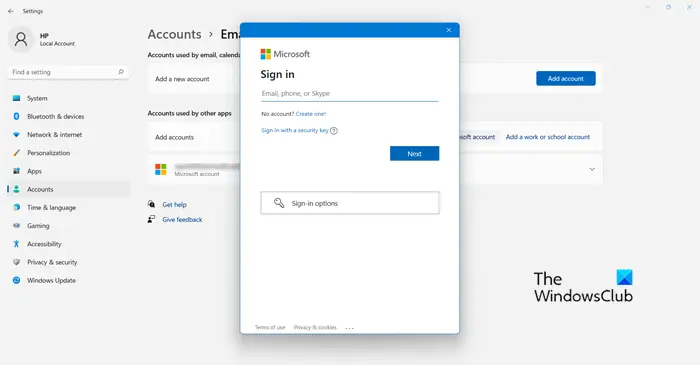
A lot of times, the error appears when you are not signed in to your Microsoft Account. And according to many users, adding Microsoft Account and then downloading the application can resolve the issue. So, first, check if you are logged in to your account, if not, open Run, type “ms-settings:emailandaccounts”, and click Ok.
Now, click Add a Microsoft Account, enter your credentials and log in to it. Finally, check if the issue persists.
2] Recreate AUInstallAgent
According to many users, issues can occur if the AUInstallAgent folder is corrupted or missing. If it is corrupted, you need to remove it and then recreate the folder, if it’s missing, then we just need to recreate the folder.
Open Run by Win + R, paste the following location, and click Ok.
%windir%
Now, check if you have the AUInstallAgent folder. If you have the folder, remove it and create a new one. Rename the newly created folder AUInstallAgent. If there is no such folder, you only need to create a new one.
3] Reset Microsoft Store
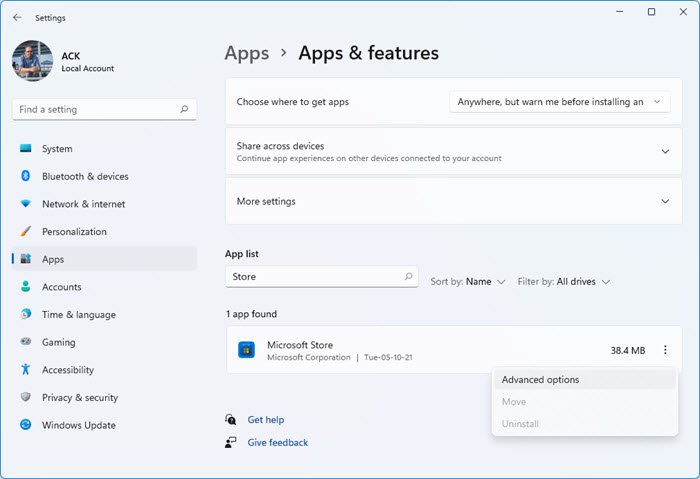
As mentioned earlier, the issue can occur because of Microsoft Store Cache. It can get corrupted and, as a result, trigger such errors. In that case, your best bet is to reset the Store and remove the cache. You can easily do the same from Windows Settings.
- Open Settings.
- Go to Apps > Apps & Features.
- Then look for Microsoft Store.
- For Windows 11: Click on the three vertical dots and click Advanced Options. For Windows 10: Select the app and click Advanced Options.
- Finally, click Reset.
Wait for your request to be processed and your Microsoft Store will be reset.
You can also reset the cache of Microsoft Store by running wsreset.exe. To do that, just paste in “wsreset.exe” in the Run box and click Ok. This way, a CMD screen will show up and your issue will be resolved.
Then you retry downloading the app, hopefully, it will work this time.
4] Try downloading some other application
This is not a fix; instead, it is a workaround that has helped several users to resolve the error code in question. Rather than downloading the game you were previously trying to download, go for a light app, such as Netflix. If you are able to download it, then try retrying getting the application that was giving the error code. For many users, this workaround has worked.
5] Troubleshoot in Clean Boot
The issue may also be caused by other applications interfering with your download. In that case, you should troubleshoot in Clean Boot and see which application is causing the issue. If the issue is caused by interference from another program, you can download it in Clean Boot, as no unnecessary services or applications will be running in the background.
Hopefully, you can resolve your issue using the solutions mentioned in this article.
How do I fix Microsoft Store error at end?
When you open the Microsoft Store app and you see a Something happened on our end error or Try that again, Something went wrong error in Windows 11/10, then restart the Microsoft Store app and make sure that your Windows OS is updated. You may also need to temporarily disable your security software (firewall and antivirus tool), use Windows Store Apps troubleshooter, enable Microsoft Store Install Service, and set its Startup type to Manual, etc.
