
Some users are unable to edit macro-enabled Microsoft Excel files after downloading them from Gmail or other email clients. After opening the file, they see the “Microsoft has blocked macros from running” error. If you encounter this error in Excel and cannot edit it, the solutions provided in this article will help you.
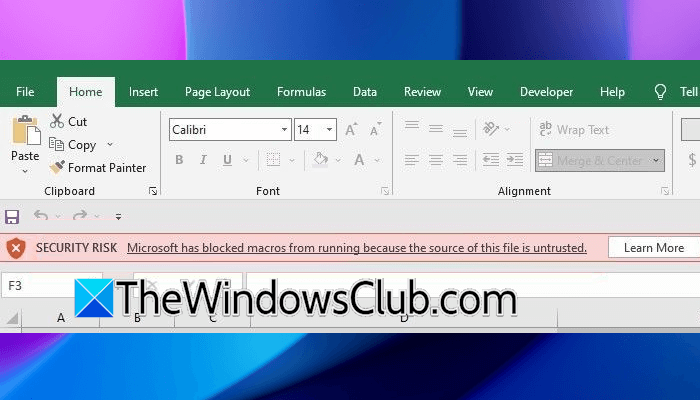
The complete error message is:
Microsoft has blocked macros from running because the source file is untrusted.
Microsoft has blocked macros from running because the source file is untrusted
Use the following fixes if you cannot edit the macro-enabled Excel file due to the “Microsoft has blocked macros from running because the source file is untrusted” error:
- Check the macro settings
- Unlock the file
- Disable Add-ins
- Add Trusted location
- Repair or reinstall Office
All these fixes are explained in detail below:
1] Check macro settings
When you open an Excel file after downloading it, it opens in Protected View by default. However, some users cannot edit the file even after enabling editing. They see the “Microsoft has blocked macros” error message. To address this error, check your macros settings.
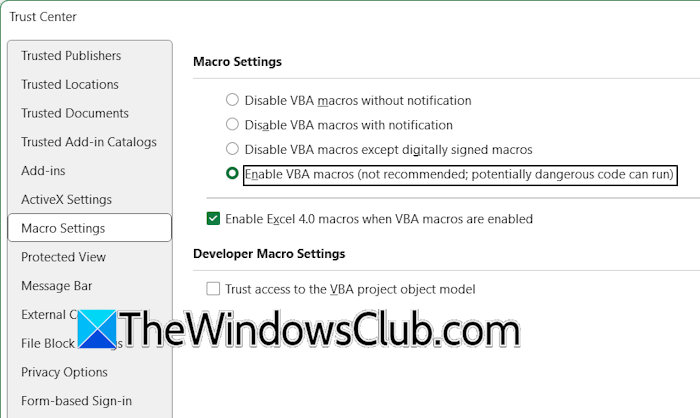
Follow these steps:
- Go to File > Options.
- Select Trust Center, then click Trust Center Settings on the right side.
- Select the Enable VBA macros radio button and click OK to save changes.
Now, check if the issue persists.
2] Unlock the file
If the issue persists even after enabling VBA macros, try to unblock the Excel file. Follow these steps:
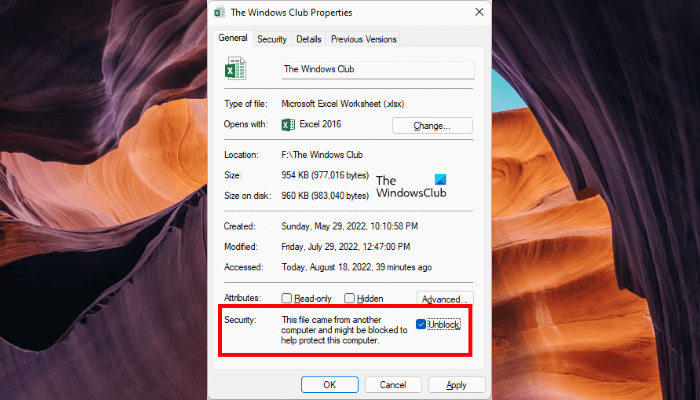
- Right-click on the Excel file.
- Select Properties. Or you can press the Alt + Enter keys.
- Under the General tab, select the Unblock checkbox.
- Click Apply and then click OK.
3] Disable Add-ins
If the issue persists, one of the installed add-ins might be causing this problem. To check this, you can disable your add-ins. Follow these steps:
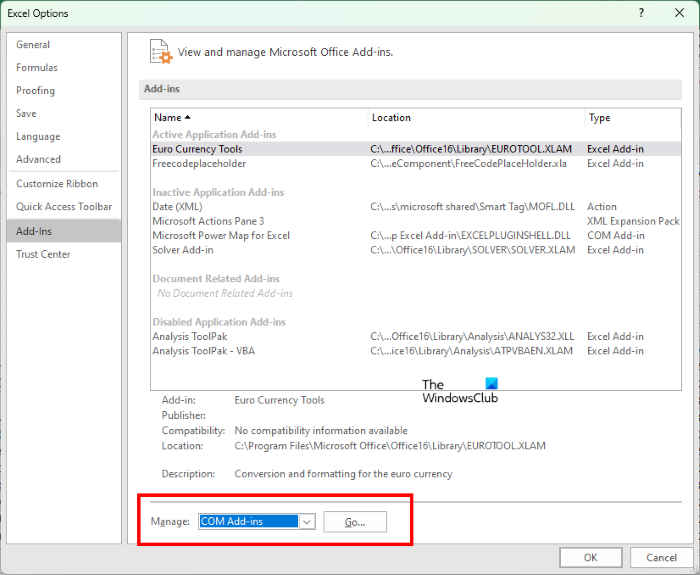
- Open Microsoft Excel.
- Go to File > Options > Add-Ins.
- Select COM Add-ins on the right side and click GO.
- Uncheck the checkboxes one by one and check which one resolves the issue.
When the issue disappears after disabling an add-in, that add-in is the culprit. You can uninstall it and look for its alternative, or contact its support.
4] Add Trusted location
You can add your Excel file location as a trusted location in Excel. Follow these steps:
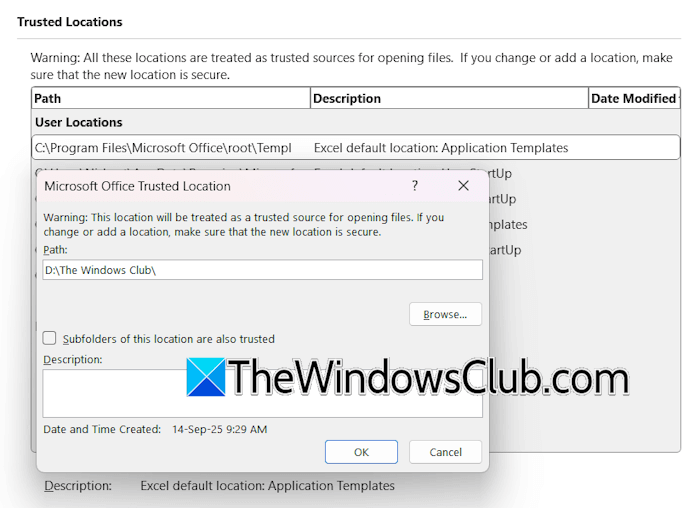
- Open Excel.
- Select Options > Trust Center.
- Click Trust Center Settings on the right side.
- Now, select Trusted Locations on the left side.
- Click Add new location.
- Go to the location in File Explorer where the Excel file is located and copy the path. Go back to Excel and paste that path in the required field.
- Click OK, then click OK again.
5] Reinstall Office

If the issue persists, repair the Office suite. Run an online repair and see if it works. You can also try reinstalling Office. Before proceeding, ensure you have the product activation key, as you will need it to reactivate your Office version after reinstallation. You can use the Microsoft Office Uninstaller Tool to completely remove Microsoft Office from your system.
That’s it. I hope this helps.
How to make a file a trusted document?
If you have an Office file and you want to make it a trusted document, you can unblock it in its properties. Additionally, you can add the path where the file is located to the Trust Center in Excel.
How do I unblock macros from Microsoft?
To unblock macros from Microsoft, check the macros settings in Excel. Make sure that you have enabled the VBA macros option in Excel. If, despite this, macros are blocked, you can unblock the Excel file in its properties.
Read next: The file is corrupt and cannot be opened.
