
Most microphones don’t unmute themselves once muted. However, if your Microphone unmutes itself on Windows because of some activity on your PC or randomly, then this post will help you resolve the issue.
![Mic unmutes itself on Windows [fix]](https://www.thewindowsclub.com/wp-content/uploads/2024/12/Mic-unmutes-itself-on-Windows-fix.jpg "Mic unmutes itself on Windows [fix]")
Fix Mic unmutes itself on Windows 11/10
Here are some suggestions to help you fix if the mic unmutes itself on Windows 11 PC.
- Check the physical mute button
- Check the microphone app
- Disable exclusive mode
- Adjust Communications setting
- Check Startup Programs and Background Apps
- Use Group Policy
- Test on a different PC
- Contact microphone support
If you have updated the driver, rollback the driver. If you have not updated, you should update your drivers and see.
1] Check the physical mute button
If you use a microphone with a physical button, check if it’s working as expected. If it is loose, chances are the mic is unmuting itself when you accidentally move it or when something around vibrates.
2] Check the microphone app
Some microphone OEMs offer software to enhance their functionality and add more features. Some microphones auto-unmute as soon as someone starts speaking.
If your microphone has something similar, check the app settings to see if there are auto-unmute or level-related checks that could affect the mute.
Read: How do you prevent the Microphone from picking up System Sound?
3] Disable exclusive mode
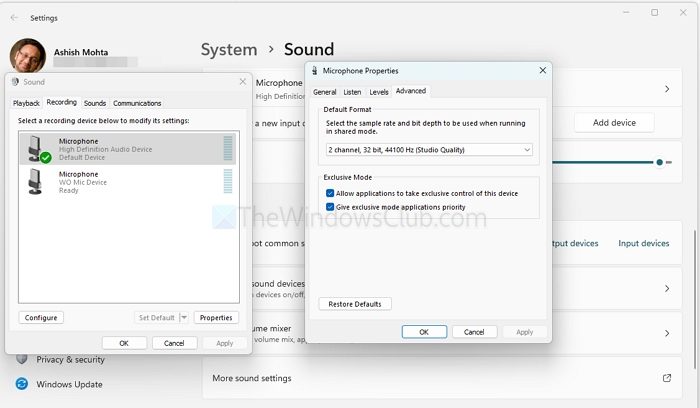
Applications may take exclusive control of the microphone, leading to unintended behavior. To disable this:
- Right-click on the sound icon on the system tray and select Properties
- Go to Advanced, and click on More sound settings.
- In the Advanced tab, uncheck Allow applications to take exclusive control of this device.
- Click Apply, then OK.
4] Adjust Communications setting
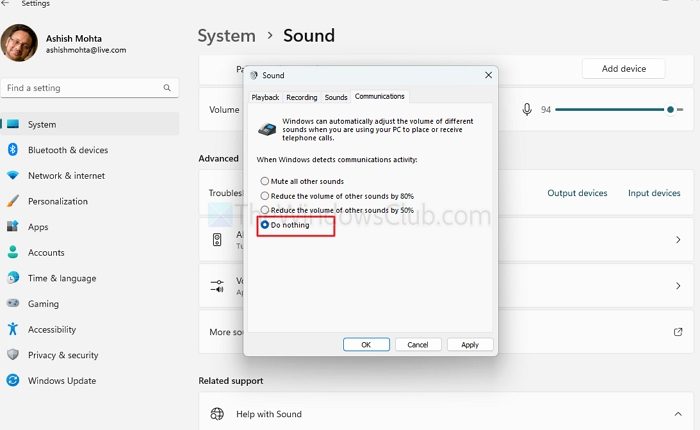
Windows may alter audio settings when it detects communication activities. To prevent this:
- Right-click on the sound icon on the system tray and select Properties
- Under the Communications tab, select Do nothing.
Read: How to test Microphone Audio Processing Modes in Windows
5] Check Startup Programs and Background Apps
Some applications may launch at startup and alter microphone settings. To manage this:
- Press Ctrl + Shift + Esc to open Task Manager.
- Go to the Startup tab.
- Disable any unnecessary applications that might interact with your microphone.
Also, check background apps in Settings > Apps > Installed apps or Privacy & security > Microphone to ensure only trusted apps have mic access.
6] Use Group Policy
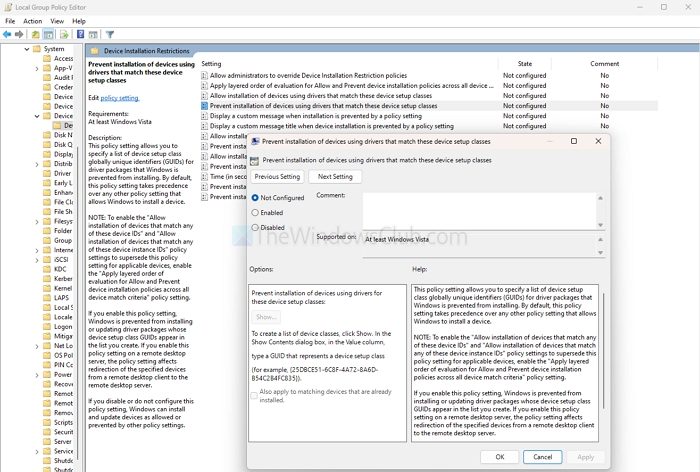
By enabling this policy or registry, Windows will refuse to install or configure any device (like your microphone) unless you’ve manually allowed that device elsewhere.
- Press Win + R, type gpedit.msc, and press Enter.
- Navigate to:
Computer Configuration > Administrative Templates > System > Device Installation > Device Installation Restrictions - Enable the setting:
- Prevent installation of devices not described by other policy settings
- Prevent installation of devices that match any of these device IDs (specific to your microphone’s hardware ID)
7] Test on a different PC
If possible, connect your microphone to another PC running a different version of Windows to determine if the issue persists. This can help identify if the problem is specific to your current PC configuration.
8] Contact microphone support
If none of the above solutions work, contact microphone’s customer support for further assistance. They may have additional insights or firmware updates to resolve the issue.
Can microphone settings be affected by third-party software on my PC?
Third-party software that interacts with audio settings, such as communication apps (Zoom, etc) or audio enhancement software, can sometimes change your microphone behavior. These can adjust volume levels or mute settings based on their configurations.
Read: Microphone keeps muting itself on Windows PC
Why does my microphone keep unmuting when I use voice activation features?
Some voice-activated applications, like voice assistants or speech-to-text software, may automatically unmute the microphone to listen for commands. If you’re experiencing this, check the voice activation feature settings and disable to prevent it from unmuting unnecessarily.
