
Save paper and postage this season and surprise friends or family by creating a personalized greeting card in PowerPoint. Yes, you can be your own creative artist. Create Animated Greeting Cards using PowerPoint.
Create Animated Greeting Cards in PowerPoint
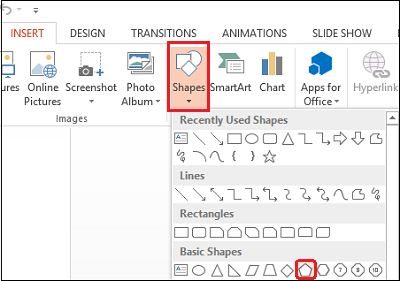
First, launch PowerPoint and click the New Slide option. Select the Blank Slide option; a blank slide will open on the right-hand side. Then select Insert from the ribbon, and choose Shapes. Under shapes, you will observe multiple options available. Here, I selected the pentagon and stretched it downwards to give it the shape of the stem of your Christmas tree.
Now, add stars to your Christmas tree. To do so, repeat the step above, then select the star shape and place it where you want on the tree.

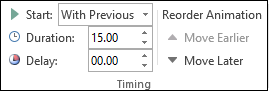
From the ‘Timing’ section, fix the animation timing.
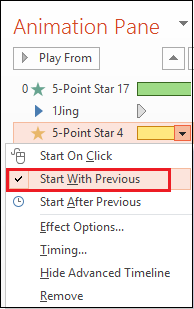
After having fixed the timing and type of animations to different shapes, it’s time to place all animations in a proper sequence. For this, Select ‘Animation Pane’ from ‘Advanced Animation’ section. A pane will appear in the extreme right-hand corner of your computer screen.
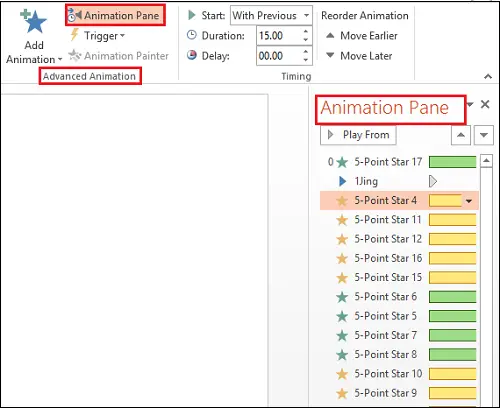
Select every animation heading, right-click the mouse button and choose ‘Start with Previous’ option.
For a richer experience, you can insert a short music clip that plays with the animation. To do so, go to the ribbon, choose the ‘Insert’ option, and in the upper right-hand corner, select ‘Audio’.
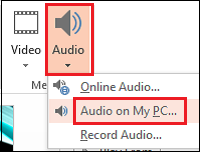
Here, you will be presented with 2 options
- OnlineAudio
- Audio on my PC
Select the desired option. Once done, you will see an audio icon placed on your slide.
Now, for adding text to your PowerPoint Greeting Card, select ‘Insert’ option, choose ‘Add Textbox’. Enter your message and apply suitable font and animation of your choice from the animations pane.

That is it! You have just finished creating an animated greeting card using PowerPoint. You can add GIF animations and flash animations to your PowerPoint file.
How do you make an animated card in PowerPoint?
To make an animated card in PowerPoint, follow this article step by step. Add a shape and apply animations. You can find them in the Animations tab. Following that, you would be able to customize or personalize the shape, animation, and other objects you want to include in the card.
How do you make a digital greeting card in PowerPoint?
To make a digital greeting card in PowerPoint, the steps above can help. Whether you want to create a still or animated greeting card, both are possible with the help of PowerPoint. To create an animated card, use the ANIMATIONS tab.
