
With Microsoft Office applications, you can create a simple To Do list or make a checklist in Microsoft Word and check off items electronically. The underlying trick for doing so is very simple and takes no more than a few minutes. The result looks something like the illustration below.
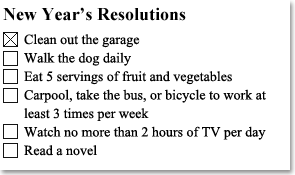
Having said that, if you just need a checklist you can print, you can make a list with a box for each item to check off on paper.
Make a checklist in Word
You can use boxes that you can check off in Word. To do so, you first have to insert the check box form field into your document. Here’s how you do it!
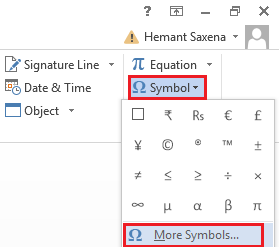
Open a Word document, go to the “Insert” tab and choose “Symbol”
Next, from the symbol drop-down list, choose “More symbols”.
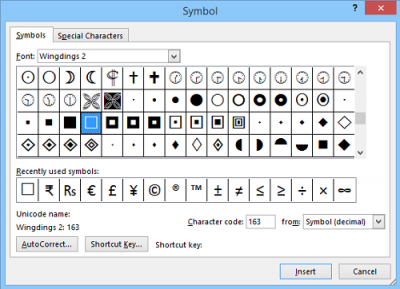
Then, the “Symbol” window shows up. Here, select the checkbox and click the “Insert” button. This ends part 1. I am saying so because in this part you cannot check the box. You need to do a bit of more manual work. That completes the second part.
Activate the Developer tab
Developer tab in the ‘Ribbon menu’ of Word supplies the option for checking the box in Word. Use the following procedure for it.
Assuming you have the Word file opened, right-click anywhere on the Ribbon and choose the “Customize Ribbon” option.
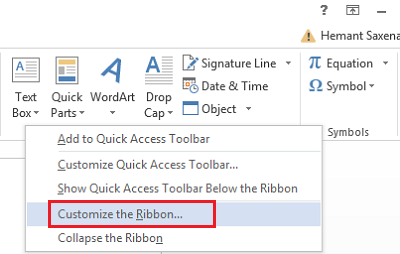
Next, select the “Developer” option within the “Customize the Ribbon” drop-down list and hit “OK”.
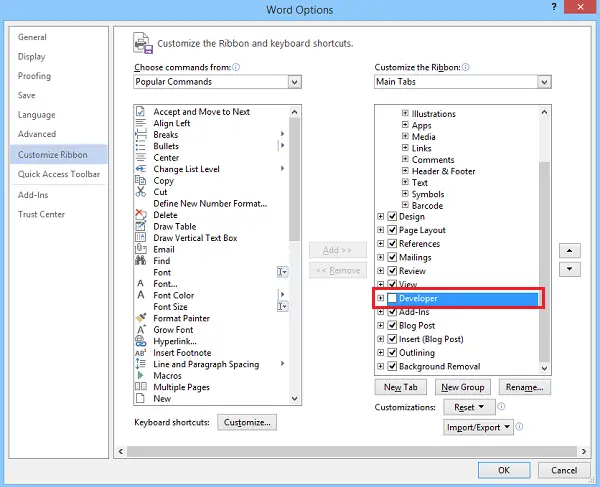
You should find the Developer tab added to the ribbon. Click on the “Developer” tab and use a customized bulleted list or a content control to insert checkboxes into a Word document.
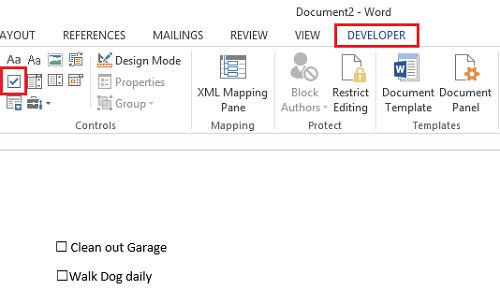
Double click against any to-do/don’t-dos, followed by a single left-click to check the box.
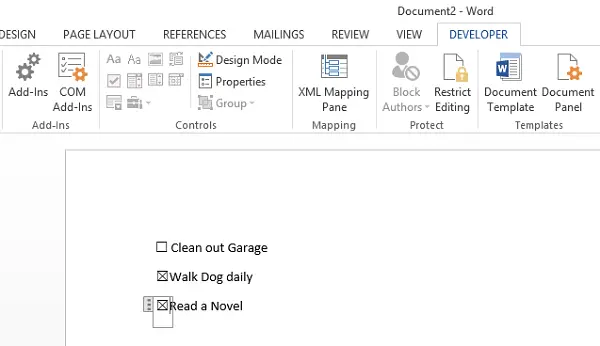
That’s it!
Please note that if you cannot check off an item electronically, it may be formatted for printing only or locked.
How do you create a checklist in Word?
To create a checklist in Microsoft Word, follow the aforementioned steps. Although there is no direct option, you need to create the checkboxes by adding regular boxes. For that, you can take the help of the Symbol option. Here you can find several symbols, including the checkbox.
How do you make a checklist column in Word?
To create a checklist column in Word, insert the checkboxes first. To do that, follow the steps mentioned above. Then you can place all the checkboxes in order and use the bullet-point option. Alternatively, you can insert a table and place a single checkbox in a single column. See this post if you would like to know how to create a Checklist in Excel.
