
If you encountered an issue where you lost Microsoft Edge passwords after a recent update, trust me, you are not alone. Some people have been facing this issue. In this post, we are going to talk about solutions and workarounds that you can use to recover the lost MS Edge passwords.
Lost Microsoft Edge passwords after recent update

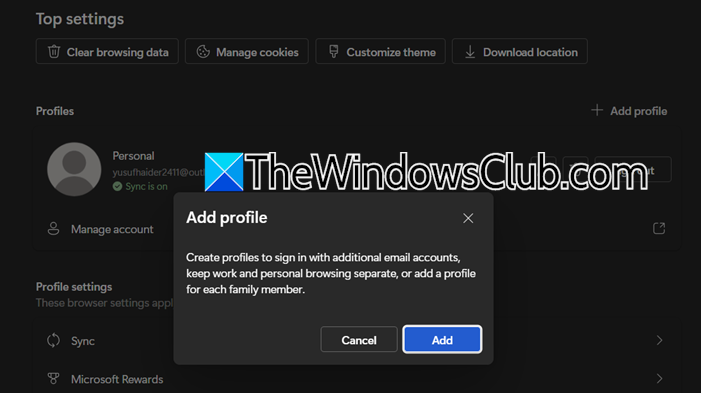
- In Microsoft Edge, click on the three dots and click on Settings.
- In the Profiles tab, click on Add profile > Add.
- Then sign in with your Microsoft account when prompted.
After the new profile is active, try saving a new password on a test website or check if your existing passwords are now visible in edge://settings/passwords. If passwords are present and saving works, the issue was isolated to your old profile.
You can continue using the new profile. You may need to reinstall browser extensions and adjust some settings. The old profile can be removed later from Settings > Profiles if desired.
Hopefully, with the help of these solutions, your issue will be resolved.
Read: Clear all Credentials from Credential Manager in Windows 11
How do I restore passwords in Microsoft Edge?
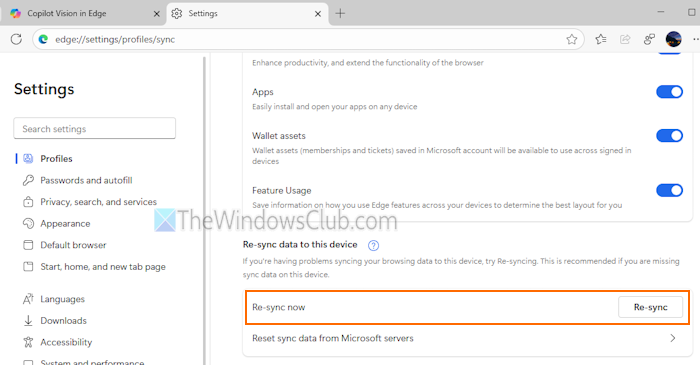
You can restore your passwords by first trying a sync reset in Edge settings, which can pull a clean copy from the cloud. If that fails and you have an offline device with the passwords, export them from there and import the file to your main PC. For future safety, regularly export your passwords to a secure CSV file as a backup.
Read: Microsoft Edge not saving passwords on Windows 11
Is Microsoft deleting passwords?
No, Microsoft is not intentionally deleting your passwords. The loss is typically an unintended side effect of a software update, a sync conflict between devices, or a corrupted local browser profile. These technical glitches can make it appear as if the data has been deleted, when it is often a temporary access issue that can be resolved. Microsoft generally aims to preserve user data through these processes.
Also Read: Microsoft to remove Password option for Sign-in in Windows 11.
