
Complaints of Lost Ark crashing are circulating among gamers and have reached us. The game is crashing and leaving gamers frustrated. It may or may not pop up with error messages or codes, but the end result is the same. If Lost Ark keeps crashing on your Windows 11/10 PC, this article will guide you on how to resolve the issue.
Why does ARK keep crashing on my PC?
Many reasons cause Lost Ark to crash, such as corrupted files and outdated graphics drivers. However, first, please check the Lost Arc System Requirements that we have mentioned below. If your system meets the minimum requirements, you can continue troubleshooting the error using the provided solutions.
System Requirements to run Lost Ark
These are the System Requirements to run Lost Ark.
- OS: Windows 11/10 (64-bit only)
- Processor: Intel i3 or AMD Ryzen 3
- RAM: 8 GB
- GPU: NVIDIA GeForce GTX 460 / AMD Radeon HD 6850
- PIXEL SHADER: 5.0
- VERTEX SHADER: 5.0
- FREE DISK SPACE: 50 GB
- DEDICATED VIDEO RAM: 1024 MB
Ensure that your computer meets the given requirements to play the game.
Fix Lost Ark keeps crashing on PC
Users have reported that Lost Ark frequently crashes on both Windows 11 and Windows 10. Our solutions cater to both versions of Windows, but first, you need to ensure that you are running the latest build of these Operating Systems. So, check for updates, and keep your PC updated. Having done that, try these suggestions:
- Repair game files
- Kill background programs
- Update your Graphics driver
- Check your Antivirus
- Turn off Overlays
1] Repair game files
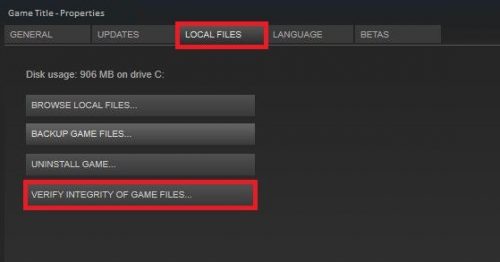
Corrupted files are a repeated cause for game-crashing issues. So let’s verify and repair the problem to get the game back on track.
- Open Steam and search Lost Ark in your LIBRARY.
- Right-click Lost Ark and go to Properties.
- In the LOCAL FILES tab, select VERIFY INTEGRITY OF GAME FILES.
This procedure may make you wait. However, if there are corrupted files, then Steam will automatically replace them for you. Finally, relaunch the game and check if it is still affecting your gameplay.
2] Kill background programs
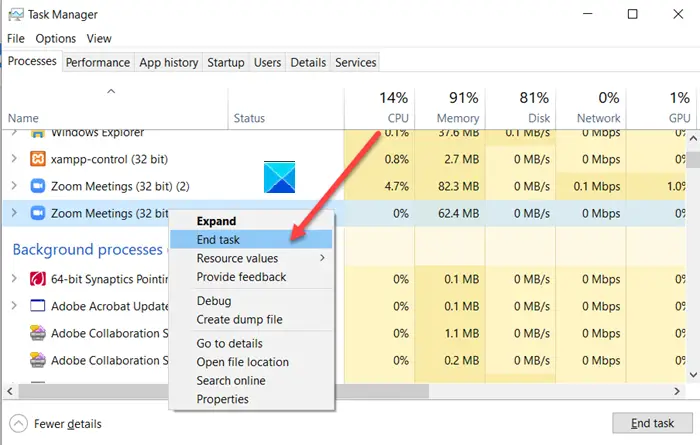
Sometimes the programs interfere with the games’ functioning and lead to crashing. At other times, they can consume your RAM, resulting in less RAM being allocated to the game in question. It’s best to kill these programs before starting the game.
1. Open Task Manager by clicking Ctrl+Shift+Esc.
2. In the Processes tab, see the programs that are taking up resources.
3. Right-click on it and select End Task.
Now relaunch the app and see if it still persists.
3] Update your Graphics Driver
Don’t go looking for fixes; start by checking the status of your Graphics Driver. If you haven’t updated it recently, update your Graphics Driver. Then restart your computer, restart your game, and see if the issue persists.
4] Check your Antivirus
Your Antivirus is an active participant in leading the game to crash. It mostly occurs when your antivirus software mistakenly identifies game files as viruses. So what you can do is either enter the steam client as a whitelist in antivirus or temporarily disable the software. To accomplish this, follow the steps outlined below.
- Search out “Windows Security”.
- Go to Firewall & network protection.
- Click Allow an app through the firewall.
- Allow Steam through both Public and Private networks
Now, open the game, and see if it’s still crashing or not.
5] Turn off Overlays
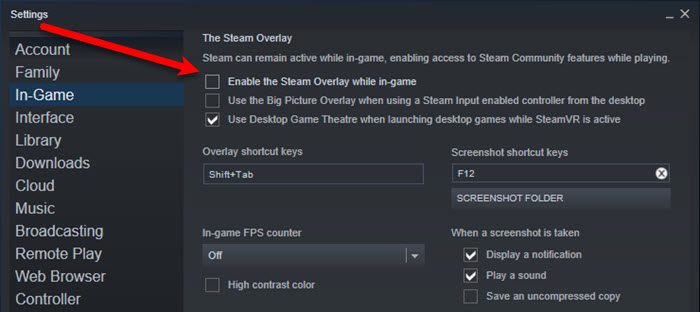
Perhaps the game is crashing due to overlays. To prevent this, try switching it off and see if it still crashes.
There are two scenarios here, check whether all the games in Steam are crashing, or only Lost Ark is crashing. So, choose which one of the situations.
For the former, open Steam and then go to Steam > Settings. Go to the In-game tab, and untick Enable the Steam Overlay while in-game. If only Lost Ark is crashing, go to Library in Steam, right-click on Lost Ark, select Properties, then untick Enable the Steam Overlay while in-game.
Hopefully, you will be able to resolve the issue with the mentioned solutions.
Why is ARK crashing when I load single player PC?
There are mainly three reasons why ARK is crashing on your PC. First, if you do not have enough storage to load the game on your computer, it could also arise due to having a low amount of RAM. Second, if your game is corrupt or has some corrupt files, you can encounter the same issue. Third, if you have an outdated graphics driver, you may encounter the same issue.
Also check: Games crashing after upgrading to the latest version in Windows 11.
