
If the Laptop Lid Open Action is missing in Windows 11/10, then you can enable the Lid Open Action using POWERCFG. Using the Laptop Lid Open Action, you can make your laptop turn on automatically after opening the lid – or set any other action! But what if you find that the option Lid Open Action is missing from your Windows laptop?

Laptop Lid Open Action is missing in Windows 11/10
It may happen that you don’t get the “Laptop Lid Open Action” in the Power Options window.
In order to show the Lid Open Action, we need to make use of the powercfg command line.
Disable or Enable Lid Open Action using POWERCFG
Open Command Prompt as an administrator on your Windows 11/10 PC.
Once the command prompt opens, just type the command below and hit Enter to execute it.
powercfg -attributes SUB_BUTTONS 99ff10e7-23b1-4c07-a9d1-5c3206d741b4 -ATTRIB_HIDE
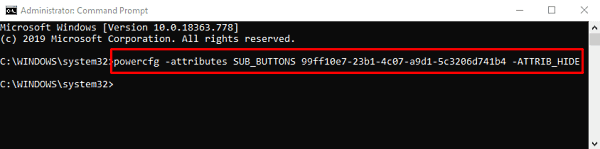
Now, navigate to the Power Options window again and check whether it is showing the “Lid Open Action” under the “Power buttons and lid” category.
If you ever need to hide the “Lid Open Action” option, then simply open an elevated command prompt and type the following command line.
powercfg -attributes SUB_BUTTONS 99ff10e7-23b1-4c07-a9d1-5c3206d741b4 +ATTRIB_HIDE
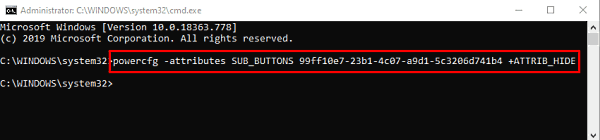
Press the Enter key and you are done.
This should resolve the issue for you.
Related: Change what Power Buttons do option is missing
How do I make my laptop turn on when I open the lid?
In this guide, we have explained an easy method to change what the Windows laptop does when you open the lid. We will also show you how to hide or show this Lid open action setting in the Power buttons window.
When I close the lid option missing?
If Choose what closing the Lid does option is missing in Power Options in Windows 11/10, you can use the Registry Editor or Group Policy Editor to fix the issue.
