
If you plan to use Virtualization in Windows 11/10 (Sandbox or Hyper-V), the computer should support it on the hardware level. Most of the new computers have this feature, but then there are two types — Intel VT-X and AMD-V. Intel VT-X is hardware virtualization with an Intel-powered PC, while AMD-V is for AMD CPU. Both support 64-bit virtual machines.
Find if your computer supports Intel VT-X or AMD-V
It doesn’t matter which hardware virtualization your computer supports, but if you still want to know which one it has, there are multiple ways.
First, find out whether your CPU is Intel or AMD. Use WIN + X and then choose System. This opens the About section, which lists the Processor type. Now let’s dive into whether your computer supports virtualization and has it enabled.
- Task Manager CPU details
- Securable Tool
- Check if you have Intel VT-X
- Using Processor details
- Run Intel Utility
- Check if you have AMD-V
1] Task Manager CPU details
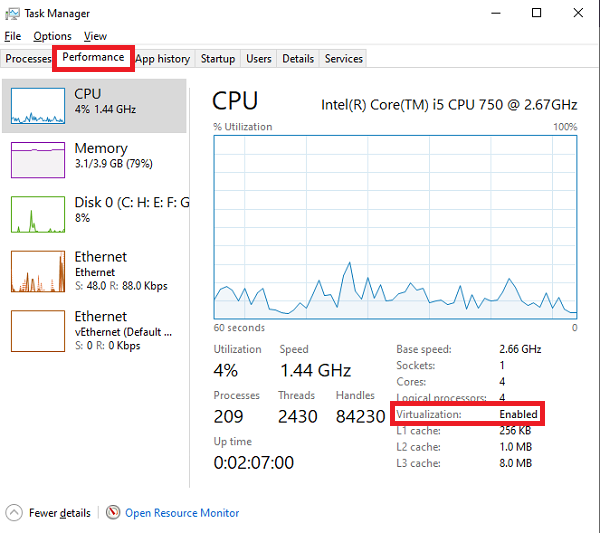
- Use Ctrl + Shift + Esc to launch Task Manager
- Switch to Performance Tab, and select CPU
- On the bottom right of the section, check if you have Virtualization as enabled
Related: How to know if my Windows PC supports Virtualization?
2] Use Securable software
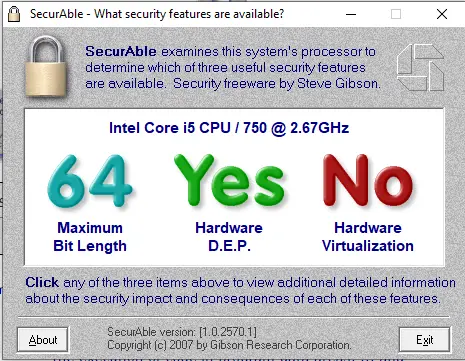
Securable is a free tool that can query the system processor and find out three significant things. 64-bit support, hardware support to prevent malicious code, and virtualization. It is a standalone executable file. All you need to do is run it.
Read: How to enable or disable hardware virtualization.
3] Check if you have Intel VT-X
A] Using Processor details
- Use Win + S to open the Start Menu search box and type System Information
- Under System Summary > Processor, note down the Processor name.
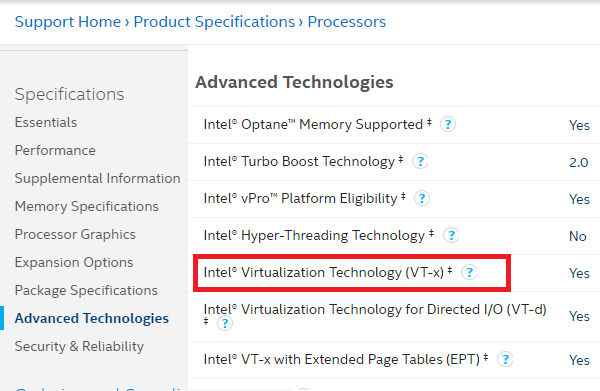
- Open Intel’s product specification site.
- Enter the number of the processor in the search box on the right side.
- In the processor product page under Advanced Technologies, check to see if Intel® Virtualization Technology (VT-x) is supported.
B] Run Intel Processor Identification Utility
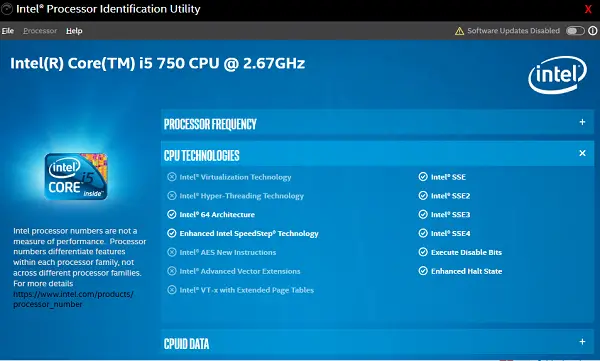
- Download, install and run the Intel Processor Identification Utility.
- Double-click the Intel Processor Identification Utility on the desktop to open.
- Select the CPU Technologies tab.
- Check to see if the Intel Virtualization Technology box is checked.
- If checked, then Intel Virtualization Technology is enabled, and Intel VT -x with Extended Page Tables is equipped.
4] Check if you have AMD-V
It’s hard to figure this out clearly as there is no clear section on the AMD website as Intel. The only utility available can check if you have Hyper V. Download and run the AMD-V with RVI Hyper V Compatibility Utility to check.
I hope these methods are good enough to help you determine if you have Intel VT -or AMD-V.
How do you find out if my computer is 32 or 64-bit?
You can figure it out by checking your processor specifications, or on a Windows PC, go to Settings > System > About. Under Device specifications, see System type. If it says 64-bit, then it’s 64-bit architecture. Else, it’s 32-Bit.
Does Windows 10 use x64 or x86?
It supports both architectures, but on x86 PCs it’s limited to 4GB of RAM or less. If your PC needs more RAM, then you need to switch to x64. That said, Windows 11 supports only x64 architecture.
