
If you use Word or Excel to edit a document or spreadsheet on your iPad, you can make use of add-ins. Here is how to install and use add-ins in Microsoft Word and Excel on iPad to perform various tasks quickly. Although the list is not very long, it includes some essential add-ins that might be helpful to you.
While editing a file in Microsoft Word or Excel, we often need some options that are not available by default. For example, you want to translate a word or phrase in your document. Instead of copying it to Google Translate, you can install an add-in to get it done.
While this article includes screenshots of Microsoft Word, you can apply the same on Microsoft Excel for the iPad as well.
How to install and use Word and Excel add-ins on iPad
To install add-ins in Microsoft Word and Excel for iPad, follow these steps-
- Open a document in Word for iPad.
- Go to the Insert tab.
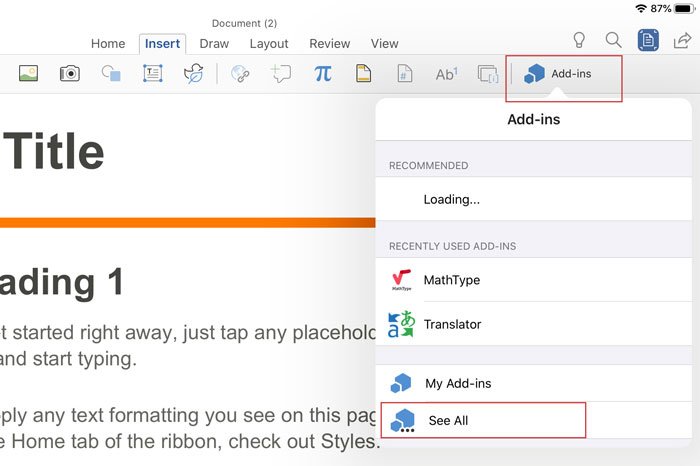
- Tap on the Add-ins button.
- Select See All from the list.
- Tap on the Add button that you want to install.
- Select the Continue button.
- Wait till it finishes the installation.
To get started, open a document in Microsoft Word on your iPad. Then, switch from the Home tab to Insert tab, and tap on the Add-ins button. It should be visible on the top menu bar. From the list of options, select See All.
Now you can see the Office Add-ins window on your screen. From here, choose an add-in that you want to install and ta the Add button.
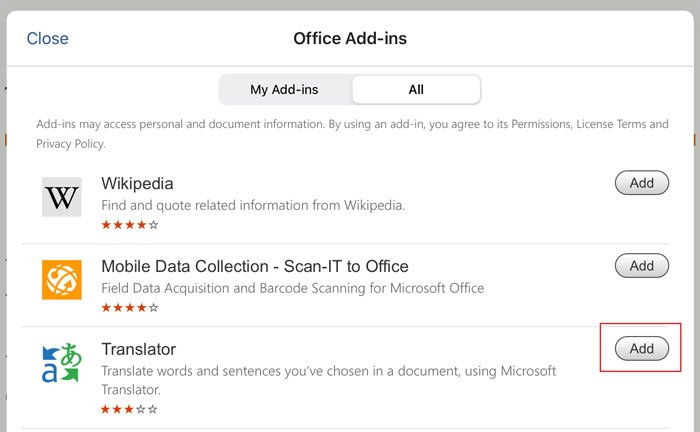
After that, you might need to agree to the terms and conditions to complete the installation. Once you do that, you can find the add-in on your screen and use it as needed.
Uninstall or remove add-ins from Word or Excel for iPad
If you installed an add-in earlier but no longer need it, you can uninstall it from Microsoft Word or Excel for iPad. However, there is a problem with the uninstallation process. It occurs because there is no direct option to remove an add-in from Microsoft Office apps for iPad.
The only way to remove the add-in is by uninstalling the app from your iPad. If you are okay with the process, you can use the traditional method to uninstall the app from your device. Then, you can reinstall it from the App Store.
If you ignore the uninstallation-related drawback, add-ins seem to be a handy function included in Microsoft Word or Excel for iPad.
I hope this article is helpful to you.
