
If the iPad is not recognized by Windows 11/10 PC, you can follow these solutions to get rid of this problem. No matter why Windows is not detecting the iPad, you can fix the issue within moments if you follow the tips mentioned below. Whether you use Windows 11 or Windows 10, the same steps apply.
iPad not recognized by Windows 11 PC
If the iPad is not recognized by Windows 11/10 PC, do the following:
- Unlock your iPad
- Trust the computer
- Restart iPad and PC
- Remove all USB devices
- Update iTunes to the latest version
- Install/Update driver
To learn more about these steps, continue reading.
1] Unlock your iPad
Windows doesn’t detect the iOS or iPadOS devices when they are locked. You can lock your device once it is connected, but you must unlock your iPad when you try to connect it for the first time. Therefore, if Windows 11/10 does not detect your iPad, it is recommended that you unlock your device and try again.
2] Trust the computer
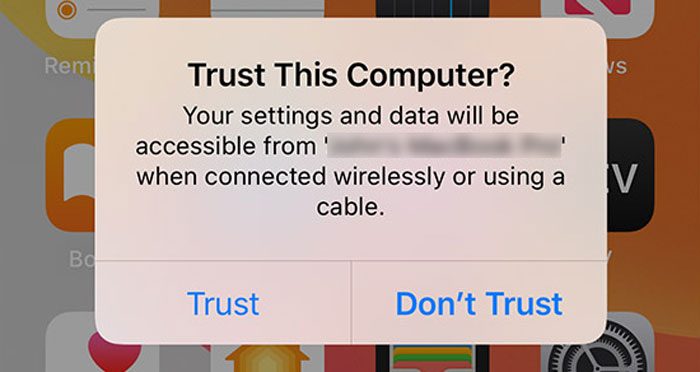
When you connect your iPad to the Windows PC via USB cable, you need to tap on the Trust option. It allows your computer to access the iPad. However, if you haven’t done that yet or skipped this part, you won’t be able to use your iPad on your Windows computer. If so, you can unplug your device and plug it in again to find the same window. This time, you need to tap on the Trust option.
3] Restart iPad and PC
At times, a simple restart can fix countless problems. If there is a bug, glitch, or anything else, you can fix it by restarting your device. Whether the problem lies with your computer or iPad, you can restart both to resolve the issue within moments. Even after selecting the Trust option, if it still does not work, restart both devices and try again.
4] Remove all USB devices
If multiple USB devices are connected to your PC, it is recommended that you remove them all and try again. At times, different USB devices may cause various issues. If so, this solution will work.
5] Update iTunes to the latest version
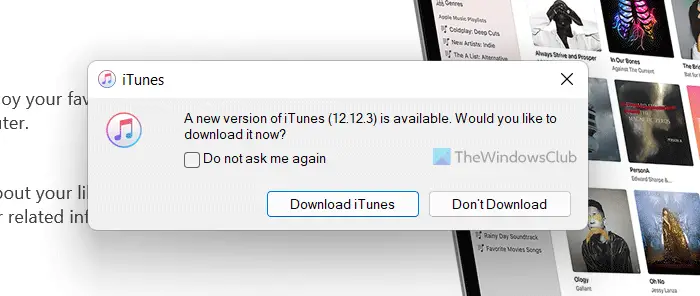
iTunes plays a vital role in connecting the iPad to Windows PC. You need iTunes to transfer audio and other files between devices. If you haven’t updated your iTunes for a very long time, it could cause a similar issue. Therefore, try updating the iTunes app first before reconnecting.
6] Install/Update driver
Earlier, it was possible to update the driver using Device Manager. However, now it is even easier than that. You can install optional updates using Windows Update or Windows Settings. To update the corresponding Apple driver, you can follow this guide in Windows 11.
Hope something here has helped you. If none of the aforementioned solutions worked for you, you could try the device with another computer as well. Sometimes, a bug can cause all the issues.
Read: Windows computer does not recognize iPhone.
How do I get Windows to recognize my iPad?
To get Windows 11/10 to recognize your iPad, you need to enable the connection on your iPad first. Often, this simple setting can cause major issues, and you end up wasting your time. Apart from that, you can reinstall the iTunes app, change the lighting cable, etc.
Why won’t my PC recognize my iPad?
There could be several reasons why your PC is not recognizing your iPad. If you do not trust the computer after connecting your iPad, you won’t be able to use your iPadOS device with a Windows 11/10 PC. Also, you can try reinstalling iTunes, which is vital for transferring data between iPad and Windows.
