
Remembering things that we need to do is very important in this busy life. Keeping track of important things which we need to do on a daily basis is really a challenging task for everyone of us. As we carry mobiles and other smart devices wherever we go, we have a solution for this.
Microsoft OneNote allows us to keep track of all these important things and also makes us recall them when needed. OneNote allows us to capture, organize and recall anything and makes our tasks easy. We can take notes, prepare a checklist and To-Do list, save audio files, and much more using OneNote. In this post, we will see how to use Handwriting recognition and OCR features of OneNote for iPad.
OneNote iPad Handwriting recognition & OCR feature
Microsoft recently brought two new updates to OneNote for iPad. These include handwriting and OCR features. The handwriting feature for OneNote is the most anticipated feature for iPad and is available on almost all major platforms. Next comes the Optical Character Recognition (OCR) feature in OneNote, allowing you to search text in images stored on OneDrive. This OCR feature works in OneNote online and across Phobes, Windows, Mac, and iOS.
Drawing and Handwriting feature in OneNote for iPad
Many OneNote users have been asking and waiting for handwriting features for OneNote, and they are now available. You can use this feature for Windows, Android and iPad. On iPad, you can start writing by just tapping on the newly added “Draw” tab on the ribbon added. Later, you need to select a pen, highlighter or marker and sketch, draw or write on your notes to your best.
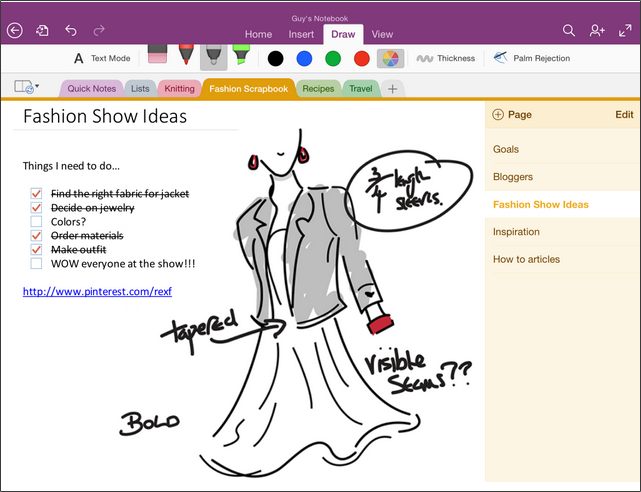
OneNote for Windows tries to give a natural interface for users. The OneNote team is also trying to understand how people use pens. We often mark or highlight important points and keywords with some colors to identify them quickly. Considering this, OneNote has provided us with the colors under the “Draw” tab along with the pens and markers.
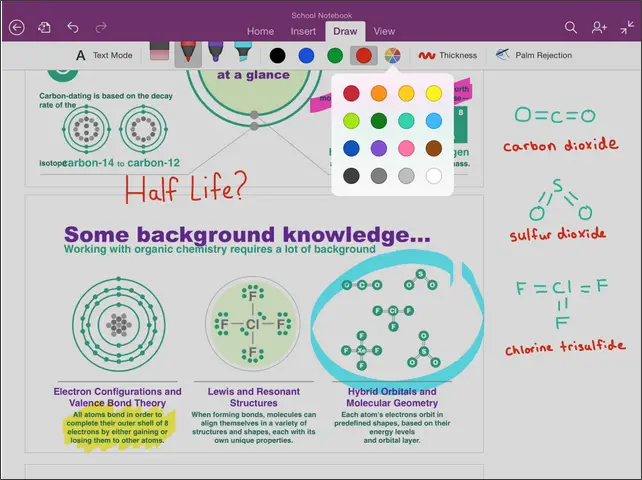
It provides us with front-and-center four classic colors and you can get 16 more colors by clicking on any one colored circle.
OneNote provides you with an unlimited digital canvas. It keeps expanding automatically as you write, and it provides you with as much space as you want without clutter. You can even zoom in and zoom out, unlike normal paper. If you want to work on small details, use the zoom-in option, and if you want to see the overall notes, use the zoom-out option.
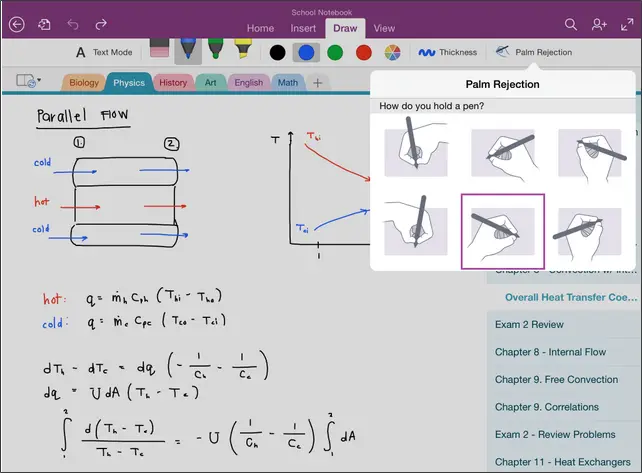
OneNote allows you to write easily by just resting your palm on the screen, and OneNote for iPad detects it. It works best for both right and left-handed writers, and it does when you set it up.
For that, click on the Palm Rejection option from the ribbon and it shows you some options. Select the one which resembles your style of holding the pen and start writing.
Read: How to convert Handwriting to Text in OneNote.
Search text within images in OneNote
OneNote’s new OCR features allow you to search for text in images and scanned documents saved to OneDrive. We often scan receipts, recipes, address cards, and more using mobile scanner apps. We even use some apps and extensions to save web pages, scanned PDF files and more to OneNote on OneDrive. Using the OCR feature in OneNote, we can start typing the text in the search box, and it shows results for matching text more quickly.
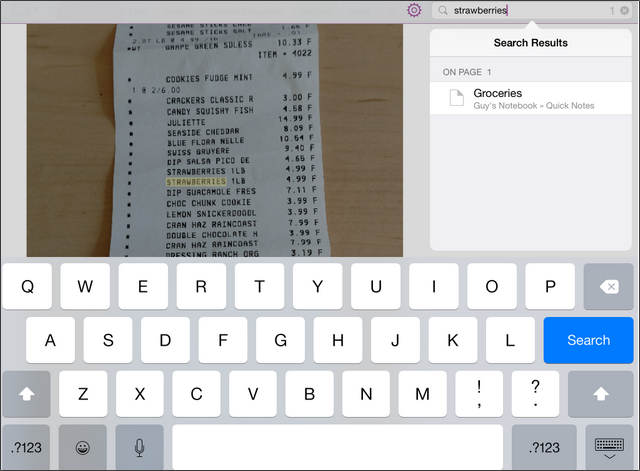
Just scan any document with text and save it to a notebook in OneDrive. Search for the text present in that scanned document, and the document will appear in the results within a few minutes. OCR features work in OneNote on any platform, including OneNote Online. OneNote supports and recognizes a good number of languages, and more are being added in the coming days.
If you have anything to add, please share it with us in the comments. You can download OneNote for iPad and all other devices too by visiting its home page.
Now read: How to extract Text from Image using OneNote.
