
If Hyper-V says RPC server unavailable, it is safe to say we are dealing with a management-plane failure, not a virtual machine failure. It means Hyper-V Manager cannot reach the Hyper-V Virtual Machine Management service (vmms) through RPC/WMI. In this post, we will see what you can do to resolve the issue.
RPC server unavailable. Unable to establish connection between ‘HYPERV-HOST’ and ‘ADMIN-PC’.
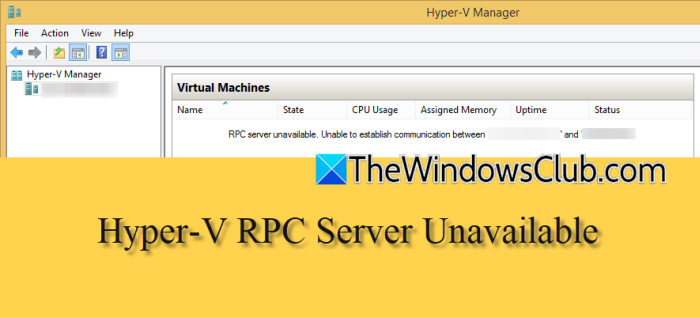
Hyper-V RPC server unavailable, Unable to establish connection
Hyper-V Manager communicates with the Hyper-V Virtual Machine Management service using RPC and WMI. If the vmms service is stopped, the underlying RPC, DCOM, and WMI services are disabled, the Windows Firewall blocks Hyper-V’s dynamic RPC ports, or the Hyper-V WMI namespace is damaged, Hyper-V Manager will show RPC server unavailable instead of a proper response. This issue often happens after Windows 11 updates, when Fast Startup is enabled, or after manual changes to the service.
If Hyper-V’s RPC Server is unavailable, follow the solutions mentioned below.
- Start the Hyper-V Virtual Machine Management service
- Verify RPC, DCOM, and WMI services
- Enable Hyper-V and WMI firewall rules
- Repair the WMI repository
- Rebuild the performance counter library and restart the vmms service
- Reinstall the Hyper-V feature
Let us talk about them in detail.
1] Start the Hyper-V Virtual Machine Management service
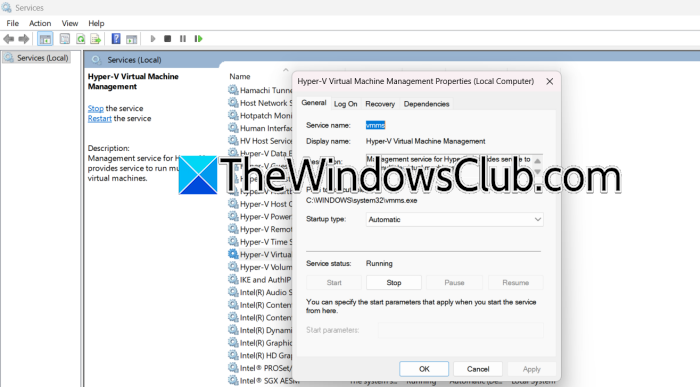
The vmms service is the RPC endpoint that Hyper-V Manager connects to. If it is stopped or disabled, the connection fails before any VM data is read. First, check the service status to see if that helps. To do so, follow the steps mentioned below.
- Hit Win + R, type services.msc, and press Enter.
- Look for Hyper-V Virtual Machine Management.
- Right-click and select Properties.
- Set its startup type to Automatic and click Start.
- Also set Hyper-V Host Compute Service to Automatic and start it.
Finally, reopen Hyper-V Manager and see if that helps.
2] Verify RPC, DCOM, and WMI services
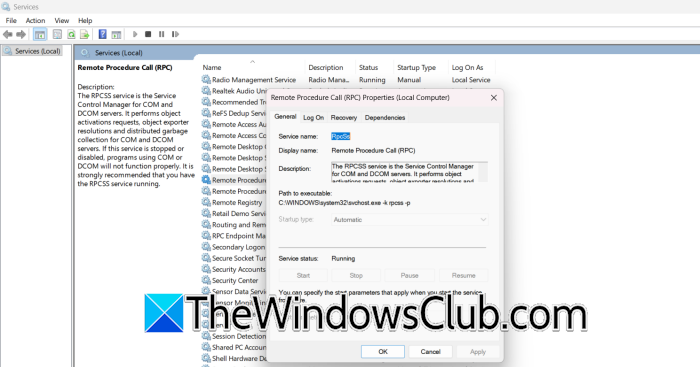
VMMS depends on Remote Procedure Call, RPC Endpoint Mapper, DCOM Server Process Launcher, and Windows Management Instrumentation. If any of these are stopped, the service cannot register its RPC interface, so clients get RPC Server Unavailable. So, open services.msc, and check for the following services.
- Remote Procedure Call (RPC)
- RPC Endpoint Mapper
- DCOM Server Process Launcher
- Windows Management Instrumentation
Set each to Automatic and start them if stopped. Finally, restart Hyper-V Virtual Machine Management, then test Hyper-V Manager.
3] Enable Hyper-V and WMI firewall rules
Hyper-V management traffic uses RPC dynamic ports 49152–65535. If the Hyper-V or WMI firewall groups are disabled, RPC calls are dropped before they reach the service. Open PowerShell as Administrator, then run the following command.
Get-NetFirewallRule -DisplayGroup "Hyper-V" | Set-NetFirewallRule -Enabled True
Get-NetFirewallRule -DisplayGroup "Windows Management Instrumentation (WMI)" | Set-NetFirewallRule -Enabled True
Restart the Hyper-V Virtual Machine Management service or reboot. Finally, reconnect in Hyper-V Manager.
4] Repair the WMI repository
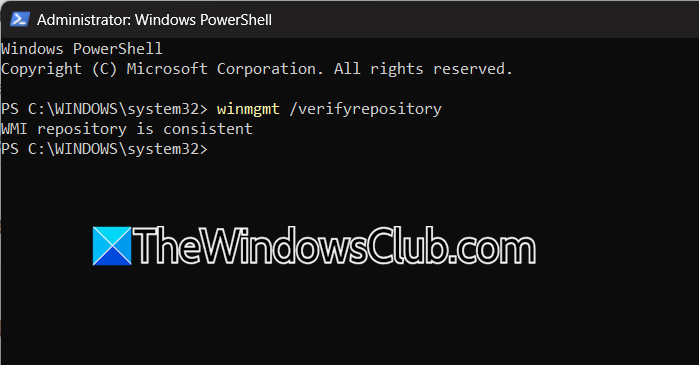
Hyper-V Manager reads the root\virtualization\v2 WMI namespace. A corrupted WMI repository makes those RPC-backed WMI calls fail with RPC Server Unavailable. First, open PowerShell as Administrator and then run the following PowerShell command.
winmgmt /verifyrepository
If it reports an inconsistency, run the following command.
winmgmt /salvagerepository
Reboot your machine and try connecting to it. Hopefully, it will do the trick for you.
5] Rebuild the performance counter library and restart the vmms service
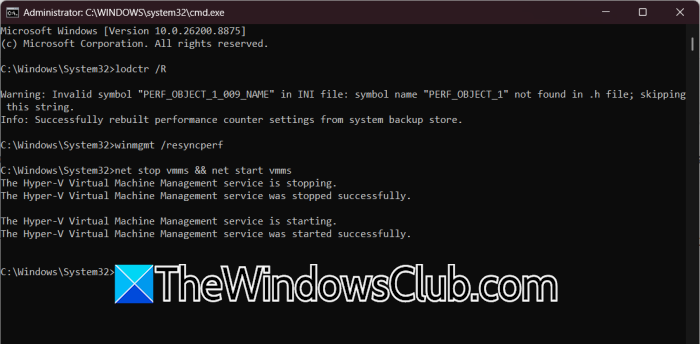
The Hyper-V Virtual Machine Management service loads performance counter definitions when it starts. If those definitions are corrupted after a Windows 11 update or driver change, the vmms service can crash or fail to start. Without a running vmms service, no RPC endpoint is registered, so Hyper-V Manager returns RPC Server Unavailable.
Open Command Prompt as Administrator. Then, run the following command to rebuild the performance counter registry values.
lodctr /R
Wait for confirmation that the performance counter settings were rebuilt successfully. Then, run the following command to resynchronize WMI performance counters.
winmgmt /resyncperf
Restart the Hyper-V Virtual Machine Management service using the command: net stop vmms && net start vmms
Reopen Hyper-V Manager and connect to the local server.
6] Reinstall the Hyper-V feature
We will have to remove and re-add Hyper-V to rebuild the vmms service registration, WMI classes, and management binaries. Do keep in mind that we are not deleting any existing VM files and configurations.
To do so, open PowerShell as an administrator and run the following command.
DISM /Online /Disable-Feature /FeatureName:Microsoft-Hyper-V-All
Reboot when prompted.
After removing the feature, run the following command to add it again.
DISM /Online /Enable-Feature /FeatureName:Microsoft-Hyper-V-All /All
You will have to reboot again and see if that helps.
That’s it!
Read: The remote procedure call failed error while using DISM
How to fix 1722 The RPC server is unavailable?
To fix error 1722, The RPC server is unavailable, open services.msc and ensure Remote Procedure Call (RPC), RPC Endpoint Mapper, and DCOM Server Process Launcher are set to Automatic and running. Check Windows Firewall to allow RPC port 135 and dynamic ports 49152–65535. Restart the failing application or service, and reboot the machine if the problem persists.
Read: How to fix Remote Procedure Call failed errors & problems
How do I restart the RPC service?
To restart the RPC service, open services.msc, locate Remote Procedure Call (RPC), right-click it, and select Restart. However, because many system services depend on RPC, Windows may prevent a direct restart. Instead, restart RPC Endpoint Mapper and DCOM Server Process Launcher, or simply reboot the computer. Avoid stopping the RPC service manually, as this can make the system unstable and require a forced shutdown.
