
Wi-Fi, also known as Wireless Local Area Network (WLAN), is the most popular device used for connecting computers to the internet in homes, schools, and small businesses. A Wi-Fi network is made compatible with the computer through Wi-Fi network drivers. Network drivers are the software that enables communication between the operating system and the wireless network. In this post, we will guide you on how to view Wi-Fi network driver information on your Windows 11/10 computer.
The Wi-Fi network drivers consist of instructions respective to the Wi-Fi device connected to the system. It can be installed from the internet. Compatible network drivers can be easily downloaded from the internet; it is very important to choose the right driver for the smooth functioning of a wireless device. The process below will help you get detailed information regarding the wireless devices connected to your computer
View Wi-Fi Network Driver information on Windows 11
If you are an advanced user, there must be multiple wireless devices connected to your system. If you want to dig deeper, you may wish to view Wi-Fi network driver info on Windows 11/10. So, to check the Wi-fi network driver information on your computer, follow any of the below methods.
1] Using Command Prompt
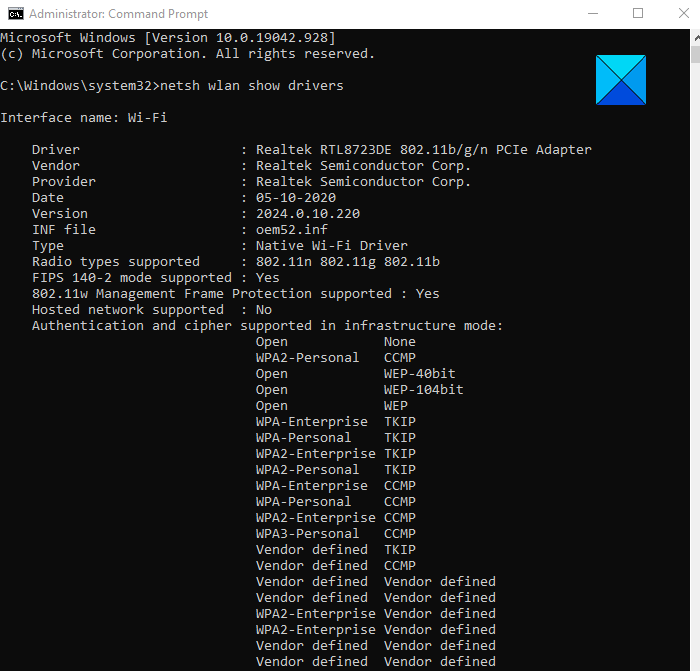
To get it started, right-click Start and select Run to open the dialog box. Then type cmd in the text box and press Ctrl+Shift+Enter to open the Command Prompt with admin access.
If User Account Control (UAC) prompts you for permission, click the Yes button to continue.
In the Command Prompt window, type the following and hit Enter:
netsh wlan show drivers
The required information will be displayed.
Read: How to generate a WiFi History or WLAN Report.
2] Using PowerShell
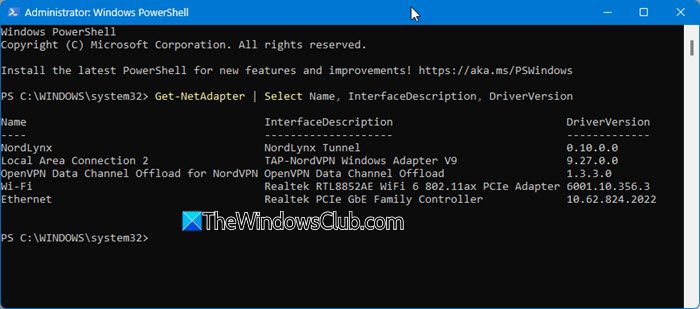
Open PowerShell as Administrator and run the following:
Get-NetAdapter | Select Name, InterfaceDescription, DriverVersion
This lists all network adapters with their driver versions.
3] Using Device Manager
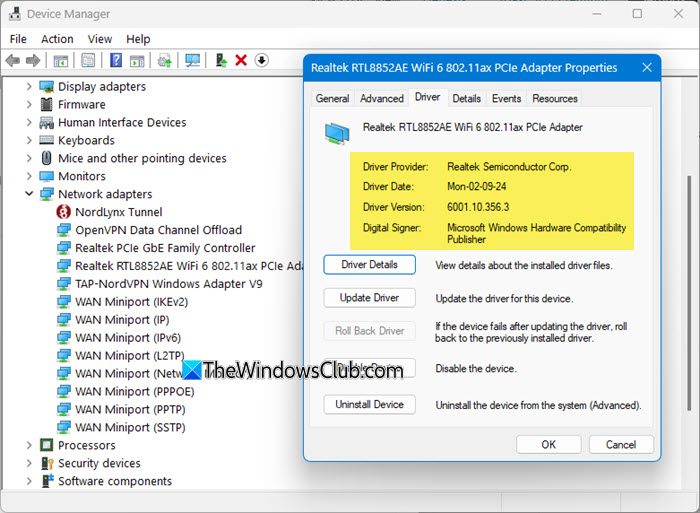
Open Device Manager and expand Network adapters.
Right‑click your Wi‑Fi adapter and choose Properties.
Under the Driver tab, you’ll see details such as:
- Driver Provider
- Driver Date
- Driver Version
- Digital Signer.
How to check the Network adapter capabilities in Windows 11
If you want to check the adapter capabilities, then type the following command and press Enter:
netsh wlan show wirelesscapabilities
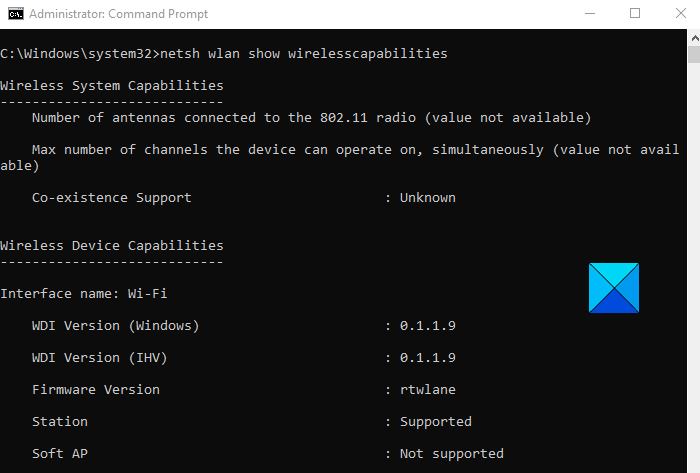
This will give you the list of wireless devices connected or not connected to your operating system. It helps separate the desired wireless device from unwanted connections to your operating system.
The information will also include the version and device details to better understand the driver and the adapter’s genuine support.
Read: How to view Wi-Fi Network Adapter settings on Windows 11.
That’s it. Hope it helps.
Related: How to install WiFi drivers for Windows 11.
