
In this post, we will show you how to use Windows Backup for Organizations. Microsoft has recently announced the general availability of its new feature: Windows Backup for Organizations. This feature allows organizations to seamlessly back up Windows Settings and Microsoft Store apps, and restore them on a Microsoft Entra-joined device.
What is Windows Backup for Organizations?
With Microsoft ending standard support for Windows 10 on October 14, 2025, many enterprises are preparing for a large-scale migration from Windows 10 to Windows 11. Windows Backup for Organizations is designed to ease this transition by preserving user settings and Microsoft Store apps. This ensures that the device remains consistent for the user after a reset or upgrade, maximizing productivity and minimizing downtime.
At present, Windows Backup for Organizations is an opt-in feature and is disabled by default.
Key Features of Windows Backup for Organizations
- Quickly restore settings and Microsoft Store apps after a reset, reimage, or device change.
- Leverages the Cloud + Entra ID for a more modern, automated approach.
- Reduces IT overhead while supporting remote and hybrid work scenarios.
How to use Windows Backup for Organizations
To use Windows Backup for Organizations, first ensure that certain prerequisites are met and backup policies are configured.
Prerequisites for using Windows Backup for Organizations
For Backup
- Devices are Microsoft Entra joined (or Entra hybrid joined).
- Devices are running Windows 10 version 22H2 or Windows 11 version 22H2 or later.
- Devices have the August 2025 Windows security update (or newer), which includes the Windows Backup app.
- The backup policy is enabled via mobile device management (MDM) or Group Policy.
For Restore
- Devices are Microsoft Entra-joined.
- Devices are running Windows 11, version 22H2 or later.
- Devices are pre-provisioned with at least the August 2025 Windows security update before going through Out-of-Box Experience (OOBE). If not, they must be on one of these base versions during OOBE:
- Windows 11, version 22H2 build 22621.3958 or newer
- Windows 11, version 23H2 build 22631.3958 or newer
- Windows 11, version 24H2 build 26100.1301 or newer
Note: If the device is on a build older than the above, enable the Install Windows quality updates policy setting on the Enrollment Status page in Intune. This will deliver the latest quality updates at the end of OOBE to ensure a smooth restore experience.
Administrative Requirements
- You must have Microsoft Intune service administrator or Global administrator permissions.
- The Windows Backup and Restore option must be set to On for the entire tenant.
- Users must sign in using the same Microsoft Entra account that was used for the backup.
Configure Windows Backup for Organizations
Windows Backup for Organizations must be configured before it can be used. The process involves setting up backup and restore policies for devices.
Configure Backup Policy with Microsoft Intune
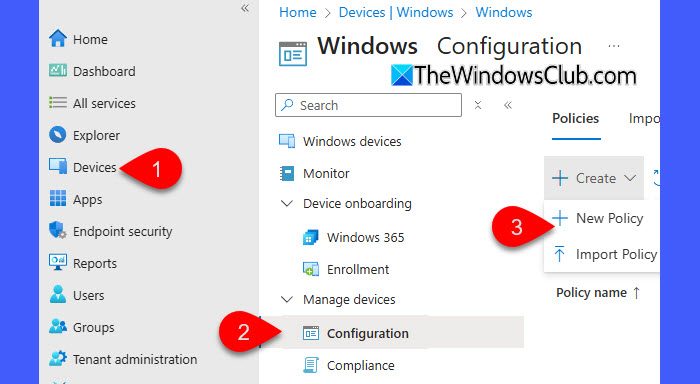
Open the Intune portal. Go to Devices > Windows > Configuration > Create > New policy.
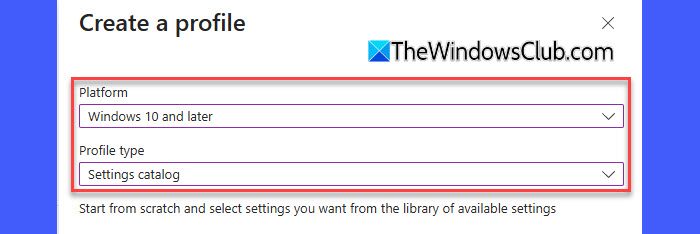
Enter Windows 10 or later under Platform and Settings catalog under Profile type, then click Create.
Under the Basics tab, give your policy a name and optional description, then click Next.
Under the Configuration settings tab, select Add settings. In the Settings picker, search for Sync your settings, and select Enable Windows Backup. Set the option to Enabled.
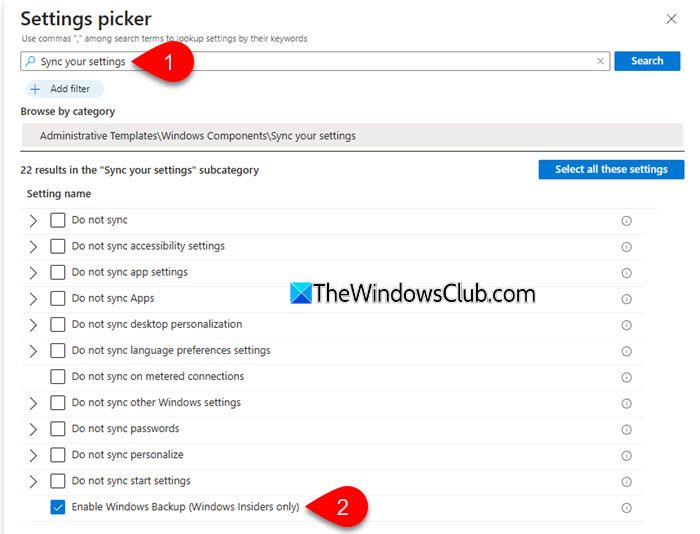
Note: The Enable Windows Backup setting may appear with the label “Windows Insiders only”, but it works on the supported versions listed above. Microsoft is in the process of updating this label.
Click Next to add scope tags (optional).
Under the Assignments tab, select the user group or device group that will receive the profile, then click Next.
Under Review + create, review your settings.
Click Create to finalize the policy.
Configure Restore Policy with Microsoft Intune
By default, the restore option is disabled. To enable the restore experience during the out-of-box experience (OOBE), you must configure a restore policy.
Sign in to the Intune Admin Center. Go to Devices > Enrollment > Windows Backup and Restore. If the option isn’t available in your Intune account, it will show up automatically as the rollout continues.
Under Show restore page, select On to enable the restore option during OOBE.
Click Save to apply the policy at the tenant level.
Note: This policy is applied only at enrollment time. Changes made afterward do not affect devices that are already enrolled.
Use Windows Backup for Organizations
Once the necessary backup and restore policies are configured, you can start using Windows Backup for Organizations. The process is straightforward and occurs primarily in the background.
Backing up your device
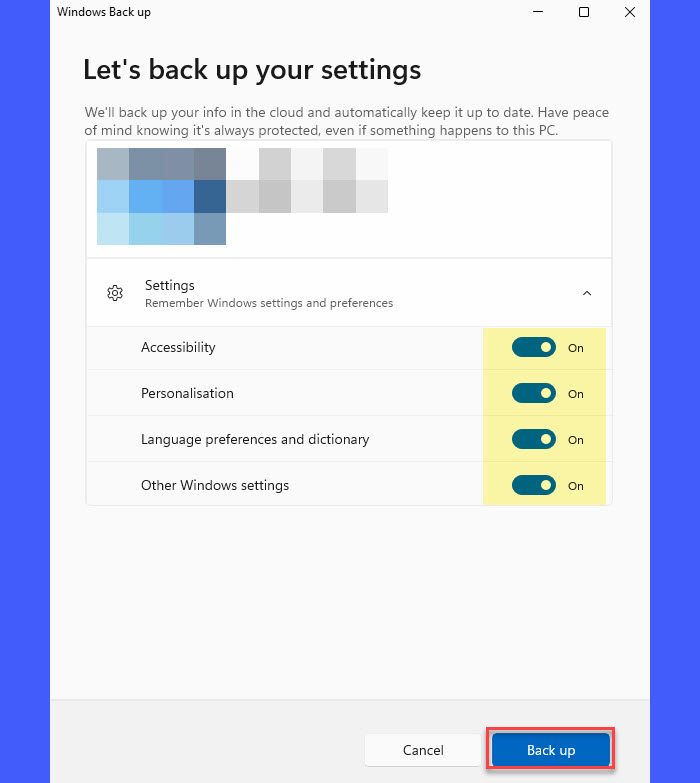
- Automatic backup: A scheduled task runs every 8 days to back up your user settings, preferences, and the list of installed Microsoft Store apps. No manual action is required.
- Manual backup: If you’d like to trigger a backup right away, search for Windows Back up in the Windows search box and open the app. Ensure all the toggles are On and select Back up.
Restoring your data
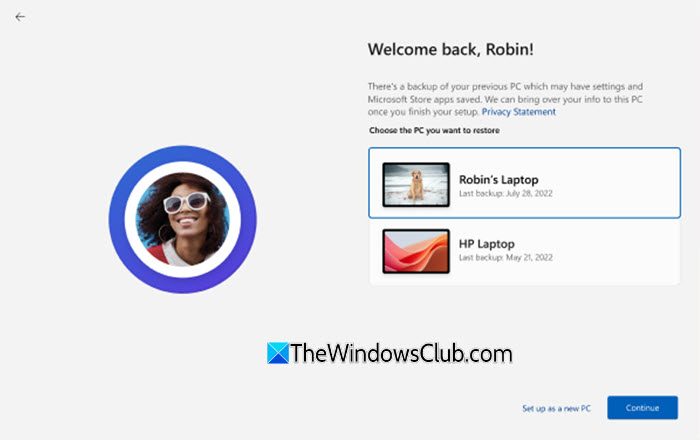
Restoring can be initiated during the Out-of-Box Experience (OOBE) when a user signs in with their Microsoft Entra ID account.
Turn on the (new or reimaged) device and begin the OOBE process. Sign in with your work or school (Microsoft Entra ID) account used for the backup.
On the next screen, you may choose to restore a backup profile from a previous device or set up the device as new. If you select More options, you’ll see any additional backups from other devices available to you (if applicable). Select a backup device and click Continue.
Complete the remaining OOBE setup. When you reach the desktop, your user settings and Microsoft Store apps (if backed up) will automatically be restored.
You can read more on Microsoft here and here.
I hope you find this useful.
Read: 10 Ways to Keep Your Windows Server Safe.
How do you use Windows backup?
You may use the Windows Backup app to save your settings, preferences, apps, and credentials. Just open the app, choose what you want to back up, and Windows will handle the process automatically in the background. In organizations, this feature works similarly; however, IT admins set policies in Intune to ensure that backups run on schedule and are available when you restore to a new device.
Does Windows Backup back up everything?
On personal PCs, Windows Backup doesn’t back up everything on your device. It primarily saves your system settings, preferences, Microsoft Store apps, and some credentials, but not personal files such as documents, photos, or third-party apps. Windows Backup for Organizations focuses on user settings and Microsoft Store apps rather than complete system images or all files.
Read Next: What is Microsoft Entra Agent ID?
