
Grok Code Fast 1 is a coding-focused AI model developed by xAI. xAI is currently offering it free for a limited time. This article will show how to use Grok Code Fast 1 for coding.
How to use Grok Code Fast 1
You can use Grok Code Fast 1 in supported coding platforms. We have explained using this AI model in these coding platforms:
- Visual Studio Code
- Cursor
Let’s start.
1] How to use Grok Code Fast 1 in Visual Studio Code
To use Grok Fast 1 in Visual Studio Code, you have to install it. You can do so via the Cline extension for VS Code. Here are the steps:
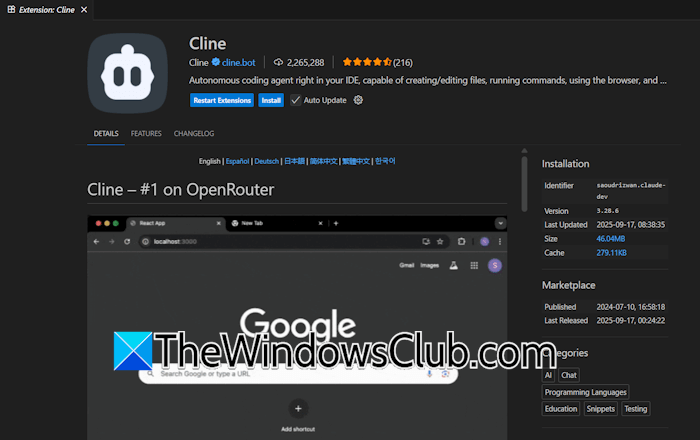
- Open VS Code.
- Select Extensions from the left side or press the Ctrl + Shift + X keys.
- Type Cline and select Cline from the search results.
- Click Install.
- Click Trust Publisher and Install.
Alternatively, you can visit the Cline official website and click Install Cline. Now, click on the Install button next to VS Code. A small pop-up will appear in your web browser asking for your permission to open VS Code. Click Open.
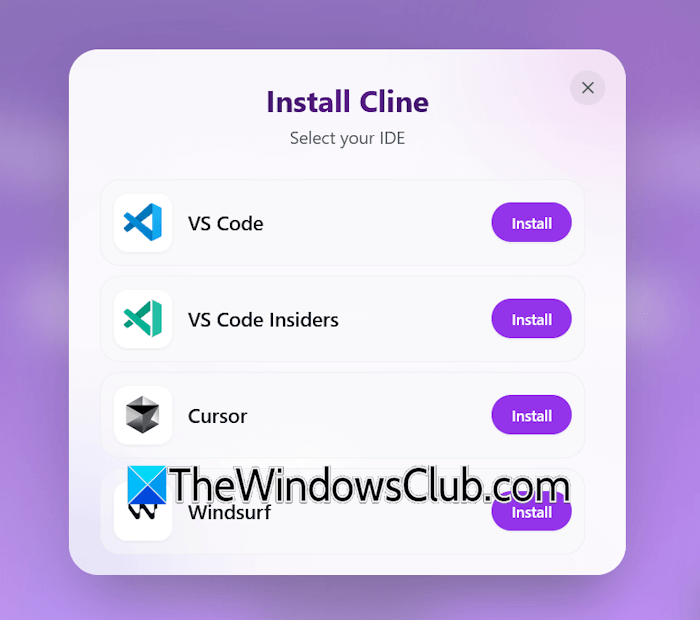
When VS Code opens, you can easily install Cline. The next step is to set up Cline in VS Code. Follow these steps:
- Click Get Started for Free.
- A new tab will open in your default web browser where you have to sign up using your Google or GitHub account.
- Go back to VS Code and click Try Grok Code Fast 1.
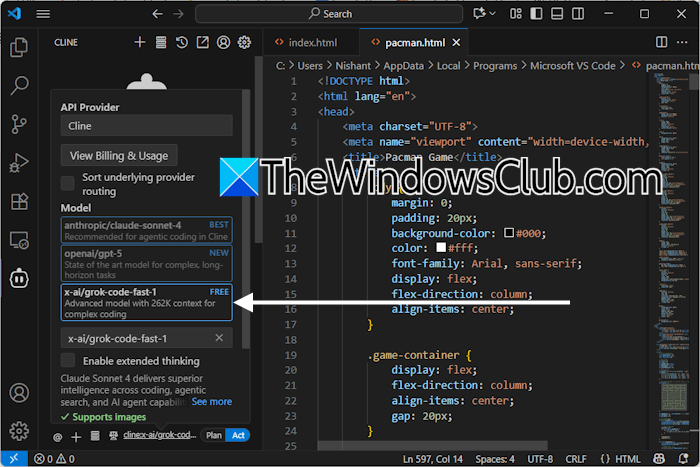
Now, you are ready to use Grok Code in VS Code. For this, select Cline on the left sidebar in VS Code. Type your task in the prompt box and click Send or hit Enter.
2] Use Grok Code Fast 1 in Cursor
To use Grok Code in Cursor, download and install Cursor on your system. Now, visit the Cline official website and click Install Cline. After doing that, click Install next to the Cursor. Your web browser will ask you to open the Cursor app. Click Open link.

The Cursor application will open automatically, and you will see the Cline extension installation screen. Click Install, then click Trust Publisher and Install. Go back to the Cursor and click Get started for free. This will open a new tab in your default web browser where you have to sign up with your Google or GitHub account. After doing that, Cline will be activated in Cursor.
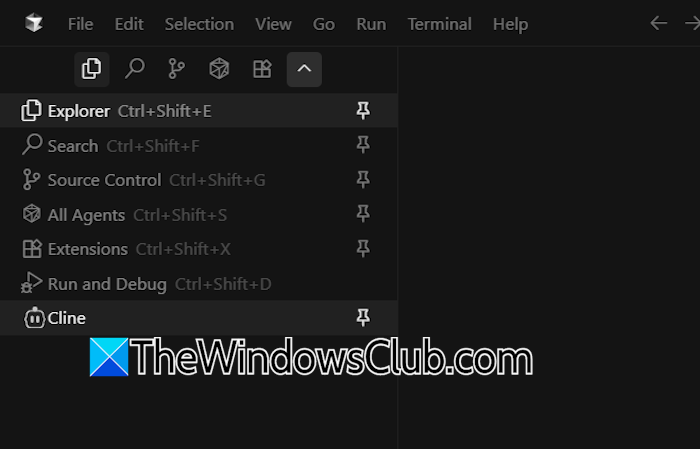
Now, you are ready to use Grok Code in Cursor. Click the down arrow on the left sidebar and select Cline. If the sidebar is not visible, press the Ctrl + B keys. Now, select Grok Code Fast 1 as the AI model and Cline as the API provider in Cline.
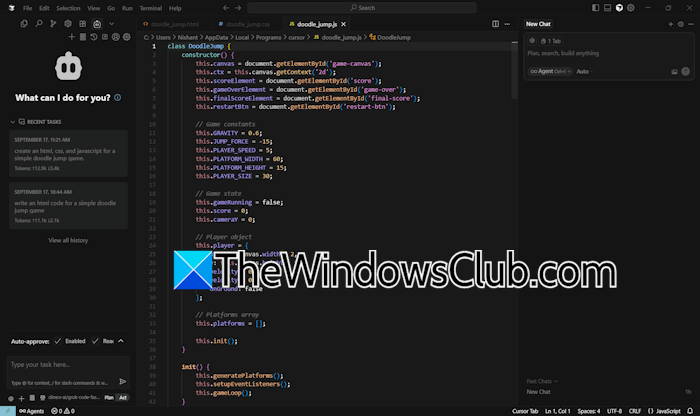
Type your prompt and click Send or press Enter.
That’s it. I hope this helps.
How to use free Grok AI?
Grok AI is free to use. To use it, you have an X account (formerly Twitter). After signing up on X, select Grok to use it. You can chat with Grok AI, create and edit images, upload documents, and get help from Grok. However, some features are not available in the free plan.
Is Grok better than ChatGPT?
The answer to this question is not straightforward. Both are AI models, and you can use them for different tasks, including asking queries, creating images, etc. However, ChatGPT offers more features than Grok AI in the free plan. The free plan of ChatGPT allows you to upload documents, whereas in Grok AI, you need a subscription for the same.
Read next: Grok AI is not working.
