
Artificial Intelligence has made a lot of work easier for us. Whether it is image generation, video generation, summarizing documents, or research, you can do it all within minutes with AI. A wide range of AI models is available today for your use. In this article, we will show you how to use Copilot for 3D image generation.
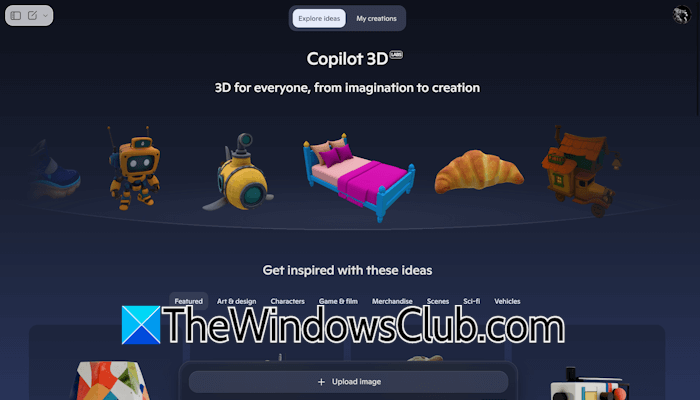
How to use Copilot for 3D image generation
Microsoft recently released Copilot 3D, a 3D image generation tool. It is currently free to use. Here, we will see how to use Copilot for 3D image generation.
Follow these steps:
- Open Microsoft Edge or another web browser.
- Visit copilot.microsoft.com.
- Sign in using your Microsoft account.
- Start using Copilot 3D.
All these steps are explained below in detail.
Open Copilot 3D
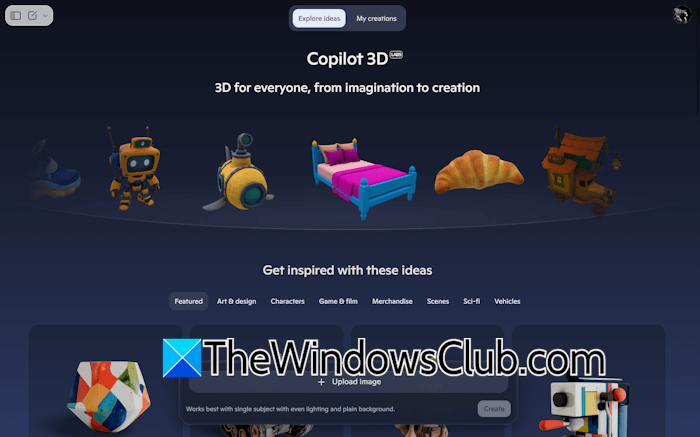
After signing into Copilot with your Microsoft account, open its sidebar and select Labs. Now, click Copilot 3D, then click Try now. A new tab will open in your web browser with a completely new interface, as shown in the above image.
It already has some 3D models available in different categories, including Featured, Art & Design, Game & Film, Characters, Sci-fi, Vehicles, etc. You can view any available 3D image by clicking on it. It also allows you to recreate the 3D image and download it. The image is downloaded in GLB format.
Create a 3D model from an image with Copilot 3D
With Copilot 3D, you can easily convert any 2D image into a 3D model. However, it does not work with every image. The best part is that you do not need to write a prompt to convert an image into a 3D model.
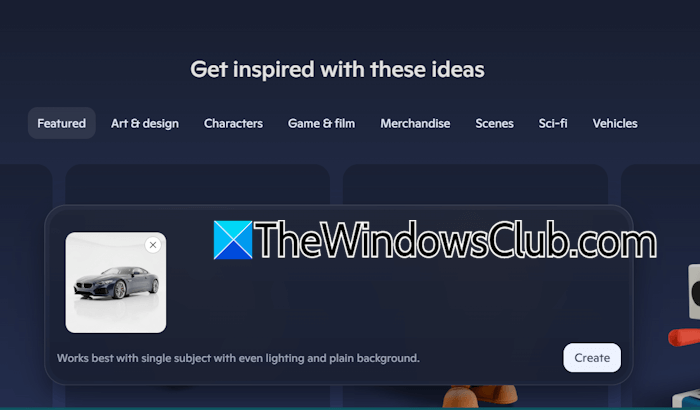
Follow these steps:
- Click Upload image button and select an image from your computer.
- Click Create. Copilot 3D will start creating a 3D model of the uploaded image.
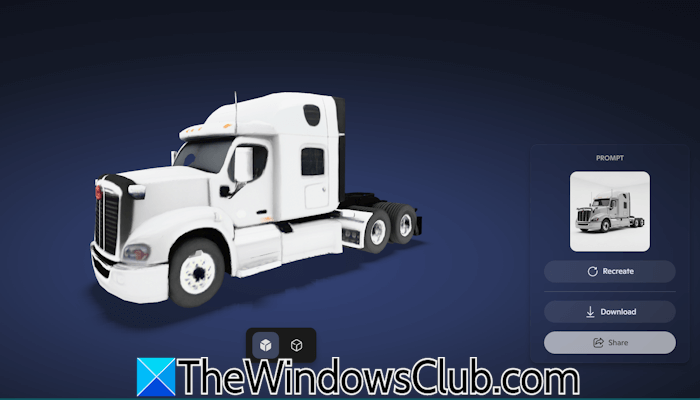
The process does not take much time. The 3D model of your image will be ready in a few minutes. All your created 3D models will remain available under the My Creations tab. I created a 3D model of a truck. You can view it in the above screenshot.
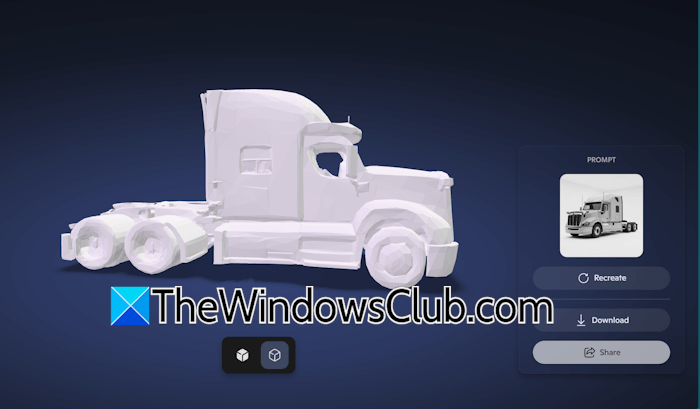
It also generates a clay model of every 3D image. To view the clay model of the 3D image, click on the respective button.
You can rotate the 3D image in different directions. For this, press and hold the left click of your mouse and move your mouse in any direction. If you do not like the output, you can regenerate the 3D model by clicking on the Recreate button. To download the generated model, click Download. If you want to share your mode, click Share, then click Copy Link. Now, you can share that link with any person.
That’s it. I hope this helps.
Is Copilot 3D free?
Yes, Copilot 3D is currently free to use. You can use it to convert a 2D image into a 3D model. However, it does not work with any 2D image. Moreover, sometimes, you do not get the desired output. In such a case, you can regenerate the response.
Can Copilot do image generation?
Yes, Copilot can generate images. To use it for image generation, open it and type your prompt in the prompt box. Hit Enter and leave the rest of the work to Copilot. It will generate the image based on the given prompt within a few minutes. You can also download the generated image.
Read next: How to upscale an Image using Copilot PC.
