
When we watch a video clip or listen to audio on the VLC media player, we usually see multiple windows open if we open another video at the same time. There are some options to enable or disable multiple windows. In this guide, we show you how we can stop VLC from opening multiple windows on Windows 11/10.
VLC media player is one of the most popular free media players available. The VLC media player offers numerous features that enable users to watch videos and audio in virtually any format. Almost everyone uses VLC as their media player of choice. When we open two videos simultaneously in VLC, we see them in separate windows. This feature is enabled by default in the VLC media player. Let’s see how we can disable this feature and stop VLC from opening multiple windows.
How to stop VLC from opening multiple windows
To stop VLC from opening multiple windows on Windows 11/10:
- Open VLC media player on your PC
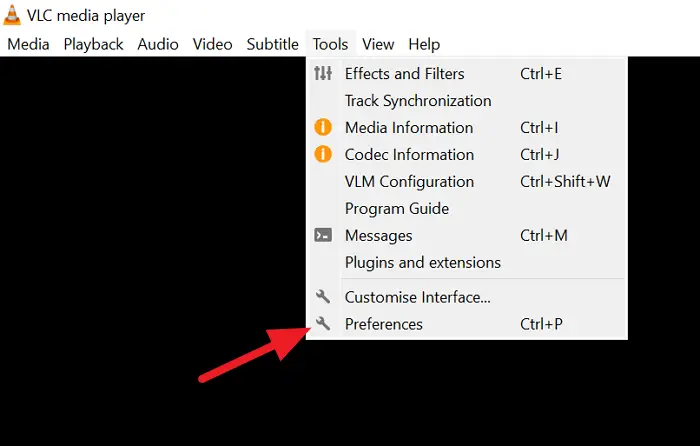
- Click on Tools in the menu bar
- Select Preferences from the options
- Scroll down and check the button beside Allow only one instance
- Then, click on Save to make the changes apply
Let’s get into the details of the process and disable it.
Open the VLC media player on your PC and click on Tools in the menu bar to see its options. Select Preferences from the options. Alternatively, you can use the Ctrl+P shortcut to open Preferences directly.
You will see the Simple Preferences window with the Interface tab selected. Scroll down in the Interface tab to find the Playlist and Instances section. Check the button beside Allow only one instance. After checking the button, click on the Save button at the bottom of the window to save the changes.
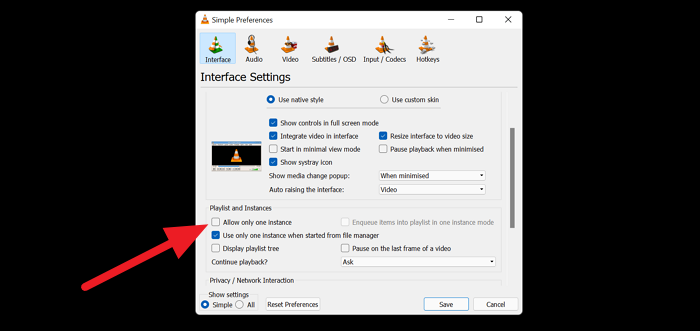
It will stop VLC from opening multiple windows or instances on Windows 11/10. To enable that feature again, you can always uncheck the same button and get the feature to work again.
Why does VLC open multiple windows?
VLC has that feature enabled by default that opens multiple windows. It has to be tweaked manually to stop VLC from opening multiple windows via Tools in the menu bar.
How do I stop VLC from fitting windows?
You can prevent VLC from resizing windows by going to Preferences from the Tools menu in the menu bar. In the Preferences, uncheck the button beside “Resize interface to video size” in the Interface tab, and then click the Save button.
