
Some users have been complaining lately about an error message in VLC that reads Error code 401 Unauthorized (200). It usually appears when the user attempts to search for subtitles via the VLSub plugin. VLSub is a tool that lets users download subtitles directly from the app.
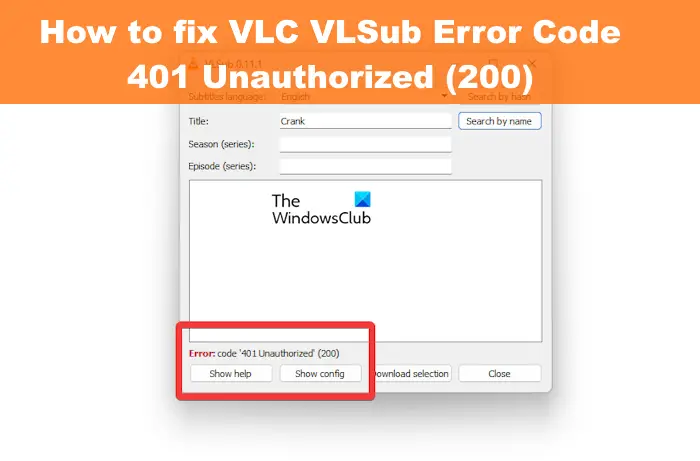
What is VLC error code 401 Unauthorized?
The “VLSub Error Code 401 Unauthorized (200)” in VLC usually happens when the subtitle extension (VLSub) fails to connect properly to the OpenSubtitles API. This is a common issue because OpenSubtitles requires authentication, and the plugin often runs into problems if the API changes or if login credentials aren’t set correctly This error typically means that the VLC Media Player is not being given access to the server where it’s attempting to grab the subtitles. For example, the server could be hosted by OpenSubtitles.org, but VLSub cannot access the repository on that site.
How to fix VLC Error Code 401 Unauthorized (200)
To fix the VLC ‘401 Unauthorized’ (200) error, users must ensure they are properly connected to the source of the subtitles. Here are the steps you must take:
- Register an account at opensubtitles.org
- Open the VLC Media Player
- Go to Show Config
- Add your OpenSubtitles username and password
- Manually download Subtitles.
1] Register an account at opensubtitles.org
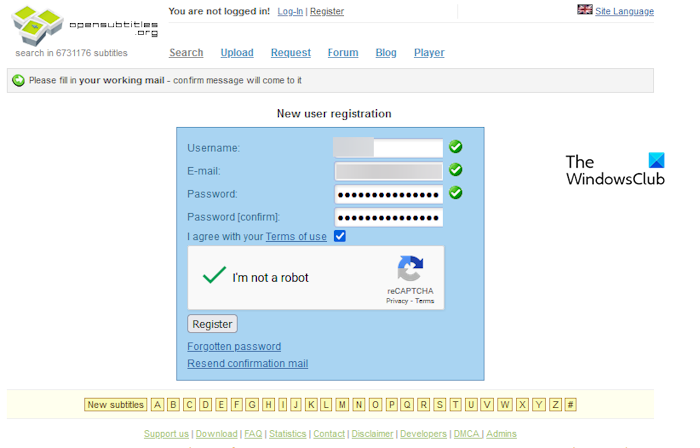
Chances are the error code appears because you have not registered for an account at OpenSubtitles, so get to it. Bear in mind you must use a legit email address and a strong password when signing up.
You’ll also be asked to confirm your account after you’re done.
After the account is created, it’s now time to fix the problem once and for all.
READ: Fix common VLC Errors, Problems, and Issues on Windows PC
2] Open the VLC Media Player
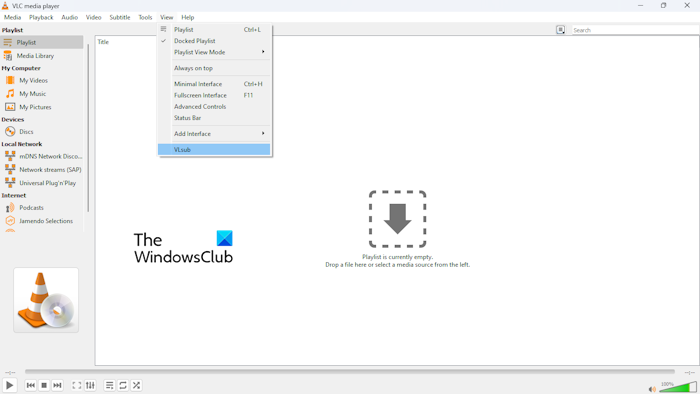
The next step here is to fire up the VLC Media Player on your Windows computer.
When opened, click on the View tab.
From there, a drop-down menu will appear with several options.
Select the VLsub button on the list to open the relevant window.
READ: How to enable Dark Mode for VLC Media Player on PC
3] Go to Show Config
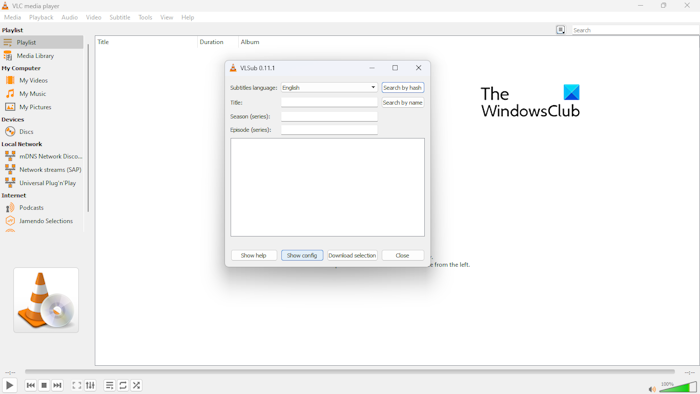
From the newly opened VLSub window, you must click on the Show Config button.
You cannot miss it since it is available at the very bottom between Show Help and Download Selection.
Once clicked, a window called VLSub Configuration will appear.
4] Add your OpenSubtitles username and password
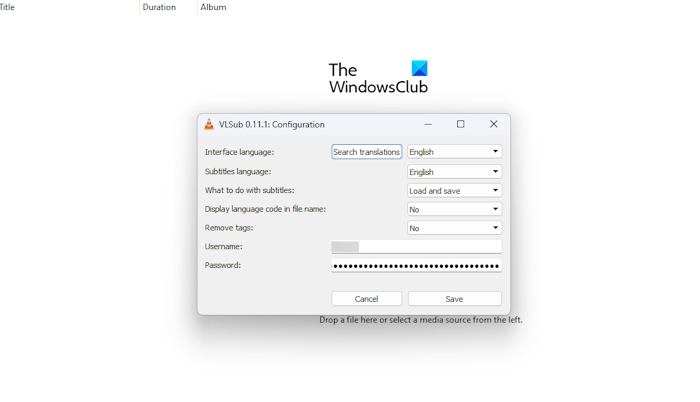
It’s now time to complete this task by adding your username and password for OpenSubtitles. Once done, “Error: code ‘401 Unauthorized’ (200)” should be a thing of the past.
Look to the bottom of the window for Username, and Password.
Type in the relevant information.
Hit the Save button, then search for subtitles again to see if the error appears as usual.
If everything was done correctly, the error should be a thing of the past, and you can download and use subtitles without problems.
5] Manually download Subtitles
If nothing helps and VLSub continues to fail, you can download subtitles directly from opensubtitles.org and load them manually in VLC. You will get the option here: Subtitle > Add Subtitle File.
READ: How to enable Dark Mode for VLC Media Player on PC
What is 401 unauthorized status code?
The 401 unauthorized status code usually means that the client request has not been completed due to a lack of valid authentication credentials designed for the requested resource. The connection will not be made unless the relevant credentials become valid to get a proper response.
Why is my VLC not downloading subtitles?
To solve this problem, open VLC, then click Tools. From there, select Preferences, then navigate to Subtitles/OSD. The next step is to click on Enable subtitles, and if it is not selected, please choose the Auto option via the Font size dropdown menu.
