
In this post, we will talk about all the mouse gestures that you can use to control the VLC player. These hand gestures are designed to help users access their favorite features without opening the video player menu.
In this Information age, Multimedia is ubiquitous. Everything that we watch or listen to is Multimedia. Multimedia content combines individual content such as video, animation, text, audio, or still images into a single medium that is processed by information devices such as computers.
The media player is of paramount importance for playing any multimedia files like movies or videos. In this techno world, there are a considerable number of options available for media players.
Among all, VLC media player is the most significant one. The reason is it is free, and it serves some of the extremely impressive features that play most multimedia files, including streaming protocols. Also, VLC runs on all platforms. The free open-source media player is extremely powerful, easy to use and can be easily customized to user needs, compared to paid media players.
How to use Mouse Gestures in VLC on PC
With the plethora of features in the VLC media player, Mouse gestures are the ones that are really galvanizing. While most of us use VLC media player, people are still unaware of this feature. Mouse gestures are similar to the keyboard shortcuts that we use. It is absolutely a great way to increase your playback control speed and simplify tasks.
Mouse gestures basically combine mouse clicks that the software identifies as a specific command. These commands, also known as events, are then handled by the software. So the next time, if you are watching your favorite show on the VLC media player, you can easily control the VLC window playback like volume control, forward or rewind of a video, enabling full-screen mode, etc., simply by moving the mouse cursor around the screen. In this way, you can perform the associated task with a clickety-clack of a mouse. While it may be confusing to remember these complex gestures at first, once you become proficient, they’ll simply save you time.
Following are the list of some important Gestures supported in VLC Media Player
- Move the mouse cursor to the left: Navigate video 10 seconds backward.
- Move the mouse cursor to the right: Navigate video 10 seconds forward.
- Move mouse cursor up: Increase the volume by 5%.
- Move mouse cursor down: Decrease the volume by 5%.
- Move mouse cursor left and then right: play the video.
- Move mouse cursor right and then left: pause the video.
- Move mouse cursor up and then down: Mute volume.
- Move mouse cursor left and then up: Slow down video speed.
- Move mouse right and then up: Increase video speed.
- Move mouse cursor left and then down: Play previous track of playlist.
- Move mouse cursor right and then down: Play next track in the playlist.
- Move mouse cursor up and then right: Switch the audio track.
- Move mouse cursor down and then right: Switch the subtitle track.
- Move mouse cursor up and then left: Enables view mode in full screen.
- Move mouse cursor down and then left: Close your VLC media player.
In order to control the VLC media player using Mouse gestures, you need to activate the gesture feature. The following steps will guide you to enable the Gesture feature in the VLC player.
How to add mouse gestures to VLC Player
Open your VLC media player and go to the Tools menu.
In the Tools drop-down menu, click on Preferences which will open the new Preferences window.
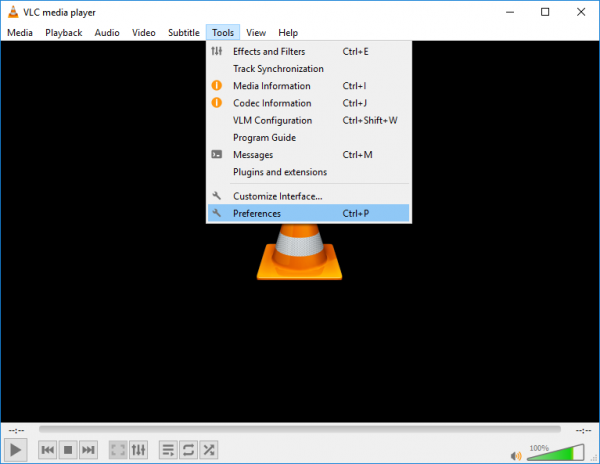
Click on the radio button “ALL” to enable this option under Show settings and navigate to Advanced settings.
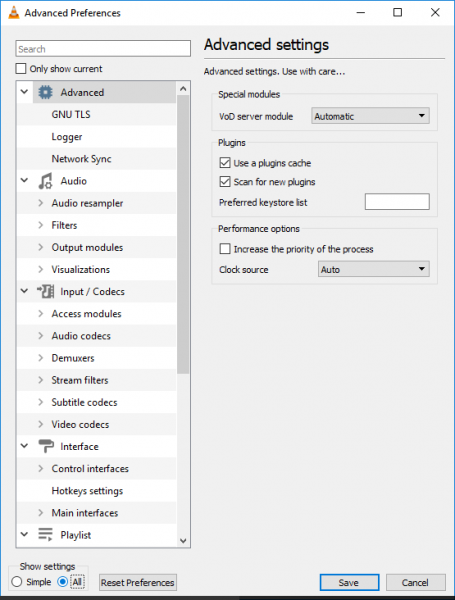
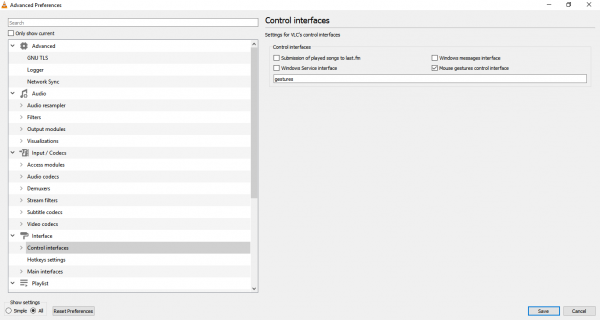
In the Advanced Preference window, go to Interface and then click on Control interface.
To enable gesture Control, Check the option that says Mouse gestures control interface under the ‘Control interfaces’.
Click on Gestures tab under ‘Control Interfaces’ and choose the trigger key for your mouse. It can be left, right or the middle key.
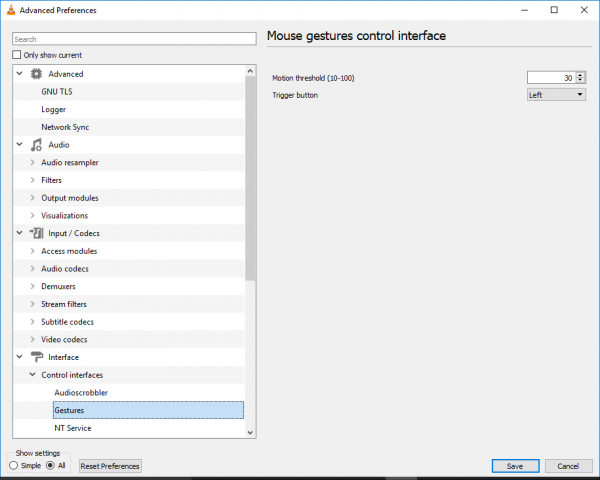
Click on Save and close the media player.
Restart the application. That’s all.
Let us know how you enjoy using mouse gestures in VLC on your Windows PC.
