
By default, Firefox uses a profile called default-release as the default profile. However, if you want to set or change the default Firefox profile, here is how you can do that. You can create a new profile and set it as the default in Firefox within moments.

Unlike Google Chrome, Firefox handles creating, setting, or changing the default profile differently. However, it includes a Profile Management panel that helps users get things done. Changing the default profile is handy when multiple people use the same browser on the same computer.
Before you change the default profile, you need more than one profile in Firefox. To create a new Firefox profile, follow these steps:
- Open the Firefox browser on your computer.
- Enter about:profiles in the address bar.
- Click the Create a New Profile button.
- Enter the profile name and click the Finish button.
Once the profile is ready, you can set it as the default profile in Firefox.
How to set or change default Firefox profile
To set or change the default Firefox profile, follow these steps:
- Open the Firefox browser on your computer.
- Enter about:profiles.
- Find the profile you want to set as default.
- Click on the Set as default profile button.
To learn more about these steps, continue reading.
First, you need to open the Firefox browser on your computer. Then, type about:profiles in the address bar and hit the Enter button. It opens the profile management panel in your browser.
Here you can find all the profiles. From here, choose the profile you want to set as the default one. Following that, click on the corresponding Set as default profile button.
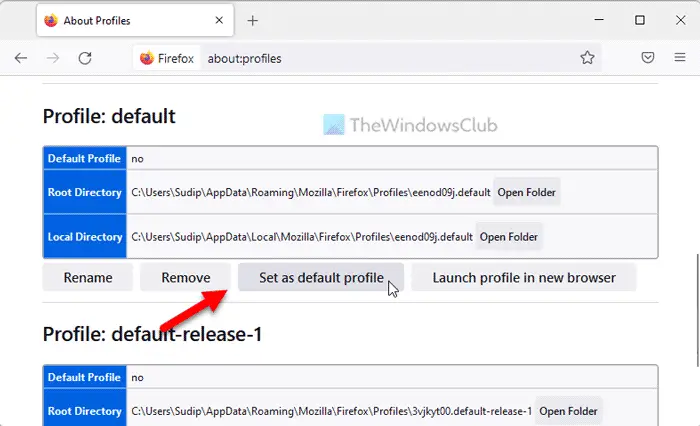
Once done, it will be used as the default one. Next, if you want, you can delete the old default profile from your browser.
Read: Firefox Profile Manager lets you create, remove or switch Firefox profiles
How do I change the default profile in Firefox?
To change the default profile in Firefox, follow the steps above. It is not very difficult – thanks to the in-built Profile Manager included in the Firefox browser. You can create a custom profile to meet your needs and set it as the default profile in the browser.
Where is the default profile in Firefox?
If you are talking about the root directory of the default Firefox profile, you need to navigate to this path:
C:\Users\user-name\AppData\Roaming\Mozilla\Firefox\Profiles\7ar7bluh.default-release.
However, if you want to open the local directory of the same default profile, you need to open File Explorer and go to this path:
C:\Users\user-name\AppData\Local\Mozilla\Firefox\Profiles\7ar7bluh.default-release.
The user-name might be different on your computer.
That’s all! I hope this guide helped you.
