
Firefox users can create profiles to better separate their browser usage. You can think of this system as Firefox’s version of Chrome profiles, where we switch between them based on what we need to use the browser for. Profiles on Firefox are managed under the Profile Manager. Today, we will discuss how to access and use the Profile Manager.
Here’s a quick glossary of all the topics we are going to cover in this article:
- What is the Profile Manager and how to access it?
- How to use Profile Manager when Firefox is closed
- What are the features in Firefox Profile Manager
- Where you can find your Firefox Profile folder
- How you can delete a Firefox Profile
How to use Firefox Profile Manager
The reason Firefox Profile Manager isn’t discussed is that it isn’t visible in the browser window by default. It is hidden, and one can’t configure it or switch it directly. Firefox, however, allows multiple profiles to run under different settings, helping you distinguish them more easily.
To access the Profile Manager in Firefox, type About:Profiles in the browser’s address bar. What you will then see is the About Profiles page. On this page, you get a couple of options. Let’s discuss what they do.
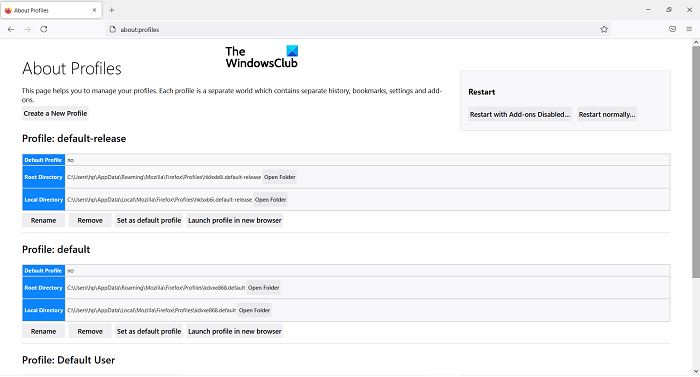
- Create a new profile: Click on this and a prompt to create a new user profile will pop up. Here, you’ll see all the instructions you need to follow, for example setting the profile name. Once you’re done, this profile will be listed among the others
- Rename: Click on this button to rename one (or more) of your profiles
- Set as default profile: This option allows you to set the default profile for Firefox. The default profile is the one that will run every time you open the browser
- Launch profile in a new browser: If you want to use two profiles at the same time, you can use this option to launch a second one in a separate browser window
How do I open Firefox Profile Manager when Firefox is closed?
You can open and use the Profile Manager even when Firefox is closed. To do that, follow the steps below:
- Close Firefox browser window, if it’s open
- Open the Run Dialog box by pressing the Windows + ‘R’ key combination
- In the dialog box, paste the following command
firefox.exe -P
- Click OK, and you’ll be presented with the prompt shown below. As you can see, it’s a small window with the same options as were seen in the About Profile window. Here, you can select the profile you want to launch Firefox with
- Select a profile and click on ‘Start Firefox’
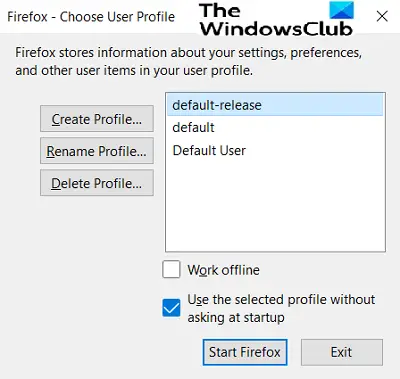
There are a few more options available when you open the Profile Manager while Firefox is closed. Let’s see what they do:
- Work Offline – The name is pretty self-explanatory. If you select a profile and click on this option, Firefox will launch with that profile but won’t connect to the Internet. Here, you can view the web pages via your browsing history.
- Use the selected profile without asking at startup – Select this option and the prompt to select the Profile at Startup won’t show up. You could, then, access other profiles via the About Profiles page.
Where are Firefox profiles?
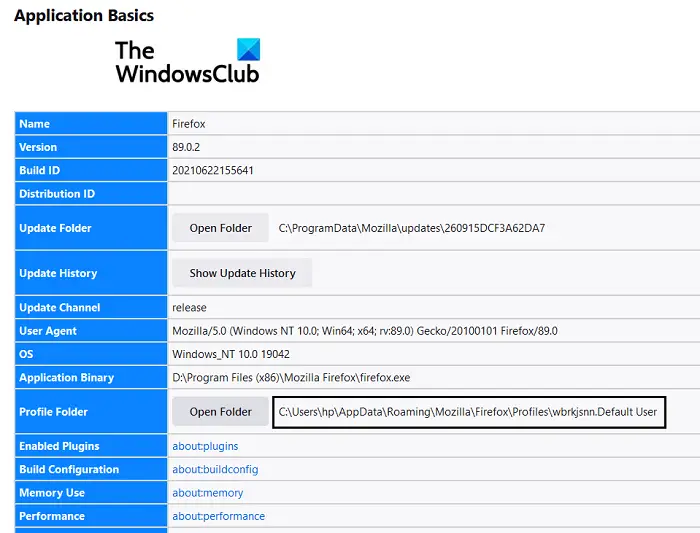
Let’s provide a brief overview of what Firefox entails, in case you’re confused. Any changes you make to your browser’s settings, such as bookmarks, saved passwords, and other settings, are stored in a folder called a profile. The folder is stored elsewhere, so if something goes awry with Firefox one day, your data remains safe and secure. Here is how you can find your profile folder:
- Click on the settings icon on the browser’s top-right corner. Then, move to help and further select More Troubleshooting Information
- Under the Application Basics head, locate Profile Folder and click on the Open Folder button next to it
- A folder will open in your File Explorer, comprising all the data concerning your browser settings
How do I clean my Firefox profile?
If you feel like you’ve created more browser profiles than you have a use for, you can delete them too. Here’s how:
- Open the Run Command and type this in the blank space to open Firefox Profile Manager
firefox.exe -profilemanager
- Select the profile that you want to delete and click on Delete Profile
- Close the dialog box by clicking on Exit
We hope that this post was able to clear all your doubts about how the Profile Manager on Firefox works, and now you’ll be able to use it to your advantage.
