
Pixelating images shouldn’t be too difficult if the right tools are available, and they are. It’s easy to find an image editing program for a Windows PC that lets users pixelate their photos. Now, some of us prefer to use online tools in a web browser; therefore, this article will focus on online tools designed to pixelate images.
We will be discussing the five best online tools to pixelate or blur your images, and like always, they are all free to use. There are many websites that can perform this task, but we cannot list them all. If we do not mention your favorite, we suggest making a note in the comment area, and we will give it a look.
How to Blur a Face in a Picture online free
In this post, we will show you how to pixelate or blur a face in a Picture using one of these free online tools. Finding the right tools to protect the privacy of your images can be daunting, so we’ve put together this short list.
- Facepixelizer
- PNG Pixelator
- LunaPic
- Pinetools
- Pixelate Image Online
1] Facepixelizer
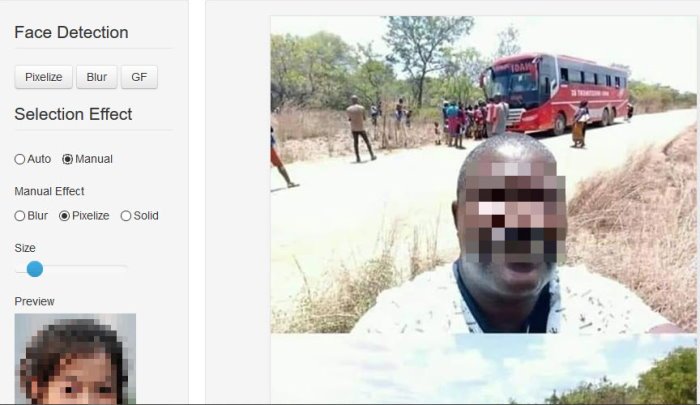
In many cases, we just want to pixelate one section of an image rather than the entire image, so what can we do? Well, how about giving Facepixelizer a test run? From our time using this tool, we can say for certain that it works quite well and is perfect for adding pixels to faces and other personal information.
Users have the option to either blur or pixelate an image, and that’s great for variety. It can automatically detect faces, but if you prefer to go the manual route, that’s fine too.
To get it done manually, simply upload the photo then hit the Manual button. From there, just blur the photo by yourself and that’s it. Visit the official website.
2] PNG Pixelator
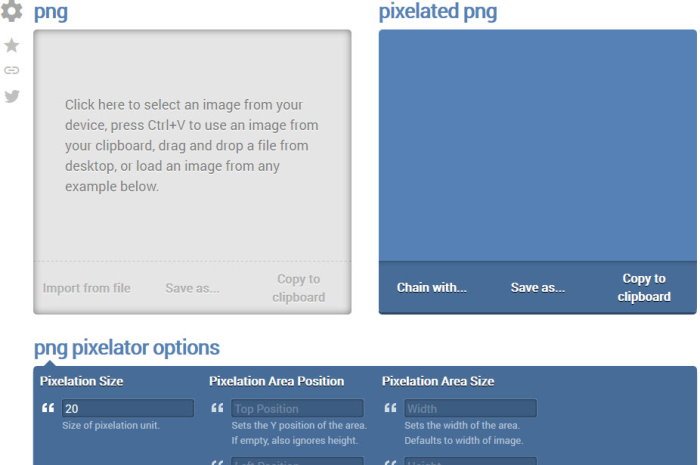
The creators of this program claim it is “the world’s simplest online Portable Network Graphics image pixelator.” We can’t confirm that for certain, but we do agree it is ad-free, so that’s nice, right? Good.
It is a fantastic piece of kit, however. Just upload your picture and get to work. Given the immense ease of use, we expect anyone should be able to pixelate images without issue.
Now, once you’ve completed the task, just select Save As > Download. Doing this will save the final image to your computer. Visit the official website.
3] LunaPic
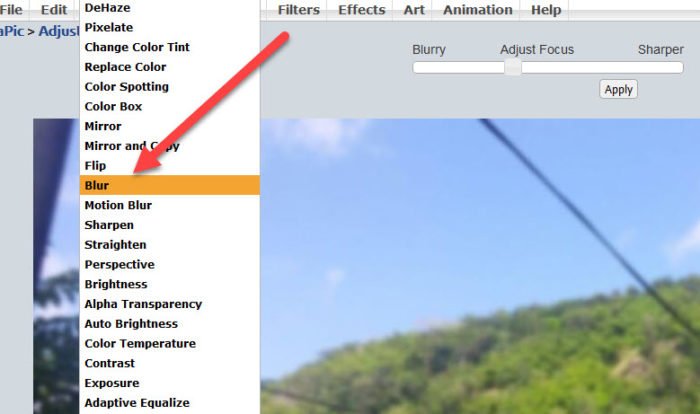
Looking for a website that is simple to use when it comes down to blurring and pixelating images? Then you might want to take LunaPic for a spin. With this service, the user has two options for adding images. Folks can either upload from their computer or share the image URL so LunaPic can download it.
In order to use this service effectively, click on Adjust > Pixelate under the main menu area. Upload your photo, and from there, edit it to your liking before saving for download. Visit the official website.
4] Pinetools
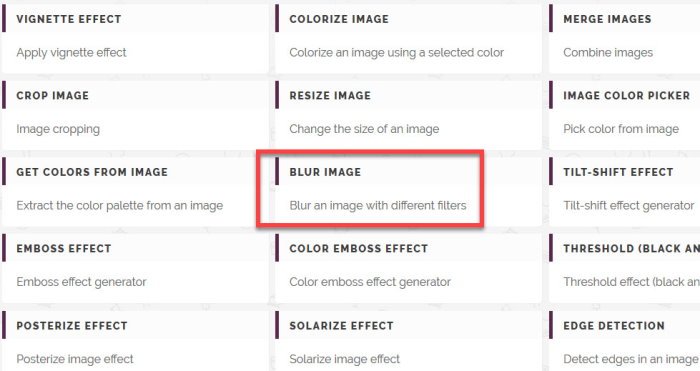
We like what Pinetools offers because it’s not just a program that lets users blur and pixelate photos. You see, if you want to learn how to blur and pixelate, Pinetools will teach you with simple steps.
To edit an image, just upload it to Pinetools on the website, then click and drag the section that needs censoring. Select the block size, then click on the green censor button to finish the job.
Finally, when the user is done, he or she can save the final product as a JPEG, PNG, or BMP.
Visit the official website.
5] Pixelate Image Online
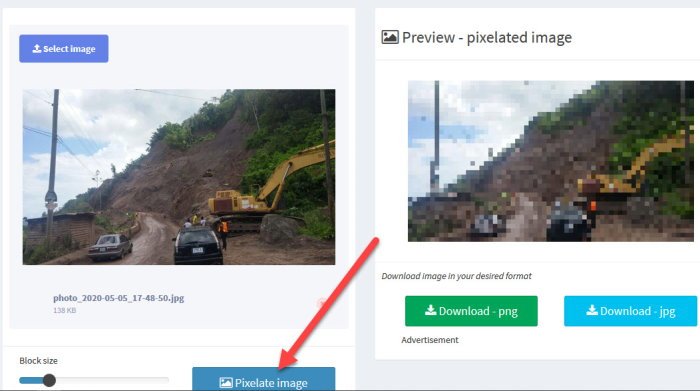
Finally, we want you to check out another online tool called Pixelate on the website Image Online. Now, from what we can tell, we doubt most folks will love it for its design, but from our point of view, looks shouldn’t matter if it works.
OK, so visit the website, then upload the required image. From there, you will want to click on the button that says Pixelate Image, then look to the right section for the finished product. Bear in mind that this tool is designed to pixelate the entire picture, so if you want to choose a specific section, well, you’re out of luck. Visit the official website.
TIP: You can also use Microsoft Paint, Microsoft Word/PowerPoint, GIMP, Paint.NET, or Photoshop Express to Blur or Pixelate an Image in Windows.
