
If you want to mount a folder a drive in Windows 11, here is what you need to do. Whether you want to add a single folder or multiple folders as a drive, you can use either of the methods listed below.
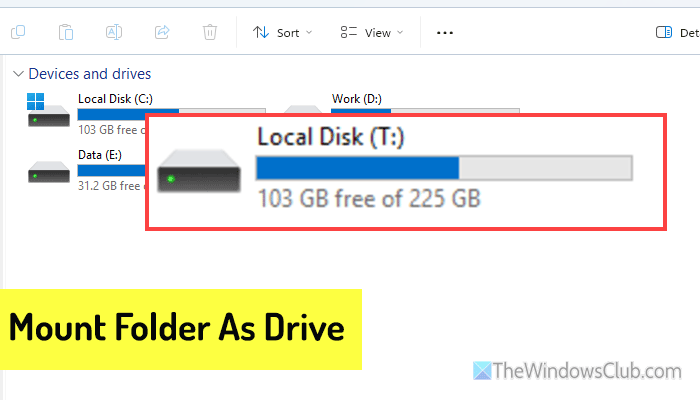
When would I need to mount a Folder as a Drive in Windows?
- To easily access a deeply nested folder using a drive letter.
- When older software requires files on a root drive instead of long paths.
- To organize projects or datasets as separate “drives” without extra partitions.
- For developers simplifying scripts, builds, or testing environments.
Things you must know before mounting a folder as a drive
- You can assign any available drive letter to your drive.
- These drives won’t be actual drives like your system drive or C drive. It would be better to use a virtual drive.
- You must make the original folder intact. Otherwise, the mounted drive won’t be accessible. Do not move or delete the original folder.
- All your existing folder contents will be available in the drive as well.
- If you make any change in the folder, it will be reflected on the drive, and vice versa.
There are two ways to mount a folder as a drive in Windows 11: using Windows Terminal or creating a shortcut. We will also show you how to find all mounted folders as a drive and how to delete a mounted folder.
How to mount a Folder as a Drive in Windows 11 using Windows Terminal
To mount a folder as a drive in Windows 11 using Windows Terminal, follow these steps:
- Create a folder anywhere on your computer.
- Right-click on it and select Copy as path.
- Press Win+X and select Terminal.
- Enter the following command: subst [drive-letter]: [folder path]
- Press the Enter button.
To learn more about these steps, continue reading.
First, create a folder on your computer. As said earlier, it is recommended to make the folder in a safe location.
Then right-click the folder and select Copy as path from the context menu to copy the folder path.
You can also open the same folder and copy the entire path from the address bar.
Once done, press Win+X and select Terminal. For your information, you can open the Command Prompt and a PowerShell instance. Following that, enter this command:
subst [drive-letter]: [folder path]
Replace [drive-letter] with a valid and available drive letter. To find an available drive letter, you can open This PC and check which drive letter is not visible in This PC. Following that, replace [folder path] with the original folder path.

After you have entered all the details, the command will look like this:
subst T: "C:\Users\<username>\Desktop\TWC Demo"
Press the Enter button. Then, open This PC to find the newly mounted drive.
How to mount a Folder as a Drive in Windows 11 using a Shortcut
To mount a folder a drive in Windows 11 using a Shortcut, follow these steps:
- Create a folder and copy the path.
- Right-click on the Desktop and select New > Shortcut.
- Enter this: subst [drive-letter]: [folder path]
- Give your shortcut a name and click Finish.
- Double-click on the shortcut.
Create a folder in a safe location. Then, right-click on the folder and select Copy as path option to copy the folder path.
Next, right-click on the Desktop and select New > Shortcut. Then, enter this:
subst [drive-letter]: [folder path]
You must change [drive-letter] and [folder path] with actual details.
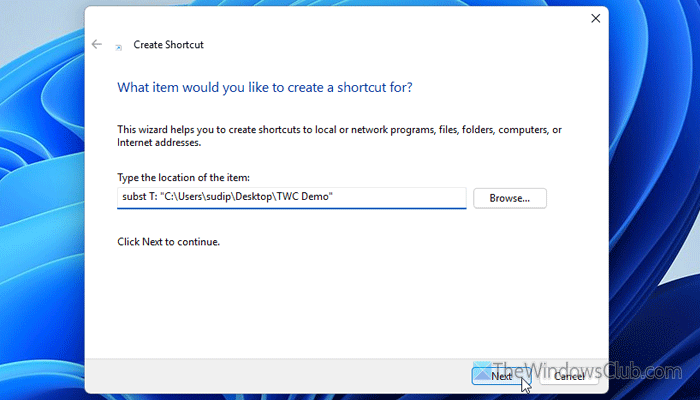
Once done, click on Next, give your shortcut a name, and click the Finish button. Then, double-click on the shortcut.
Finally, you can open This PC to find your drive.
How to find all mounted folders as drive in Windows 11

To find all the mounted folders as a drive in Windows 11, follow these steps:
- Press Win+X and select Terminal.
- Enter this command: subst
- Find the list of the Terminal window.
How to delete a mounted folder from Windows 11
To delete a mounted folder from Windows 11, follow these instructions:
- Using Windows Terminal
- Using Shortcut
To know more about these instructions, keep reading.
1] Using Windows Terminal
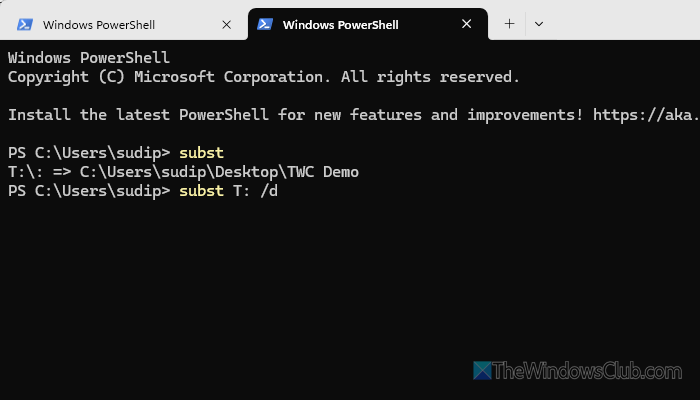
Open the Windows Terminal and use this command:
subst [drive-letter]: /d
You must replace [drive-letter] with the actual drive letter.
2] Using Shortcut
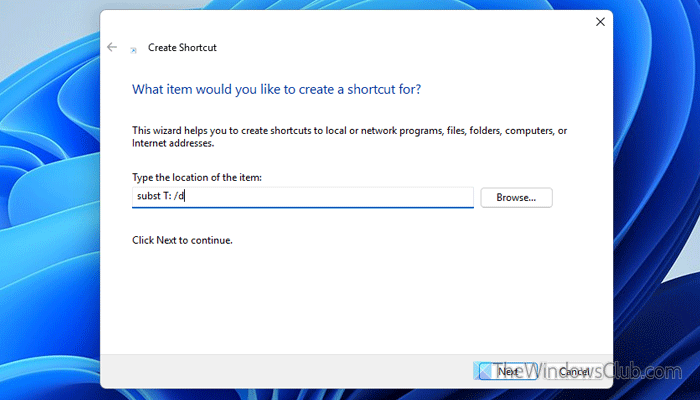
To remove the mounted folder using a Shortcut, follow these steps:
- Right-click on the Desktop and select New > Shortcut.
- Enter this: subst [drive-letter]: /d
- Replace [drive-letter] with the actual drive letter.
Hope this helps.
Read: How to mount a Drive as Folder rather than Letter in Windows 11
How do I add a folder as a drive in Windows 11?
To add a folder as a drive in Windows 11, copy the folder’s path first. Then, open Windows Terminal and enter this command: subst [drive-letter]: [folder path].
How do I make a folder appear as a drive?
To make a folder appear as a drive, copy the folder path and go to the Desktop. Then, right-click on the Desktop and select New > Shortcut. After that, enter this: subst [drive-letter]: [folder path] and click on Next. Give it a name and click the Finish button.
Read: How to count the number of Items in a Folder on Windows 11
