
Windows 11/10 comes with a Transparency effects feature to make the taskbar and Start menu translucent. However, there is no built-in feature available in Windows 11/10 that makes the opened windows (such as folders, browsers, applications, etc.) or a selected window completely transparent. Therefore, we have covered some free tools in this article to help you make windows transparent in Windows 11/10. Some of the freeware on this list are portable and some are available as installer files.
How to make windows transparent in Windows 11/10
We have covered 5 free tools in this list to make windows completely transparent in Windows 11/10 computers. These are:
- Glass2k
- Transparent windows
- TranspWnds
- Crystal XP
- Vitrite.
Let’s check these tools one by one.
1] Glass2k
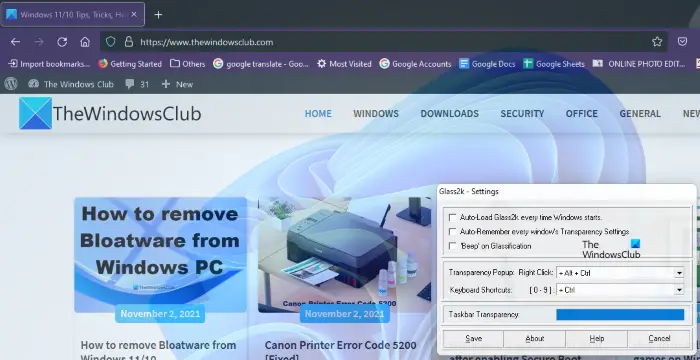
Glass2k is portable software. Simply download it from its official website and double-click it to launch. It starts running in the system tray of the taskbar. Now, right-click on the Glass2k system tray icon, and select Settings. After opening its Settings, you can change the hotkeys for making the windows transparent.
Glass2k offers a transparency level from 1 to 9. Number 1 is the highest degree of transparency and 9 is the lowest degree of transparency. 0 turns off the transparency effect.
It also offers additional settings that you can adjust according to your requirements. For example, the Taskbar Transparency slider in this tool allows you to adjust the transparency level of your computer’s taskbar.
After launching Glass2k, it will run continuously in the background. Therefore, to close it, you need to right-click on its system tray icon and select Exit.
You can download Glass2k from chime.tv.
2] Transparent windows
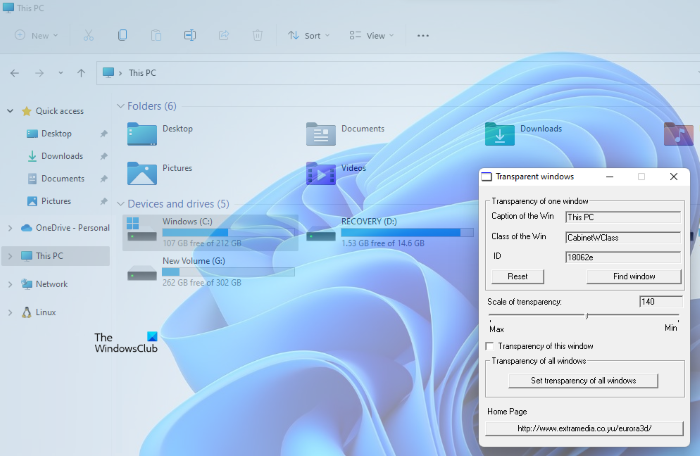
Transparent windows is a very simple software that has no advanced features. You can use it only to make windows transparent on your Windows 11/10 computer. It has a transparency slider that varies the transparency level from 0 to 255. While 255 is the minimum level of transparency, 0 is the highest level of transparency. You may find it a bit challenging to use at first. Therefore, we are explaining here how to use this tool.
It requires the caption, class, and ID of the window that you want to make transparent. Click on the Find Window button and then place your mouse cursor on the window that you want to make transparent. After that, it automatically detects the caption, class, and ID of that window.
It generally detects the window when you place your cursor either on its top or on its edges. When it detects the window, it shows its caption, class, and ID. Now, click on that window and adjust the transparency slider available on this tool.
If you want to make all the windows transparent, click on the Set transparency for all windows button.
This tool is available on softpedia.com for download.
3] TranspWnds
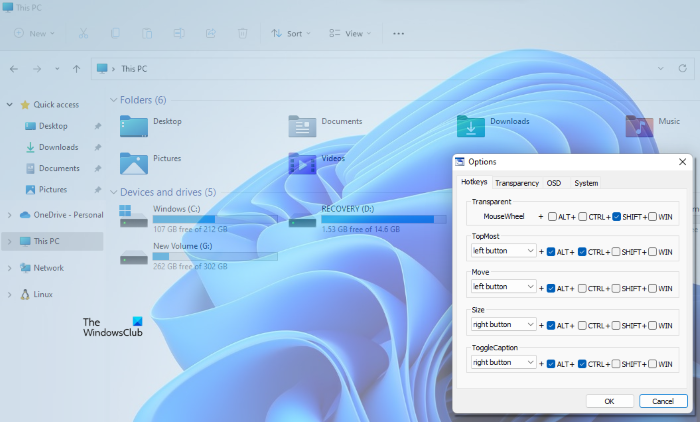
TranspWnds is another portable software on this list to make open applications or programs transparent.
By default, the hotkeys to change the transparency effect on a particular window is Mouse scroll wheel + Alt. But, if you want, you can change the keyboard shortcut or hotkey to apply the transparency effect. To do this, launch the tool, right-click on its system tray icon, and then select Options.
In the Options window, you can change the hotkeys for various actions, set the minimum level of transparency, and select whether this software should run on startup, among other options.
Visit softpedia.com to download TransWnds.
4] Crystal XP
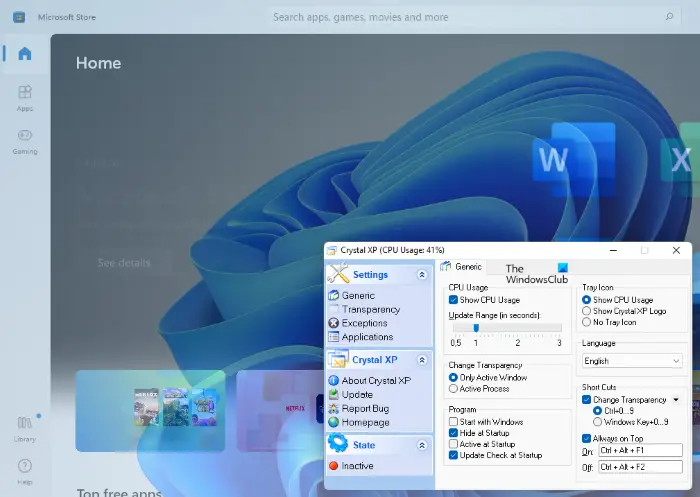
Using this Crystal XP tool, you can set the transparency level of opened applications between 1 (lowest) to 9 (highest). The 0 level turns off the transparency effect for a particular window.
By default, the hotkey to apply the transparency effect is Ctrl + (0 to 9). You can change this hotkey using the Settings of this tool. For this, launch this tool, right-click on its system tray icon, and select the Restore option. After that, you can set hotkeys and other options.
Crystal XP tool also displays the CPU usage percentage on hovering the mouse cursor on its system tray icon which is a nice feature. Grab it from softpedia.com.
5] Vitrite
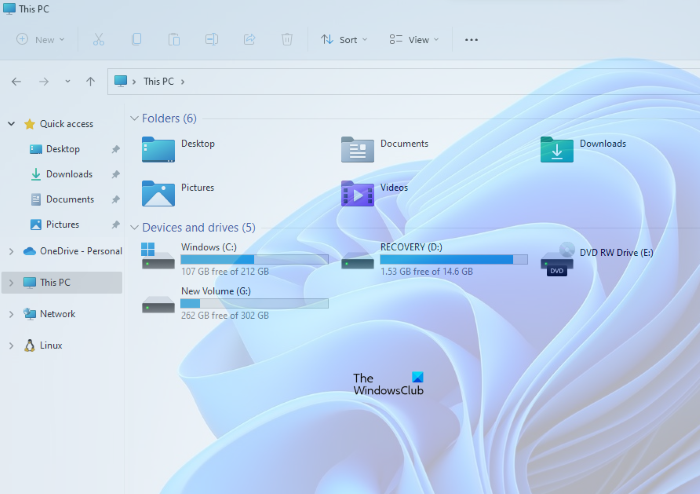
Vitrite is a straightforward tool to make open programs transparent. After installing it, double-click on the application file to run it. Like some other tools covered on this list, it also lets you set the transparency level between 9 to 1. Level 1 is the highest transparency effect, and Level 9 is the least transparent effect. 0 turns off the transparency of a window.
The default hotkeys to apply the transparency effects to a particular window is Ctrl+Shift+(1 to 9). Press Ctrl+Shift+0 to turn off the transparent effect. However, that hotkey to turn off the transparency effect did not work for me. If it does not work for you too, simply close the transparent window. When you launch the same window the next time, the transparency effect for that will be 0.
Visit softpedia.com to download it.
That’s all. Hope it is helpful.
How can I make my Windows screen transparent?
You can make any open window transparent on your Windows 11/10 computer with the help of free tools available on the internet. Some of them are paid, whereas some are free. We have listed some free tools to make windows transparent in the article above.
Related: How to make Taskbar transparent in Windows 11.
Does Windows 11 have transparency?
Yes, Windows 11 comes with an option to enable transparency on your interface. To enable transparency in Windows 11, you need to open the Windows Settings panel and go to the Personalize section first. Find the Colors option and toggle the Transparency effects button to turn it on.
