
If you are an individual who uses Microsoft Word to create greeting cards, brochures, calendars, event posters, or any other documents you might share with customers or an audience, you might want your fonts to be appealing with effects that will make the font in the document stand out from the rest. What if you want a text in your document to be blurry, and you do not know how? There are some tricks in Microsoft Word you can use to make your text blurry.
How to make Text blurry in Word
Follow the steps below to make the font blurry in Microsoft Word:
- Launch Microsoft Word.
- Type a text in the document.
- Highlight the text.
- On the Home tab in the Font group, click the Text effect and typography button and hover the cursor over Glow.
- Click Glow Options.
- A Format text effect pane will appear on the right.
- In the pane, under Glow, click the Preset drop-down menu and select a Glow.
- Click the color button and choose a color that is close to the color of the font.
- Change the size and transparency, this will determine how the blur will look.
- Close the Format text effect pane.
- Click the Text effect and typography button again and hover the cursor over Stylistics sets.
- Choose an option from the list; this is optional.
- Now, we have an artistic blurry style text in the Word document.
Launch Microsoft Word.
Type a text in the document.
Highlight the text.
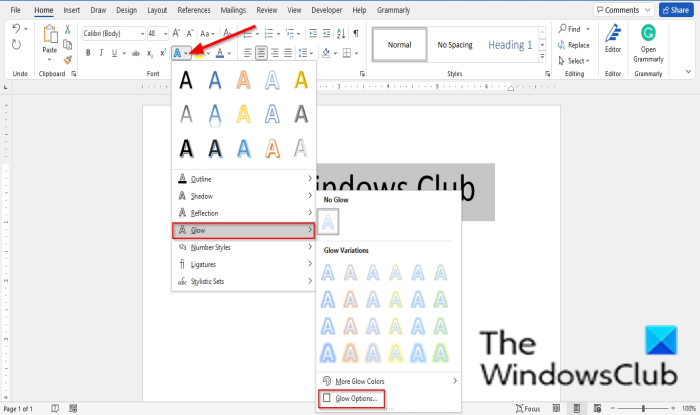
On the Home tab in the Font group, click the Text effect and typography button and hover the cursor over Glow.
Click Glow Options.
A Format Text Effects pane will appear on the right.
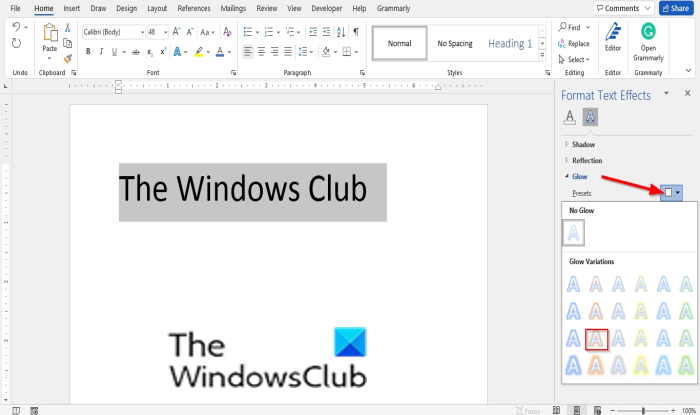
In the Format Text Effects pane, under Glow, click the Preset drop-down arrow and select a Glow from the menu.
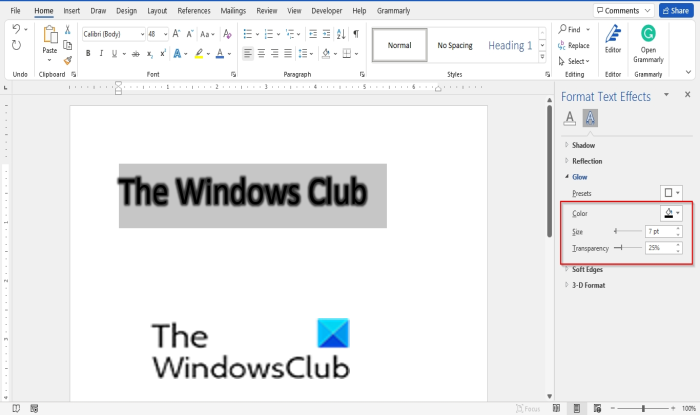
Click the Color button and choose a color that is close to the color of the font.
Changing the Size and Transparency will determine how the blur will look.
Close the Format Text Effects pane.
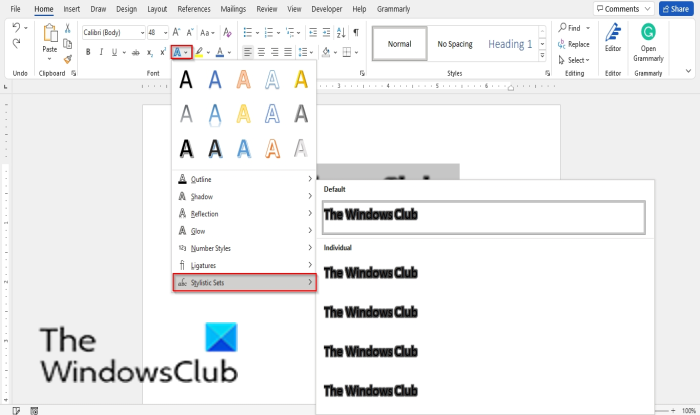
Click the Text effect and typography button again and hover the cursor over Stylistics sets.
Choose an option from the list; this is optional.

Now, we have an artistic blurry style text in the Word document.
We hope this tutorial helps you understand how to make a font blurry in Word; if you have any questions about it, let us know in the comments.
Read: Fix Blurry Fonts or Poor Display Scaling in Office Programs.
What is a Blur?
A Blur definition is to make something unclear and less distinct. Individuals would use the blur effect in image editing programs to create images and text look smudged, which can give the image an artistic look.
How do you blur something in Word?
To blur something, open Word settings and use Insert > Shape to mark the area you want to blur. Next, go to Format tab > Shape Fill > Eyedropper. Click a part of the picture whose color is similar to the color you want the blurred shape to be. On the Format tab, select Shape Effects > Soft Edges. This should help!
