
In this post, we’ll show you how to link checkboxes to multiple cells in Excel. Whether you’re managing a to-do list, tracking project progress, or designing a survey, checkboxes offer a simple yet powerful way to make your worksheets interactive.
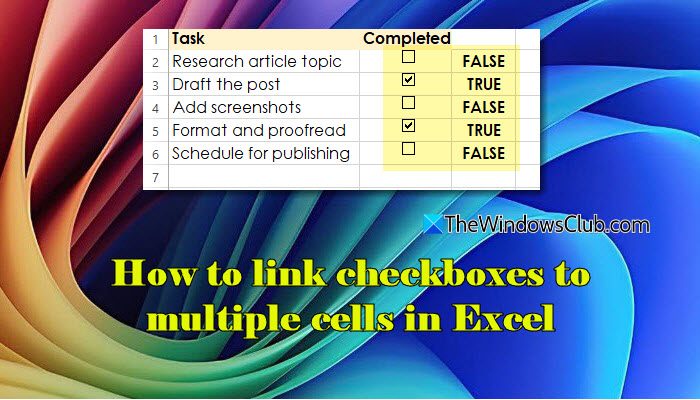
By linking checkboxes to specific cells, you can record whether an item is checked or not. This linking can then be used in formulas, conditional formatting, or summaries to enhance the organization and accuracy of your data.
How to link Checkboxes to Multiple Cells in Excel
To link checkboxes to multiple cells in Excel on a Windows 11/10 PC, you can either manually assign each checkbox to a different cell or use a VBA script to automate the process. Let us see this in detail.
1] Link checkboxes to multiple cells manually
This method is suitable if you only have a few checkboxes.
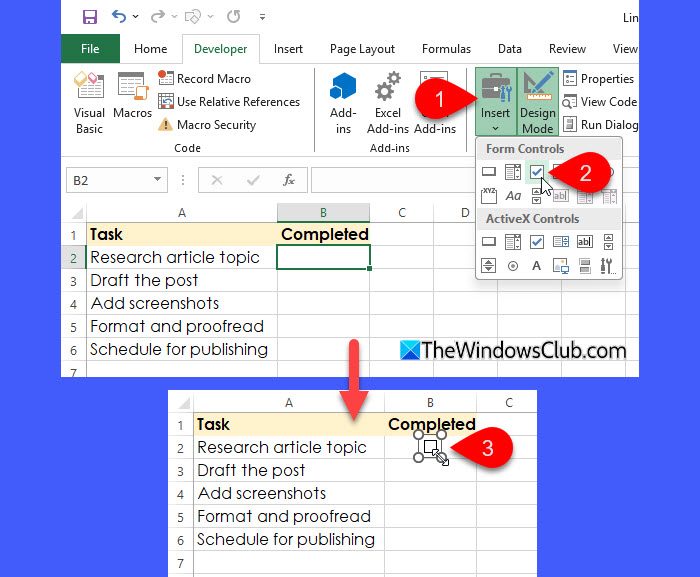
Open your worksheet and go to the Developer tab. Insert Form Control checkboxes at the desired locations.
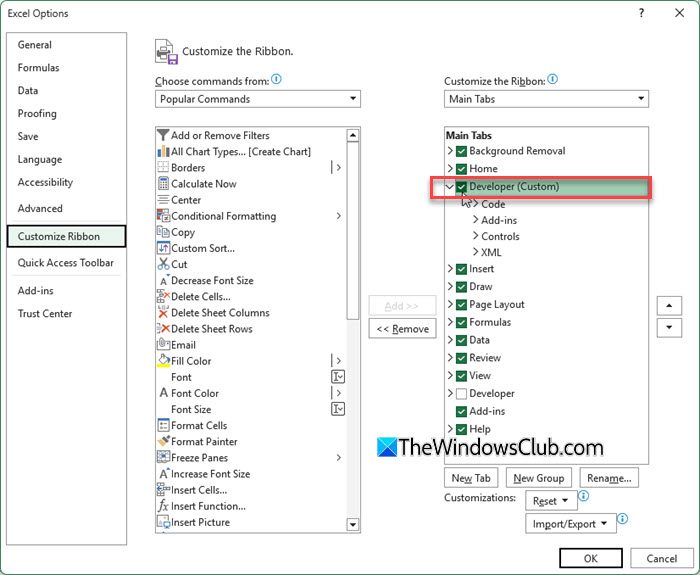
If you don’t see the Developer tab, you’ll need to enable it first.
Go to File > Options > Customize Ribbon, then check the box next to Developer under the Main Tabs list and click OK. The Developer tab will now appear on the ribbon.
Next, right-click the first checkbox and select Format Control. In the Format Control window, click inside the Cell link box and select the cell where you want to store its value.
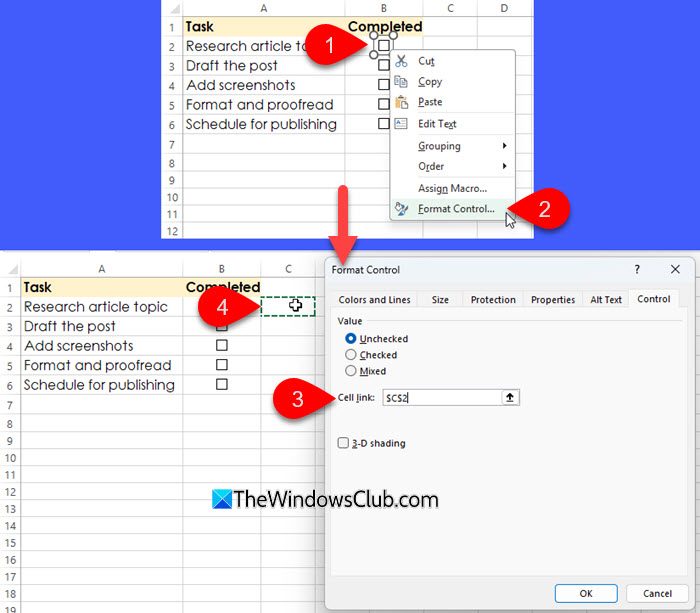
Alternatively, hold the Ctrl key and click the first checkbox to select it. Then place your cursor in the Formula Bar, type an equal sign (=), and click the cell that you want to link the checkbox to. Press Enter to apply the link, and then Esc to deselect the checkbox.
Repeat the same steps for each checkbox, linking them to different cells.
2] Link checkboxes to multiple cells using VBA
This method is suitable if you have several checkboxes. Manually linking them can be time-consuming, so you can automate the process with a VBA macro. VBA can help batch-link checkboxes to corresponding cells in just a few seconds, ensuring consistent and error-free linking.
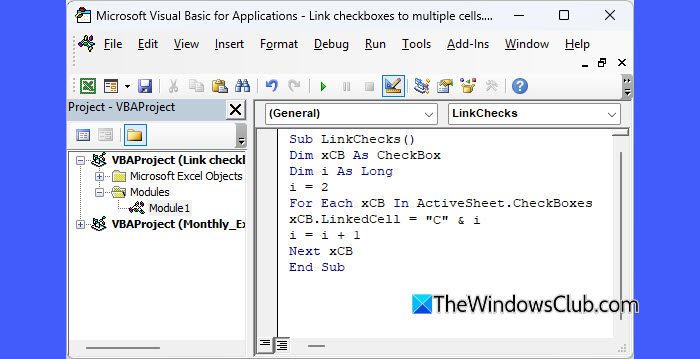
Press Alt + F11 to open the VBA Editor. Click Insert > Module. Paste the following code in the Code Editor window:
Sub LinkChecks()
Dim xCB As CheckBox
Dim i As Long
i = 2
For Each xCB In ActiveSheet.CheckBoxes
xCB.LinkedCell = "C" & i
i = i + 1
Next xCB
End Sub
In the above code, “C” refers to column C, which is adjacent to column B, where our checkboxes are placed (refer to the dataset in the above images). So, each checkbox will be linked to the corresponding cell in the column to its right.
Close the VBA Editor and press Alt + F8 to run the macro. It will automatically link each checkbox on the sheet to consecutive cells.
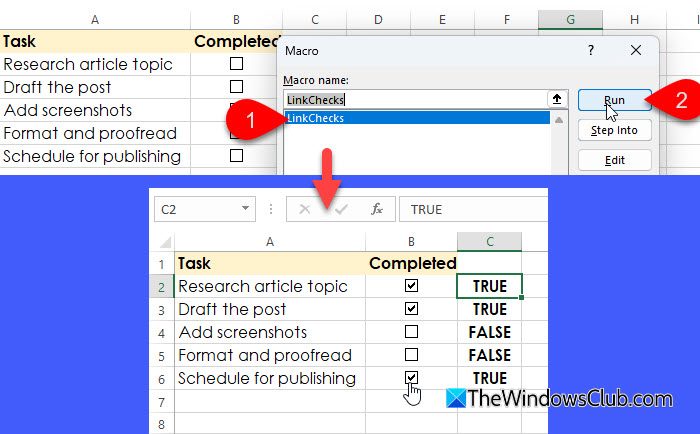
Note: The above VBA code works when all checkboxes are in one column and you want to store their linked values in the next column. If your checkboxes are placed in a different column or you want the results in another location, you’ll need to adjust the code accordingly.
Use linked checkboxes for Data Analysis
When you toggle the checkboxes, the linked cells will display TRUE when checked and FALSE when unchecked. You can then use these values in formulas or conditional formatting to perform calculations or highlight items based on their checkbox status. Let us understand this with the help of an example.
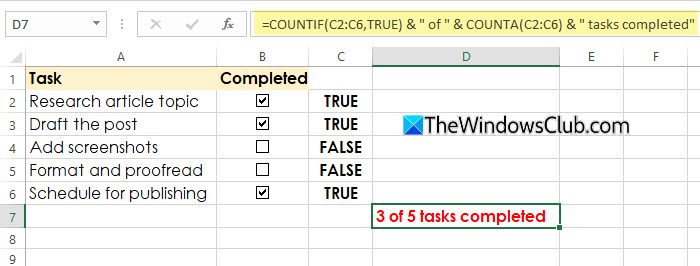
For the same dataset, you can use the values in column C (which return TRUE for checked boxes and FALSE for unchecked ones) to calculate how many tasks have been completed.
For this, use the following formula:
=COUNTIF(C2:C10, TRUE)
To see your task progress in a simple text format, use the following formula:
=COUNTIF(C2:C6,TRUE) & " of " & COUNTA(C2:C6) & " tasks completed"
In the above formula:
COUNTIF(C2:C6,TRUE):Counts how many checkboxes are checked (i.e., TRUE values).COUNTA(C2:C6):Counts how many total checkboxes (or linked cells) exist in the range.& " of " &and& " tasks completed":Combine the numbers with text to create a readable message.
Similarly, you can use these linked checkboxes for more advanced data analysis, such as:
- Conditional formatting: Automatically highlight completed tasks, pending work, or overdue items based on checkbox status.
- Dynamic dashboards: Create charts or progress bars that update automatically as checkboxes are ticked or unticked.
- Filtering data: Use TRUE/FALSE values to quickly filter and display only completed or incomplete tasks.
That’s all! I hope you find this useful.
Read: How to add a Checkbox in Google Sheets.
How do I link one checkbox to multiple cells in Excel?
A checkbox in Excel can only be linked to one cell. So you can’t link one checkbox to multiple cells. However, you can use formulas to reflect its value in other cells. For example, if a checkbox is linked to cell C2, you can enter “=C2” in any other cell to mirror its status in that cell.
How to link checkboxes?
Excel offers multiple ways to link checkboxes. The simplest and most widely used is the Form Control method. To do this, right-click the checkbox, select Format Control, go to the Control tab, and set the Cell link. You can also use the LinkedCell property (for ActiveX checkboxes) or VBA if you need to link multiple checkboxes automatically.
Read Next: How to create and use Form Controls in Excel.
