
Midjourney is one of the most powerful AI image generators available, but it does not offer a native Windows application and requires Discord for access. In this guide, we will see how you can install and use Midjourney AI on Windows 11, including third-party proxy applications and alternative AI art generators that work without Discord.
Install and use Midjourney AI on Windows 11
Before we begin, it is important to understand that Midjourney itself cannot be installed as a standalone Windows application. The official Midjourney service only operates through Discord. However, there are two legitimate approaches to accessing Midjourney AI on Windows.
- Using ChatGPT Web Midjourney Proxy
- Using Third-Party Midjourney API Services
Let us talk about them in detail.
1] Using ChatGPT Web Midjourney Proxy
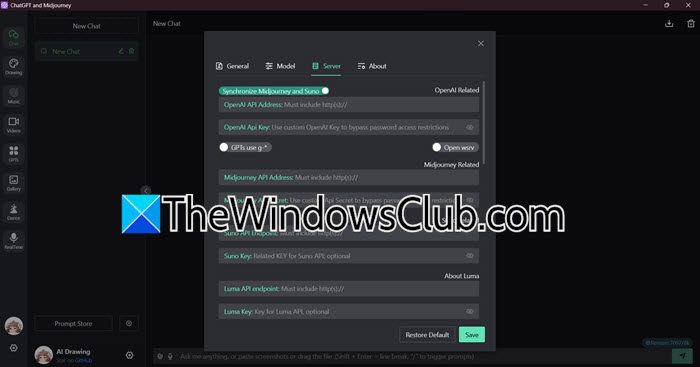
This method uses an open-source desktop application called ChatGPT Web Midjourney Proxy. It provides a clean, ChatGPT-like interface for accessing Midjourney without the Discord chat environment. This is a community-developed open-source project available on GitHub. It acts as a bridge between you and Midjourney by connecting to proxy API services. You will need to obtain API access separately. The project is actively maintained under an MIT license.
You need to follow the steps mentioned below to do the same.
- Navigate to github.com/Dooy/chatgpt-web-midjourney-proxy/releases.
- Look for the latest version and download the .exe file that matches your Windows version.
- Once the download completes, double-click the downloaded .exe file. Windows may show a SmartScreen warning. Click More info and then Run anyway if you trust the source. Follow the on-screen installation prompts.
- After installation, double-click the desktop icon to start the application. You will see a chat-style interface similar to ChatGPT.
- To use this application, you need an API key and server address. These are available from third-party API providers. Search for midjourney proxy API service in your browser to find providers. Some services offer pay-as-you-go pricing starting at approximately 0.12 RMB per image generation.
- Click the Settings gear icon, usually located in the bottom-left or top-right corner of the interface.
- Click on Server. You will see fields labeled:
- OPENAI_API_KEY or API Key – Enter your API key here
- MJ_SERVER or Server URL – Enter the proxy server address
- MJ_API_SECRET – Enter your API secret if required
- Click Save or Apply to store your credentials. The application may need to restart.
- Type your image description in the chat box at the bottom of the interface. Press Enter to send your request. The application will display the generated images directly in the chat window.
- Click on any generated image to view it full-size. Right-click the image and select Save image as to download it to your computer.
Do keep in mind that Image generation speeds depend on your API provider.
2] Using Third-Party Midjourney API Services
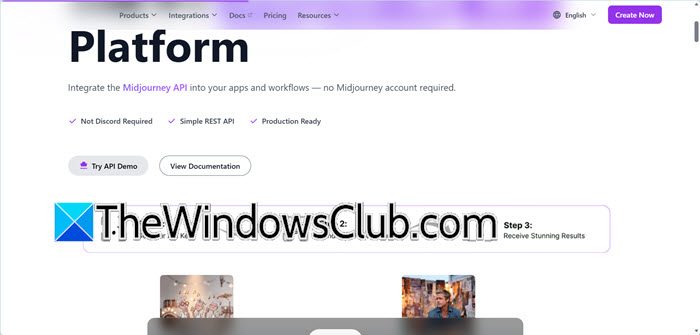
A third-party API services allows us to access Midjourney through a REST API. These services act as a bridge between you and Midjourney, allowing you to generate images without ever opening Discord. Some providers like Apiframe, LegNext, and TTAPI offer free trial credits and a web-based playground for testing.
You need to follow the steps mentioned below to do the same.
- Open your web browser and search for Midjourney API service or visit providers like Apiframe (apiframe.com), LegNext (legnext.com), or TTAPI (ttapi.io).
- Click Sign Up on your chosen provider’s website. Enter your email address and create a password. Verify your email address by clicking the link sent to your inbox.
- After logging in, navigate to the Dashboard or API Keys section. Click Create New Key or Generate API Key. Copy the generated key and save it somewhere safe.
- Look for a Playground or Try It Now button on the provider’s website. This is a web-based tool where you can test the API without writing any code.
- Select the Midjourney model from the dropdown menu. Enter your image description in the text box and click Execute or Run.
- The generated image will appear on the screen. Right-click the image and select Save image as to download it to your Windows computer.
Several third-party API providers offer access to Midjourney through a simple web-based interface. Apiframe provides a free tier with credits and then starts at $19 per month, and it does not require you to have your own Midjourney account. LegNext similarly offers a free credit-based tier with plans beginning at $30 per month, and no Midjourney subscription is needed. TTAPI takes a different approach with a pay-per-use model starting at $9 per month, though it does not offer a free tier. All three services allow you to generate images through a web-based playground or via API calls, making them accessible without needing Discord.
Read: Best free AI Image Generators to generate AI Images.
Can I install Midjourney as a standalone Windows application?
No. Midjourney does not offer an official Windows app. It is designed to work through Discord. However, you can access Midjourney on Windows using third-party proxy applications like ChatGPT Web Midjourney Proxy or through API-based services such as Apiframe and LegNext. These methods let you generate AI art without opening Discord.
Read: Top AI Image Extender available for free
Is there a free way to use Midjourney on Windows?
Some third-party API providers offer free trial credits. Apiframe and LegNext both provide free tiers with limited credits. Youchuan (the Chinese version) gives 100 free images for new users. However, the official Midjourney service through Discord requires a paid subscription starting at $10 per month.
Also Read: Best free Text to Image Generator AI Tools.
