
Want to add a blank page above or between paragraphs in Microsoft Word? In Word, there is the Blank Page feature that will allow you to add blank pages to your document. The Blank Page feature is useful, especially when you’re working on a long document, because it will not disrupt the formatting of the existing document.
How to add a blank page in Word document
Follow the steps below to insert a new blank page at the end, at the beginning of In the middle of your Word document:
- Launch Microsoft Word.
- Place the cursor anywhere in your document.
- Click the Insert tab.
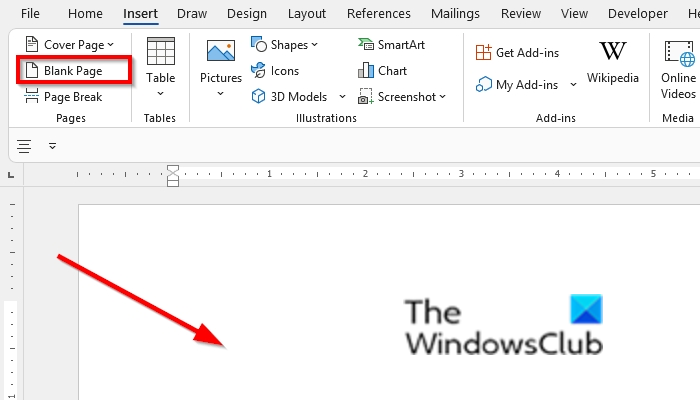
- Select Blank Page in the Pages group.
- The blank page will get inserted.
Let us see this in detail.
Launch your Word document.
Place the cursor anywhere in your document; you can even place your cursor above a paragraph.
Click the Insert tab on the menu bar.
Select the Blank Page button in the Pages group on the left of the Microsoft Word Interface.
A new blank page will be added to your document.
We hope this tutorial helps you understand how to insert a blank page anywhere in your Word document; if you have questions about the tutorial, let us know in the comments.
Related: How to delete a blank page at the end of a Microsoft Word document
Can we insert a new page anywhere in the document?
Yes, you can insert a new page into your Word document. You can place your cursor anywhere in your document and insert a new blank document. You can even insert a new blank page between your paragraphs, and it will not affect your formatting. In this tutorial, we will discuss how to insert a new page or a blank page into your document.
How do I eliminate a blank page in Word?
To eliminate or delete a blank page, you can go to view and select the Navigation pane check box in the Show group. A Navigation pane will appear on the left, displaying the pages. Click on the page that you want to delete and press the Backspace key on the Keyboard, and the page will be deleted. You can close the Navigation pane later by clicking the close button.
