
We all know that importing passwords from a CSV file to Firefox is an easy task. The truth is the problem lies in that only. Normally, we use the “Import from a File” option to import passwords from a .CSV or .json file. The option to import passwords from a file is missing in some versions of Firefox. It is available in Nightly versions and some other versions.
Earlier, Firefox users could import passwords directly from other browsers. Now that everything has changed for good, here is the guide that will show you how to enable the “Import from a File” option and import passwords from a CSV file.
Import Passwords From a File in Firefox
To import, open Firefox and follow these steps.
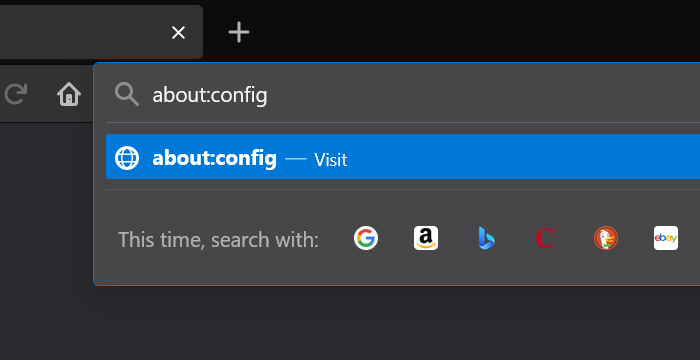
- Enter about:config in the address bar
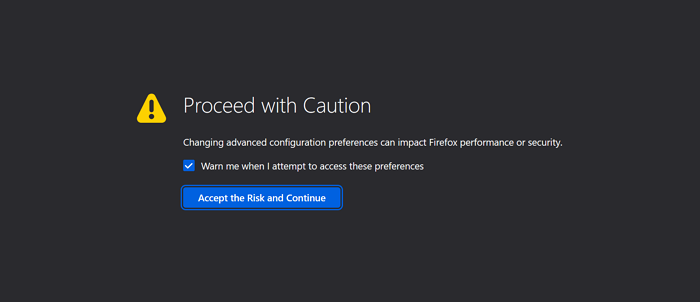
- Accept the warning and proceed
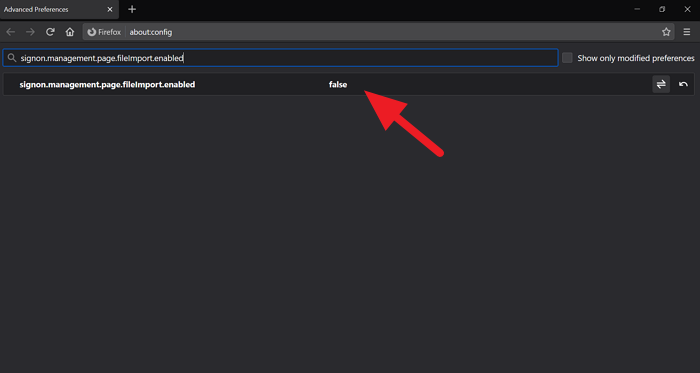
- Type signon.management.page.fileImport.enabled in the preference search bar
- Double-click on the result to make it true
- Access Firefox Lockwise using the hamburger menu
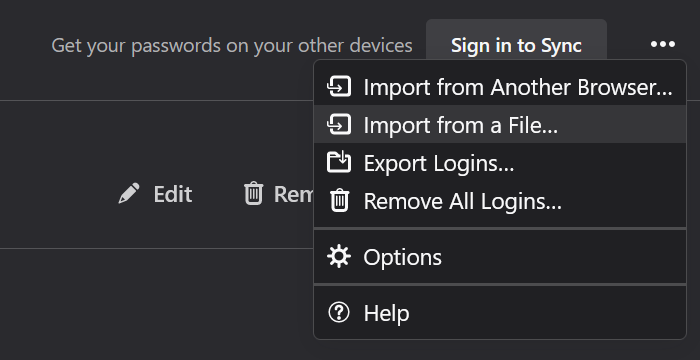
- Click on the three-dot button and click on Import from a File
- Select the file in the explorer and click Import.
Let’s see the process in detail for a better understanding.
How to import login data to Firefox from a file
To get started, open Firefox and enter about:config in the address bar, and hit Enter.
You will see a warning while you are trying to access preferences on Firefox. Click on Accept the Risk and Continue to proceed.
Now, you will see the preference search bar below the address bar. Enter the following text in that search bar.
signon.management.page.fileImport.enabled
Double-click on the result to change it from False to True. The option to import passwords from a file can be seen only if it is changed to true.
After enabling the option by changing the preference to true, click on the hamburger menu in the toolbar and select Passwords to access Firefox Lockwise, Mozilla’s own password manager.

In the Firefox Lockwise or Passwords page, click on the three-dot button on the top-right of the page and select Import from a File.
Select the .CSV file containing the passwords you want to import in the explorer window that opens, then click Import. They will all get added to Firefox.
I hope this guide helped you enable the option to import passwords from a File and import them.
Related reads:
- How to restore or backup Firefox Bookmarks or Profile on Windows PC.
- How to import passwords from Chrome into Firefox.
