
When you log in to the computer, if you see a message box with an error message saying “Can not find script file” in Windows 11 and Windows 10, this post may help guide you in the right direction to resolve the issue. Windows users usually see it when they log in.
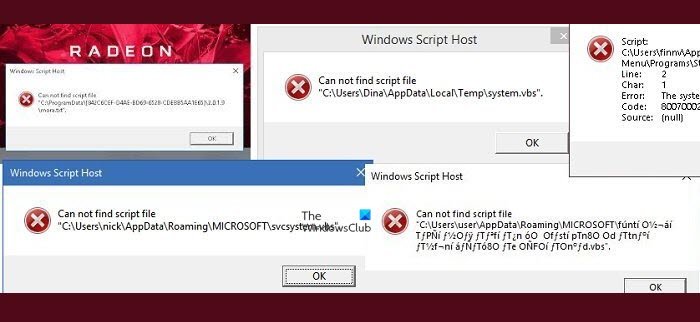
Cannot find script file errors in Windows 11/10
Windows uses script files to run many programs. Many of them are set to run as soon as you log in to the computer, while others could be based on a trigger. That said, usually, scripts set by Windows do not fail, and chances are some malware had set up a script to run. However, since it has been removed from the computer, the file is missing, and Windows Startup gives an error. This error can also occur after an incomplete uninstallation. While the file may have been removed, the script or the scheduled trigger remains. Here are the steps you can carry out to resolve the issue-
- Check the ownership of this script
- Reinstall the program
- Fix Winlogin entry via Registry
- Fix the .vbs entry in Registry
- Recreate the missing files
- Run an Antivirus scan.
1] Does this script file belong to you?
The error message can appear as – Cannot find script file or Cannot find Run.vbs. That said, there is one thing that I want you to be sure of before we go ahead and fix it.
Does the error message box display the path of the script file or any file? If yes, you need to figure out if this was set up or installed by you. If you have set up a macro to run during startup or have a program that does it when you set it up, it would be better to fix it using the original method.
Usually, these script files are available in the Startup folder or they run using the Task Scheduler. I strongly suggest reviewing them if you are unable to find your custom script.
You should also check whether the file was associated with a program you recently uninstalled.
Read: Cannot find script file HPAudioswitchLC.vbs at startup.
2] Reinstall the program
If you can identify the program with which the missing file is associated. I suggest you reinstall the program and see.
If it is a Windows OS file, run System File Checker.
Read: The system cannot find the file specified.
3] Using Registry Editor to fix Winlogon entry
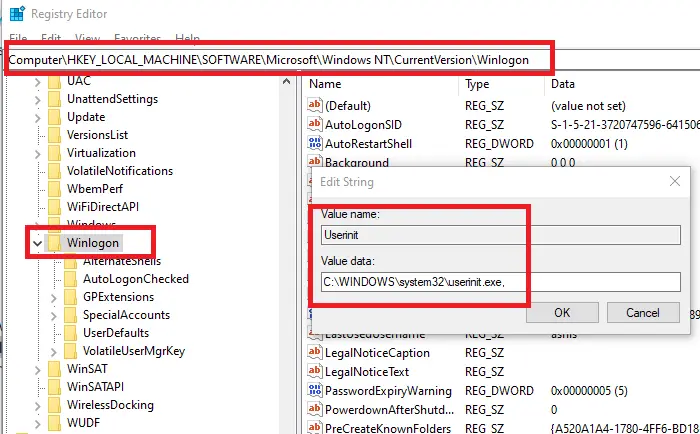
Open Registry Editor by typing regedit in the Run prompt followed by pressing the Enter key.
Navigate to the following path in the editor
HKEY_LOCAL_MACHINE\SOFTWARE\Microsoft\Windows NT\CurrentVersion\Winlogon
Locate the string Userinit, and double-click to edit it
The default value of the string is “C:\Windows\system32\userinit.exe,” if there is anything else than it, then make sure to change it, and click on the OK button.
Log out and back in to check if the error is gone.
4] Run.vbs error
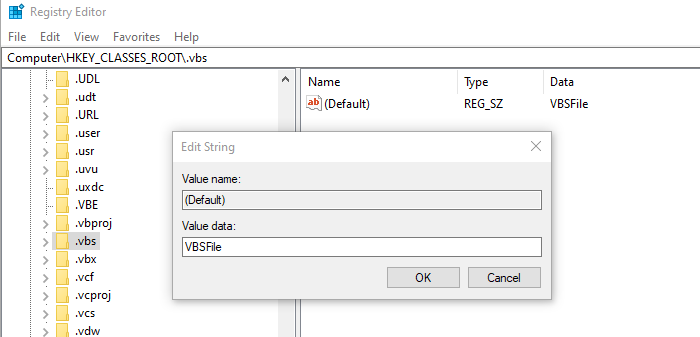
If you receive a Windows Script Host error, then you need to set the default value for the vbs key.
You will have to use the Registry Editor to change the value at-
Computer\HKEY_CLASSES_ROOT\.vbs
Follow our detailed guide to fix Windows Script Host errors.
You may also want to check if the Windows Script Host access is disabled on your machine.
Read: Cannot find script file run.vbs at logon
5] Recreate the missing files
If you are not able to find which program is calling that file, and you have tried everything, I would suggest recreating the file, and see what happens.
- Note the path, and navigate to it using File Explorer
- If other folder structures are missing as well, you will have to create it
- Once you create the blank file wait for it to be called by the program
- If nothing happens, you are all set.
If the application is a legit one, I am sure you will see the related error again, giving you information about what has gone wrong. Sometimes we end up using a junk cleaner, and the software removes files, thinking it’s a junk file.
6] Run Antivirus
While not necessary, if the script file doesn’t belong to you, then it to make sure the system is not compromised further; it is best to run the antivirus software once. You can use any antivirus solution or the built-in Windows Security software to scan and remove the problem.
We hope something here helps you.
How do I fix Windows Script Host problem?
Multiple steps are required to fix the Windows Script Host pop-up error after logging in to a Windows 11/10 PC. The first thing you must do is check if you have the correct permission to access the file. If you have any account permission-related issues on your computer, you are likely to encounter this error frequently.
Cannot find script file CheckUpdateLauncher.vbs?
If you get Cannot find script file CheckUpdateLauncher.vbs error immediately after logging in to your user account, you might have to follow the solutions above. IN other words, you can verify the setting in Registry Editor or reinstall the program that is mentioned in the error message. Apart from that, you can run an antivirus scan to check if there is any potentially malicious file.
How do I stop Windows Script Host pop up?
To stop Windows Script Host pop-up messages, you need to check the file or script’s ownership, reinstall the app mentioned in the error, fix Winlogon using Registry Editor, etc. There is no one-click solution; you must identify the cause to prevent this pop-up from appearing on your screen.
