
The Search Results window in Notepad++ shows the results of your Find All searches. It lets you see where your search terms are located in your files. Sometimes this window may disappear, making it appear as though the search did not work. In this post, we will learn how to enable the search results window in Notepad++.
How to enable Search Results window in Notepad++
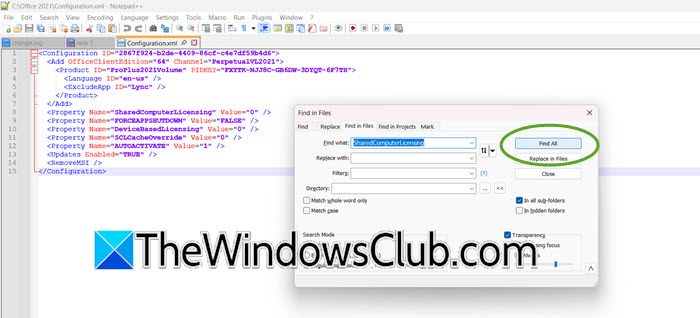
To enable or use the search results window in Notepad++, you can use the Find All feature window.
The window is not a feature you toggle on in the settings. It is a results panel that only appears after you run a specific type of search.
You can press Ctrl + Shift + F or go to Search > Find in Files. Enter a search term and click the button labeled Find All.
Once you click Find All, the Search Results window opens automatically, usually docked at the bottom of the screen, listing all matches.
If you have closed the window (clicked the X) but want to reopen it without running a new search, press F7. This toggles the Search Results window on and off.
Notepad++ not showing search result Windows
This usually happens because the Search Results panel has been accidentally closed, minimized to an invisible size, or moved off the visible screen area (common when using multiple monitors). It is rarely a software bug or a permanent error. Now, let us proceed to resolve this issue using the solutions below.
- Reactive the window using the dedicated shortcut: Notepad++ has a built-in command that specifically brings the Search Results window into focus, overriding its current state. Press the F7 key on your keyboard. If the window is open somewhere (even off-screen), this will activate it. If it was closed, this will reopen it.
- Find and expand the squashed panel: The window might be docked at the bottom, but was manually resized to a height of zero pixels, making it look like a thin line. Hover your mouse over the very bottom border of the Notepad++ window (just above the status bar). When your cursor changes to a double-headed arrow (↕), click and drag upwards. The Search Results window will reappear as you drag.
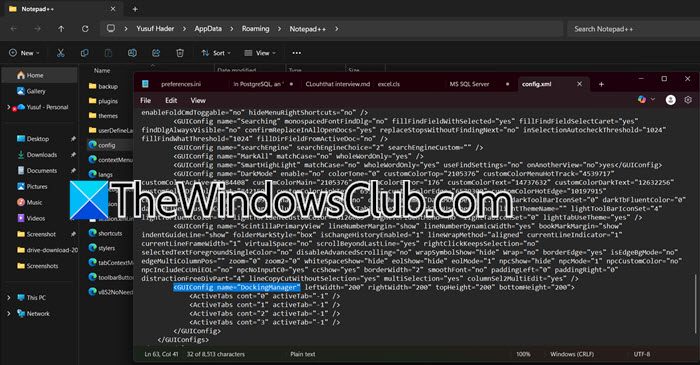
- Reset the window position by editing the configuration file: The window’s coordinates are stored in the config.xml file. If the data is corrupted, resetting this specific block forces Notepad++ to forget the bad position and spawn a new window at the default dock. Follow the steps below to reset the window position by editing the configuration file.
- Close Notepad++ completely.
- Open Windows File Explorer and paste this path: %AppData%\Notepad++
- Find the file named config.xml . Right-click it and select Open with > Notepad (do not use Notepad++).
- In the file, locate the block that starts with
<GUIConfig name="DockingManager". - Delete that entire block and replace it with this default code:
<GUIConfig name="DockingManager" leftWidth="200" rightWidth="200" topHeight="200" bottomHeight="200"> </GUIConfig> - Click File > Save in Notepad, then close it.
- Restart Notepad++. Run a new Find All search; the window will appear at the bottom.
- Drag the window back from an off-screen location: If the window was previously undocked and used on a second monitor that is no longer connected, it is stuck in ghost mode off-screen. This method attaches the window to your mouse cursor so you can pull it back. You need to hit F7 to ensure the lost window is the active one. Now, press Alt + Spacebar > M key (for Move). Use the arrow keys on your keyboard to nudge the window back onto your main screen. Once visible, press Enter to lock it in place.
Hopefully, with these solutions, your issue will be resolved.
Read: How to compare two files in Notepad++
How to enable autocomplete in Notepad++?
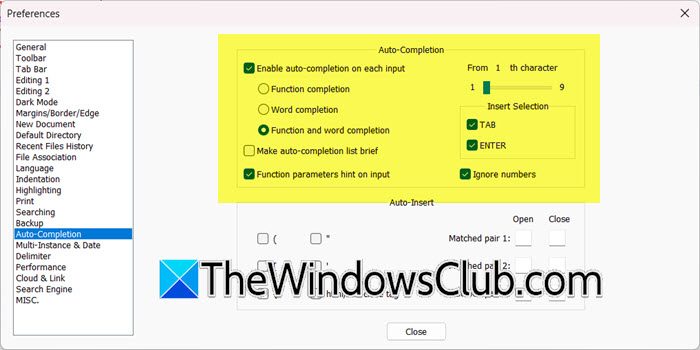
To enable autocomplete in Notepad++, go to Settings > Preferences and click on the Auto-Completion tab . Here, check the box labeled Enable auto-completion on each input to activate the feature . You can then customize it by selecting how many characters should trigger the suggestion (e.g., “from 2nd character”) and choosing the completion type, such as Word completion for general text or Function completion for code parameters and hints.
Read: How to access FTP Server using Notepad++
How to use Search function in Notepad++?
The search function in Notepad++ is accessed primarily via the Ctrl+F shortcut for finding text within the current document, or Ctrl+Shift+F to open the powerful Find in Files dialog, which lets you search across multiple files in a specified directory. You can refine your search by using options like Match case for precise matching or enabling Regular expression mode for advanced pattern-based searches. After running a Find All operation, results are displayed in the Search Results window (which can be toggled with F7), allowing you to double-click any entry to jump directly to that line in the file.
Also Read: Add Bing Search to Notepad++ back again.
