
When a computer is used by many people, it can result in multiple Windows accounts. Some are used frequently, while others are not. At some point, you will need to delete a user profile, primarily if they are not used at all or if it’s taking up a lot of space. In this post, I will show you how to delete a User Account in Windows 11/10. We will also share how to back up existing profile data and files.
How to delete a User Account in Windows 11
There are two ways by which you can delete a User Account in Windows 11/10:
- Windows Account Settings
- Command-line
- Using Control Panel.
Let us take a look at them in detail.
1] Delete User Account via Windows Accounts Settings
Windows 11
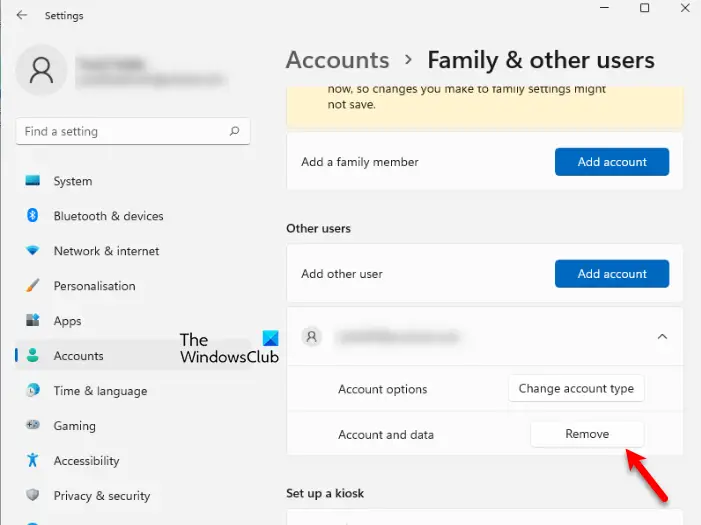
To delete a User Account via Settings, follow the given steps.
- Open Settings by Win + I.
- Go to Accounts and then click Family & other users.
- Now, select the user that you want to remove, and click Remove from the Account and data section.
- Finally, select Delete account and data and you will be good to go.
This is how you can remove a User account or Microsoft account on Windows 11 computer.
Note: You can not remove Microsoft Account if you don’t have another Local or Microsoft account configured on that computer.
Windows 10
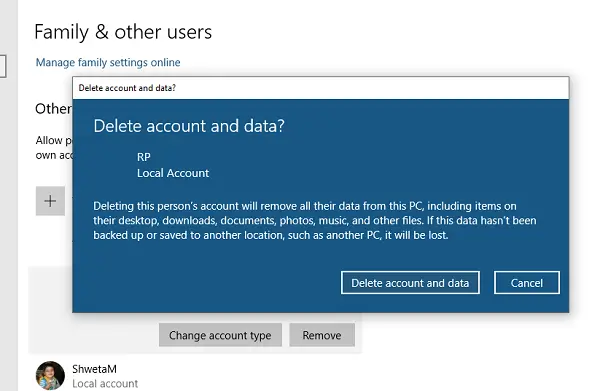
- Go to Settings > Accounts > Family & other users
- Select the account you want to delete and click on Remove button
- It will open a confirmation window and display a warning message, along with “Delete account & data” or Cancel button.
- Click on the Delete account and data button to remove the user.
The warning is about the deletion of data of the user. When you remove an account, it will delete all user data, including items such as Desktop, Documents, Photos, Music, and other folders. If you haven’t backed up, there will be no way to recover those files.
2] Delete User Account using Command line
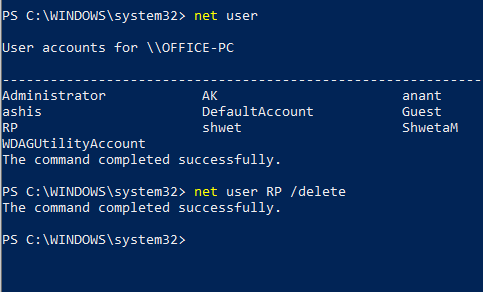
If you are deleting multiple user accounts, using the Command Prompt or PowerShell is efficient.
Open Command Prompt or PowerShell with admin privileges
Type the following and press the Enter key:
net user
It will reveal the exact usernames on the computer.
Next, type:
net user <username> /delete
It will delete the account and all the data without any warning. Remember to replace <username> with the name of the user account.
When using the Command Prompt or PowerShell, be very careful not to delete an incorrect account.
3] Using Control Panel
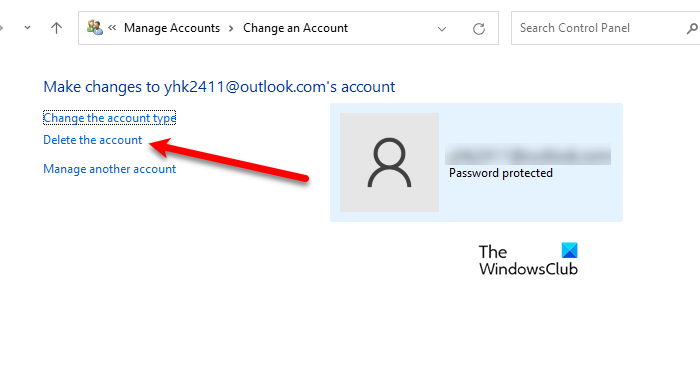
To delete Local or Microsoft Account via Control Panel in Windows 11, follow the given steps.
- Open Control Panel from the Start Menu.
- Click User Accounts. Make sure that your View by is set to Categories.
- Now, click Remove user accounts.
- Select the Account you want to remove and then click Delete the account.
- Finally, click Delete files.
Hopefully, you know how to remove accounts from your system now.
TIP: This post will help you if you have deleted a User Profile or Account but find that the User Picture is still there on the Windows Login Screen.
What happens when you delete a User Account?
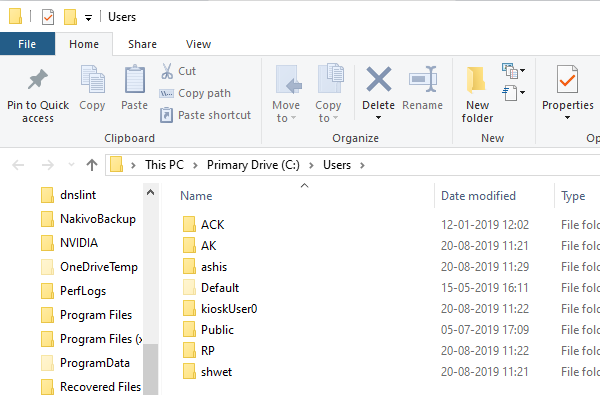
All user accounts data is available in a folder inside C:\Users. The folder name will be the same as the user’s name. You can verify the exact name of the user by executing net user command in PowerShell or Command Prompt. When you delete a user account, this folder and everything inside it are deleted.
How to take a backup of User files?
The best way to take a backup is to copy the folder to an external drive or other partition. Later you can go through it, and keep whatever is necessary, and delete the rest. Here is how a typical user folder looks.
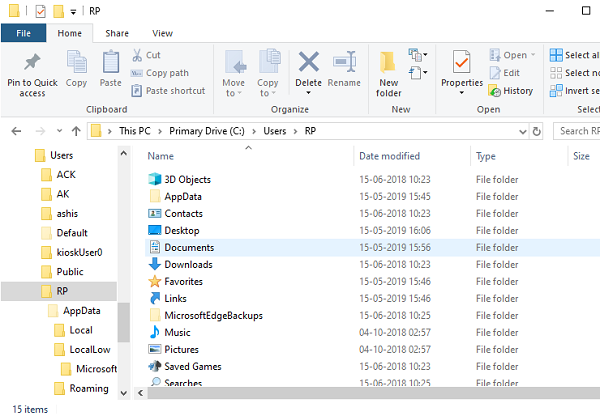
You can navigate to each folder and copy whatever you like. Some potential folders include Desktop, Downloads, Pictures and Music.
I hope the tutorial was easy to understand and helped you not only delete a user account in Windows 11/10 but also back up that account’s files.
Cannot delete a User Account in Windows 11
In Windows 11, you usually can’t delete a user account if it’s the one currently signed in, if it’s tied to a Microsoft account without proper sign-out, or if the “Remove” button is missing due to system restrictions. The fix is to sign in with another administrator account, then remove the unwanted account via Settings as follows:
- Open Settings.
- Click on Account.
- Now click on Family
- Click on the User Account you want to remove.
- Click on Delete account and data for confirmation.
What is the difference between Microsoft Account and Local Account?
Local Account and Microsoft Account are somewhat similar. A Local Account is like another instance of Windows on your system, with its own Settings configuration. Microsoft Account will add some Microsoft features, such as Xbox, Word,etc. It will also sync your configuration, so you can use the same settings on a different system.
