
If you are adding a bunch of users to Microsoft 365, it’s never a good idea to do this manually. It’s time-consuming, inefficient, and probably not the best use of your time. Therefore, in this post, we have created a guide to easily create bulk users in Microsoft 365.
How to create Bulk Users in Office 365
If you want to create bulk users in Office 365, you can use one of the methods mentioned below.
- Using Microsoft 365 Admin Center
- Using CSV file in Microsoft Admin Center
- Using Microsoft Entra Admin Center
Let us talk about them in detail.
1] Using Microsoft 365 Admin Center
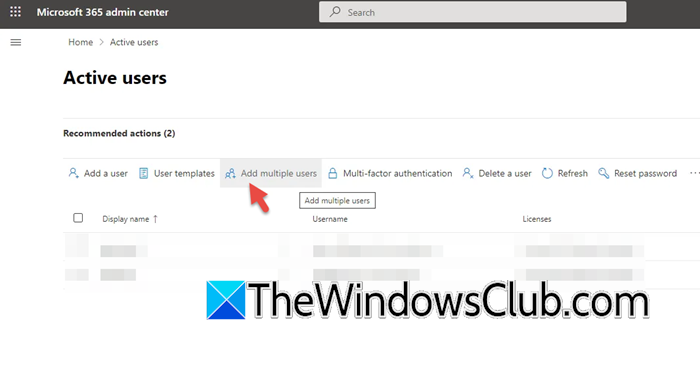
Let us start with a simple yet straightforward method for creating bulk users using the Microsoft 365 Admin Center. You can follow the steps mentioned below to use the Microsoft 365 Admin Center to create bulk users.
- First of all, go to admin.microsoft.com to reach the Microsoft 365 Admin Center and sign in with your admin account.
- Now, go to Users > Active users.
- Click on Add multiple users from the toolbar.
- You then have to enter the First name, last name, and Username.
- Now, select the domain.
- You then have to assign licenses and select a location for the new users; click Next when done.
- Ensure and check users, and click on the Add users button to finish adding bulk users.
When you add new users in Microsoft 365, the system generates their accounts and displays a summary page with the results. From there, you can choose to share the login credentials, username, and password with yourself or others. Please note that the passwords are displayed in plain text. Additionally, you have the option to export all user credentials into a downloadable CSV file.
2] Using CSV file in Microsoft Admin Center
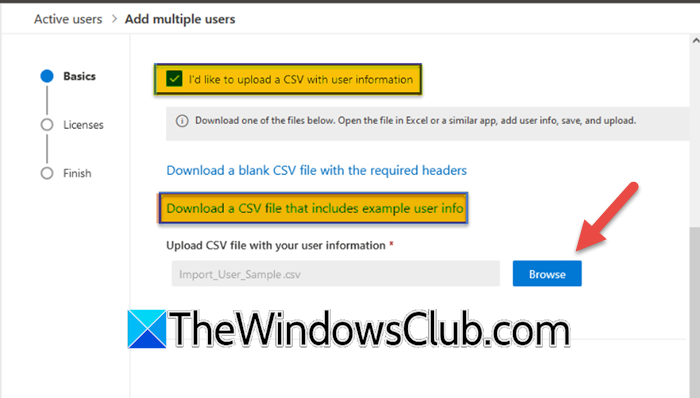
A quick way to add multiple users in Office 365 is by uploading a CSV file. Just fill in the user details in the provided template and import it into the Microsoft 365 Admin Center.
To add bulk users using a CSV file, follow the steps mentioned below.
- Go to Microsoft 365 Admin Center.
- Now, navigate to Users > Active Users.
- Click on Add multiple users.
- Make sure that I’d like to upload a CSV with user information option is checked.
- Click on the hyperlink that says “Download a CSV file that includes an example user info”. A CSV file will be downloaded, containing details of the users you want to add.
- You will get a CSV file, fill it, and then click on Browse on the Admin Center window and upload the file.
Hopefully, this will do the trick for you.
3] Using Microsoft Entra Admin Center
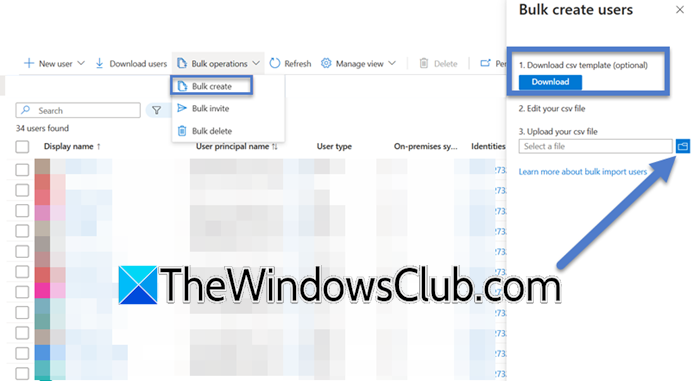
To create bulk users using the Microsoft Entra Admin Center, follow the steps outlined below.
- Go to entra.microsoft.com (Microsoft Entra Admin Center) with an account with admin privileges.
- Now, go to Identity > Users > All users.
- Navigate to Bulk operations > Bulk create.
- Now, click on Download to download the CSV file, populate the file with the user details, and then upload the file.
- Let the operation complete and wait for a notification.
You can click on Users > Bulk operation result to check the result.
Read:How to add multiple users with bulk import in Microsoft 365
How to create user accounts for 1,000 new employees by uploading a list of users to Microsoft 365?
To create 1,000 users, it is recommended to use Microsoft Graph PowerShell. The Microsoft 365 admin center limits CSV file uploads to 249 users, and other portal methods may time out when handling large batches. To proceed, you will need to create a properly formatted CSV file containing the required user details. Then, you can use a PowerShell script with the New-MgUser cmdlet to efficiently import the list and create all the accounts.
Read: How to add New User using Admin account in Microsoft 365
How to create 100 users in Active Directory?
The most efficient way to create 100 users in Active Directory is by using a PowerShell script that imports user details from a CSV file containing the required information, such as names and passwords. This method automates user creation, saving time while minimizing errors compared to manual processes.
Also Read: Install Active Directory and add users.
