
Trying to use an Excel Date and Time function, but Excel returns a serial number instead of date; this is because Excel stores dates and times in serial numbers in the backend; for instance, when you see a date such as 5/25/2025 or 25 May 2025, Excel will store these dates as numbers in the backend.
How do I change a number into a date format in Excel?
Microsoft Excel has a feature that allows you to convert a number into a date, which is quite simple to do. This tutorial explains the steps to convert a number into a date format in Excel.
How to convert Serial Number to Date in Excel
To convert a serial number to a date format, follow the steps below.
- Select the cell you want to format.
- On the Home tab in the Number group, click the bottom right arrow.
- In the Format Cells dialog box, click the Number tab.
- Click Date
- On the Date page, choose the date format you want the serial number to be displayed.
- Then click OK
Select the cell you want to format.
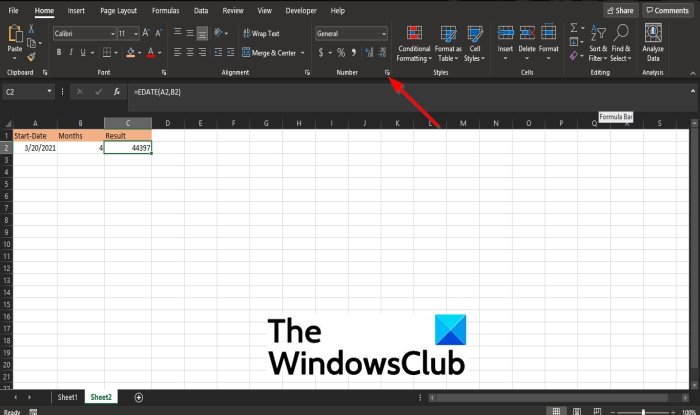
Click the bottom right arrow on the Home tab in the Number group or press Ctrl + 1 together.
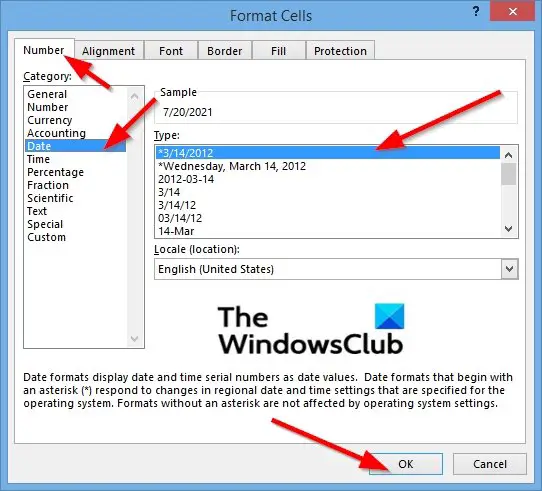
A Format Cells dialog box will pop up.
In the dialog box, click the Number tab.
Click Date on the left pane.
On the Date page, choose the date format you want from the display box.
Then click OK.
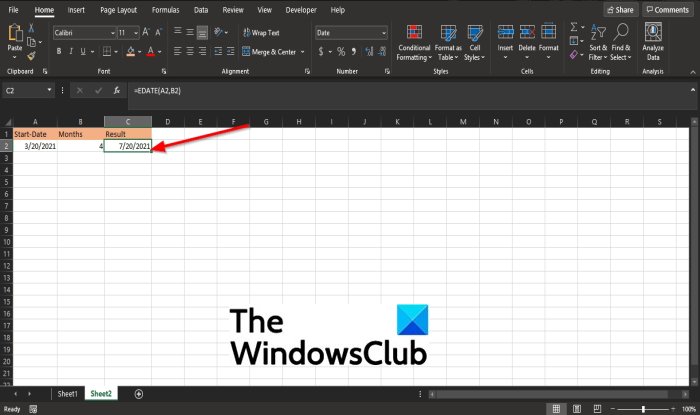
The serial number will become a date.
We hope this tutorial helps you understand; how to convert a serial number to a date format in Excel; if you have questions about the tutorial, let us know.
Read: How to Insert a PDF File in an Excel Sheet
How do you format a date in Excel?
To format a date; the day is written first, the month second, then the year (dd-mm-yyyy), and in some countries such as some eastern countries like Iran, China, and Korea, it is the opposite the year is first, the month second and the day is last (yyyy-mm-dd).
