
Windows Insider is a program from the Microsoft Windows team that allows anyone to test the upcoming Windows version. Depending on the type of build you chose, the build can be buggy or decently stable, since this feature is baked into Windows with an opt-in system. You can check whether you are Flighting or on a Windows Insider Build.
Fligthting, a term used by Windows Team, is the process of running Windows Insider Preview Builds on your device.
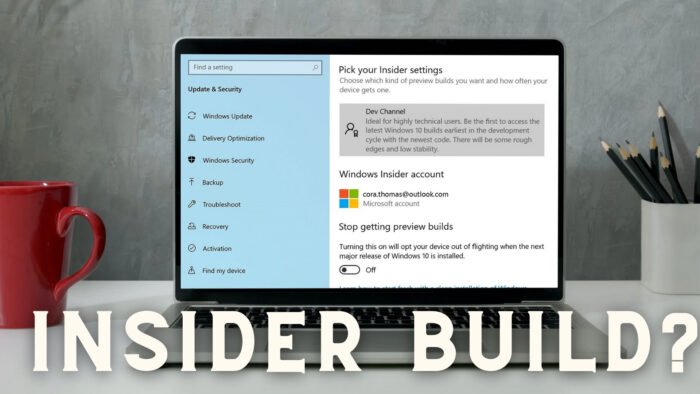
How to check if you are Flighting or on Windows Insider Build
Opting into an Insider build is a process that cannot happen accidentally. You need to give your consent, sign in with your Microsoft account, followed by a restart and installing an OS update.
But if you still want to check, or maybe you never left the insider build and forgot about it, here is how to check.
- Check for the watermark
- Check About section in Settings
- Run Winver command
- Check Windows build with PowerShell
- Check with Windows Insider Settings
To know the current insider build number available for flighting, visit the official Microsoft Page, and check the build number for each version.

1] Check for the watermark
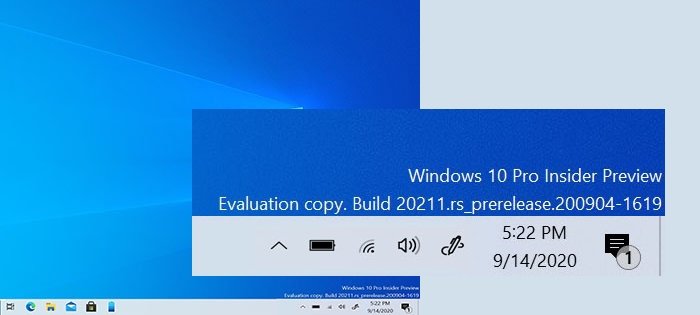
Right above the taskbar, where the clock is available, check if you can see any text or watermark with details such as Insider Preview, Evaluation Copy, Build no, etc. are available. If yes, then you are running Windows Insider build.
2] Check the About section in Settings
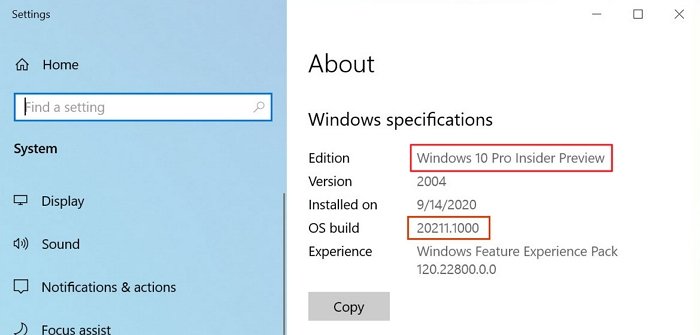
When Windows Preview builds are installed on the computer, the same is reflected in the Windows specifications section under About. Notice terms like Insider Preview, different build numbers, and so on.
Go to Windows Settings > System > About > Windows specifications to find the details.
3] Run Winver command
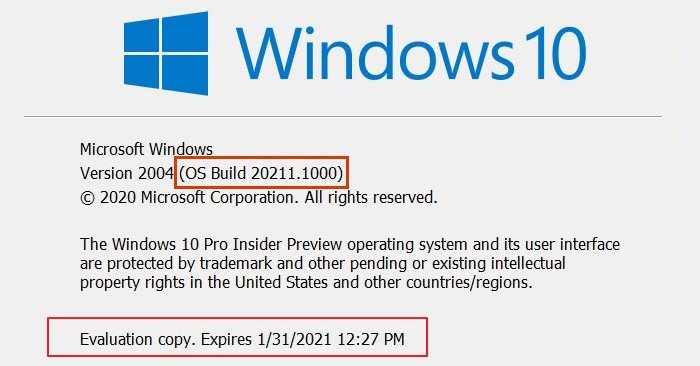
The winver command in Windows can reveal details about the current Windows version and the OS Build.
Type winver in the Run prompt, and press the Enter key. This will open a window with all the details. Notice details such as Evaluation copy, Expiry, etc., to find if the insider build is installed on the computer.
4] Check Windows build with PowerShell
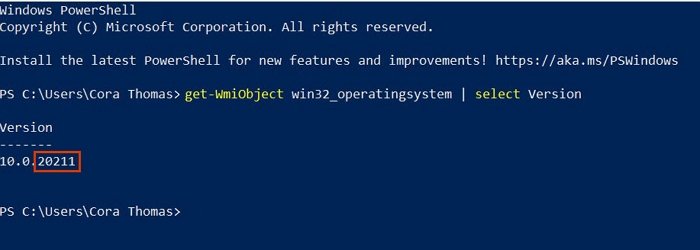
PowerShell is a powerful utility in Windows that can help determine the Windows build. Type and execute the following command:
Get-WmiObject win32_operatingsystem | select Version
Match this version number, and check if it is close to or matches the existing build number. If yes, you are running an insider build.
5] Check with Windows Insider Settings
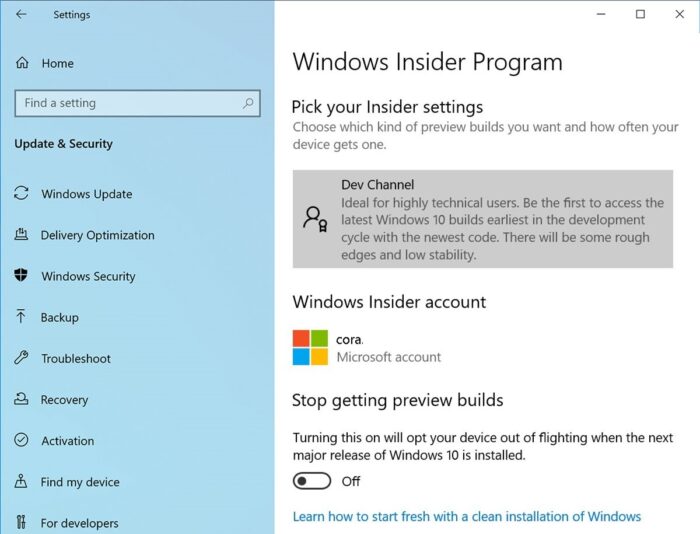
The last and final check is to go to Settings > Update & Security > Windows Insider Program. If you see anything else except a “Get Started” button, you run an insider build.
TIP: If you want to stop getting Insider Builds, this post will show you how to leave the Windows Insider Program.
