
Notifications help you stay informed about meetings and tasks. In Outlook, notifications appear as desktop alerts when you receive a new email, calendar reminder, or other update. You can choose whether or not to play a sound with these notifications to help draw your attention even when you’re not looking at the screen. In this post, we’ll show you how to change Outlook notification sounds on a Windows 11/10 PC.
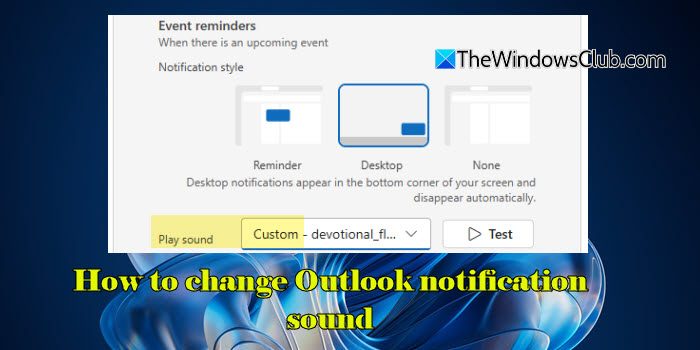
How to change Outlook notification sound
You can change notification sounds for emails and calendar events directly within the new Outlook app for Windows.
In classic Outlook, you can choose whether to play a sound when a new email arrives. The default sound in classic Outlook is the built-in Windows system sound, which can be changed through the Control Panel.
In Outlook on the web, you cannot change the notification sound, as it is tied to the Outlook Web App (OWA) itself. You can only choose to play the default sound or turn it off.
Change the default Email notification sound in Outlook
The default notification sound applies to both the new Outlook app for Windows and classic Outlook.
Open the Control Panel and go to All Control Panel Items > Sound. Switch to the Sounds tab in the Sound dialogue box. Scroll through the Program Events list and select New Mail Notification. Expand the Sounds dropdown list and select an alternative sound. Click Apply, then OK, to save the changes.
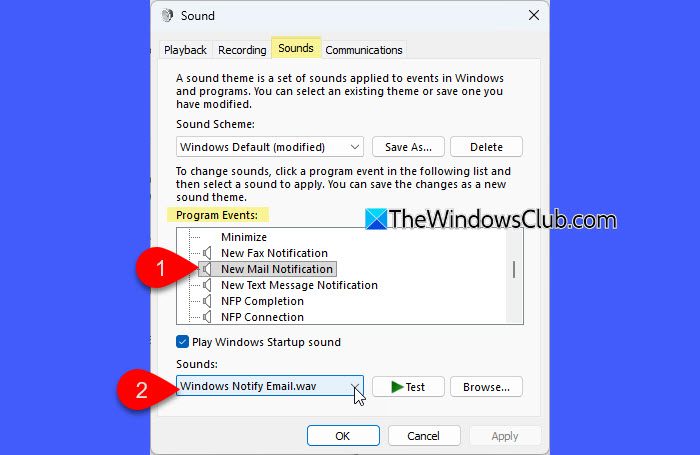
Note: This change affects all mail alerts in classic Outlook and other apps that use the same Windows event sound.
Change notification sounds for Emails and Calendar Events in the new Outlook app for Windows
In the new Outlook for Windows, Microsoft has recently added the ability to customize notification sounds for Mail and Calendar events. You can now choose from built-in sound options or add your own custom sound file. Here’s how to do it:
Open the new Outlook app on your PC. Click the Settings (gear) icon in the top-right corner. Go to General > Notifications in the left pane. Ensure the Notifications in Outlook toggle is on.
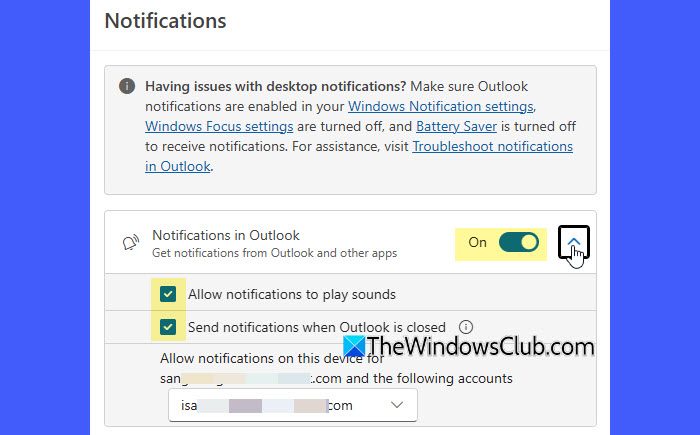
Under Notify me about, turn on the toggles for Mail and Calendar.
Click the down arrow next to Mail to expand the section. Ensure Desktop is selected as the Notification style.
Click the dropdown next to Play sound and select Custom. A browse file pop-up will appear. Browse and select your custom sound file and click Open (you can select .wav, .mp3, .m4a, .webm, .mp4, or .weba files as your custom notification sound in the new Outlook app).
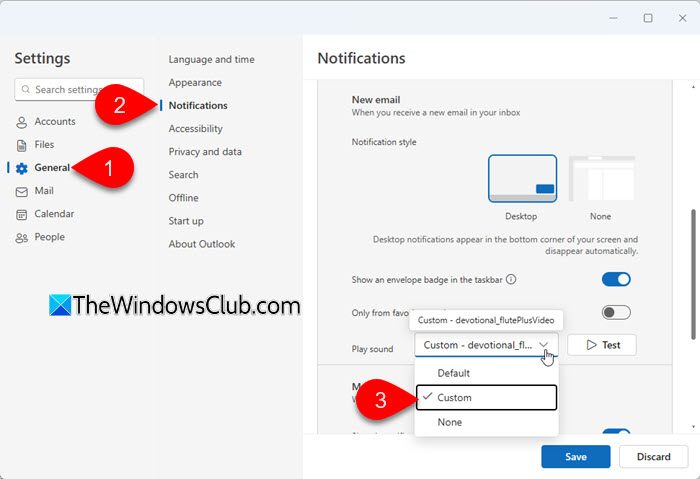
Click Test to preview the sound, and then Save changes.
Note: This feature was introduced with the Targeted Release Version 20250704003.06 (July 2025) and is being gradually rolled out to users. If you don’t see the option yet, make sure your Outlook app is updated to the latest version.
Play a custom sound for Outlook emails from specific senders using rules
Classic Outlook also lets you play a distinct sound for emails from specific senders using the Rules feature. This method is useful to get distinct alerts for important contacts while keeping your general notification sound unchanged.
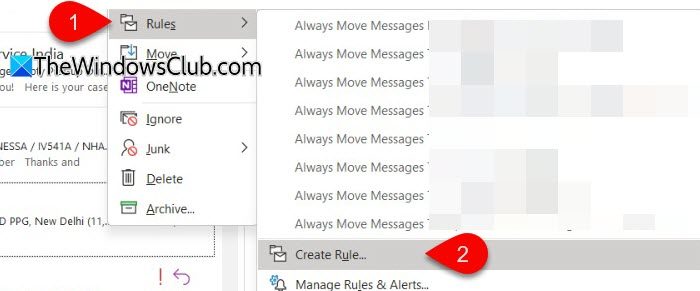
Open the classic Outlook desktop app and right-click the email from the sender you want to set a custom notification sound for. Select Rules and then select Create Rule.
In the Create Rule dialogue that opens, select the Play a selected sound option under the Do the following section.
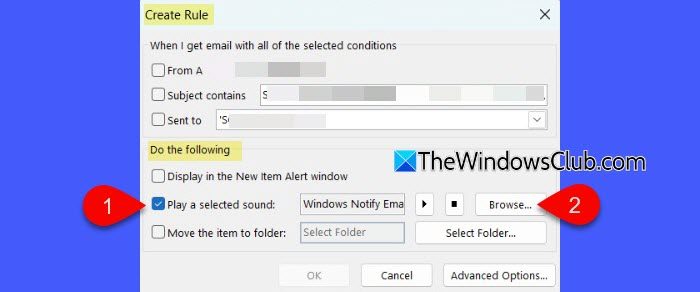
You can then choose a built-in sound from the list or browse your computer to select a custom sound file. Click OK to apply the changes.
You can also go to File > Manage Rules & Alerts, click New Rule, choose the option Apply rule on messages I receive, set the condition for the rule, and then set the action to play a sound when the condition is met.
From this point onwards, Outlook will play the selected sound whenever you receive an email from the specific sender.
I hope you find this useful.
Read: How to turn sound effects on and off in Outlook.
How do I customize Outlook notifications?

To customize notifications in the new Outlook app for Windows, go to Settings > General > Notifications. Here, you can enable or disable notifications for Mail, Calendar, and other items. You can also choose the notification style and select a built-in or custom sound for alerts. For classic Outlook, go to File > Options > Mail and check the Play a sound option under Message arrival settings.
How can I change my email notification sound?
Most email apps and devices allow you to change notification sounds in their settings or preferences. You can usually select from built-in tones or upload a custom audio file. In Outlook, you can adjust the email alert sound from within the app’s notification settings (new Outlook) or through the Windows system ‘New Mail Notification’ sound (classic Outlook).
Read Next: Email notification sound is not working in Outlook.
