
Colors make things look beautiful. Do you know that you can add colors to your boring white and blue documents too? By adding the colors, theme, and fonts, you can customize your document and make it look modern and more personalized. Windows comes with some pre-defined themes for Microsoft Word, Excel, and PowerPoint, but you can always create your own customized themes and save it on your PC.
Change Document Theme Colors in Word or Excel
You can select or create a uniform theme for all your documents like a Word document, Excel sheet, and PowerPoint presentation. In this post, we will learn how to-
- Change the look of your document
- Customize a document theme
- Customize the document fonts
- Save a document theme
Change the look of your document
Apply a theme
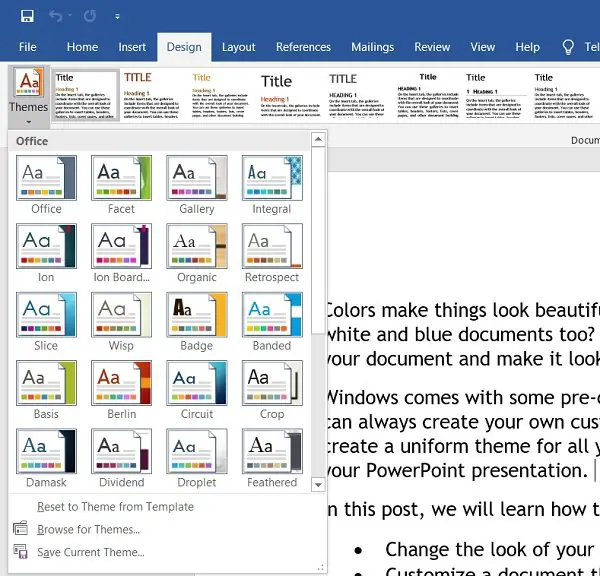
MS Word has its default theme set, but you can change it anytime. There is a set of predefined themes from which you can select your preferred theme and apply the changes.
- If you want to change the theme on Excel, go to the Page Layout tab > Themes Themes. If you want to change the theme on MS Word, click on the Design tabà Themes.
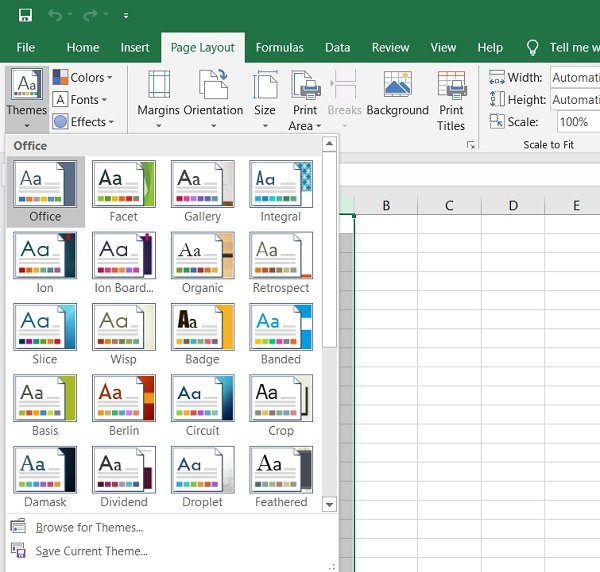
- Select your preferred theme and apply. Each theme has its own unique set of colors, fonts, and effects. Just hover over the themes and see the preview on your document. Select the one which you like the most.
- If, at any point in time, you don’t like the selected theme and its colors or fonts, you can go back to the default theme just by clicking on “Reset to theme from template”.

The templates are shown on the menu ribbon.
If you don’t like any of the pre-defined themes, you can customize the given themes and save it as your own theme on your PC.
Customize the theme
Select any predefined theme, and change the colors, fonts, and effects from the main Toolbar.
Select the colors, fonts, and effects of your choice, and save the theme as your own theme. You can name it anything at your convenience.
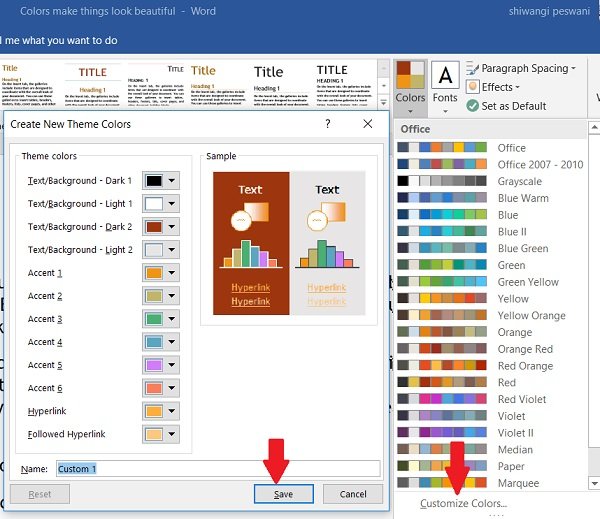
To change the colors, click on Colors from the Ribbon and Customize Colors. A new pop-up will open, and here you can change the font color, accent, hyperlink, followed hyperlink, and text background.
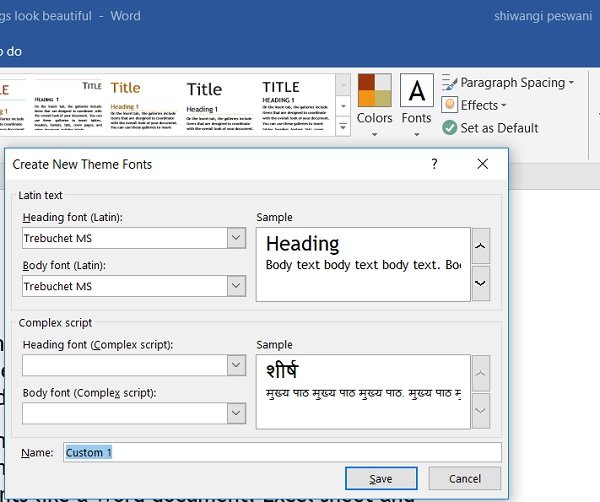
To change the fonts, click on Fonts on the Ribbon and click on Customize Fonts. Here you can change the Heading fonts and the body fonts. Select as per your choice and click on Save.
To change the effects, click on Effects on the Ribbon and click on Customize Effects. Select the preferred one and you are done.
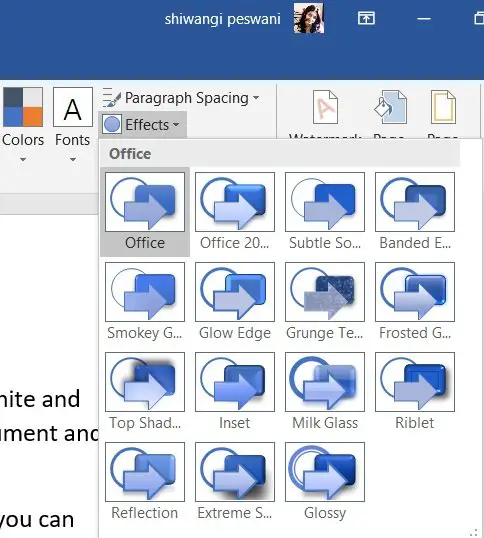
Furthermore, you can also change the Page Color, Page Border and Watermark from the Ribbon itself.
Create as many themes with different color choices as you want and you can then try them on your documents.
All your custom document themes are saved in the Document Themes folder and are automatically added to the list of custom themes. You can use those themes whenever you want.
How to change Document Theme Colors in PowerPoint?
To change the Document Theme Colors in PowerPoint, follow this method
- Open your PPT and go to the Design tab on the ribbon.
- In the Variants group, click the drop-down arrow next to Colors.
- Here, choose a preset theme or click Customize Colors at the bottom.
- Now, in the dialog box, you’ll see options like Text/Background, Accent, Hyperlink, etc. Click each color box to select a new color.
- You can use More Colors to enter specific RGB or HEX values.
- Give your Theme a name and click Save.
Your new theme will be applied instantly and saved for future use.
How do I change Microsoft Office theme Colors?
To change Microsoft Office theme colors, open any Office app such as Word or Excel. Go to File > Options > General. Under “Office Theme,” choose your desired theme color. Click “OK” to apply the changes.
