
In this post, we will show you how to add a Signature Line in Word without X. A signature line in Microsoft Word may look like a simple placeholder, but it works very differently from what most users expect. A signature line is designed primarily for digital signing workflows, which is why Word automatically adds an X to indicate where the signer must sign.
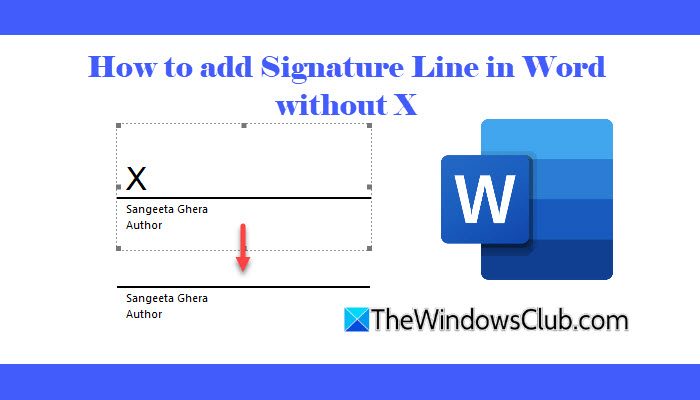
It’s important to understand that a signature line is not the same as a signature. A signature line is only a request or placeholder that stores information about the intended signer and provides instructions for signing. The actual signature is added later by the signer, and when that happens, Word attaches a digital signature to authenticate the document.
Because signature lines are meant for formal documents that may be shared with or signed by others, Word does not offer an option to remove the X manually. If your goal is simply to add a clean, visual signature for a letter, resume, or personal document, especially when you are the only signer, you’ll need to use workarounds.
How to add Signature Line in Word without X
To add a Signature Line in Word without X, you may use the following methods:
- Type a manual signature line
- Use a horizontal line
- Use a text box
- Use a table
- Use shapes
Let us see this in detail.
1] Type a manual signature line
The easiest way to add a signature line without an X is to type it manually. You can insert a straight line using underscores or hyphens and then add the signer’s name below it.
Open your document in Microsoft Word and place the cursor where you want the signature line to appear.
Press Shift + Hyphen (-) repeatedly to create a straight horizontal line.
Alternatively, type multiple underscores (_) for the same effect.

Press Shift + Enter to move to the next line. Type the signer’s name below the line.
You may then adjust the font size or alignment of the signature line to match the rest of the document.

2] Use a horizontal line
Using Word’s built-in horizontal line is another simple way to add a signature line without the X placeholder.
Open your document and place the cursor where you want the signature line. On the Home tab, click the down arrow next to the Borders icon. Choose Horizontal Line from the menu.
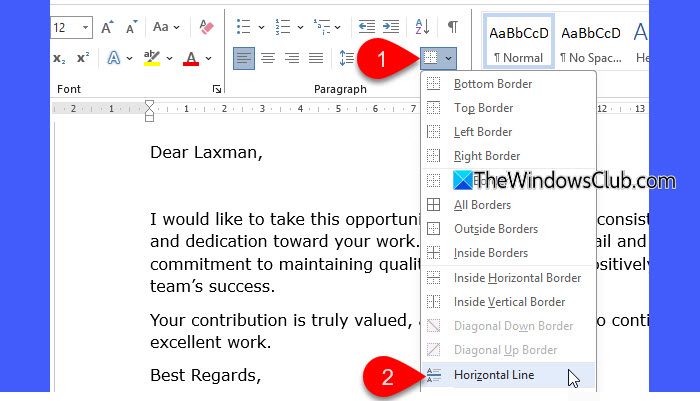
Click the horizontal line and drag the resize handles to adjust its length. Also, adjust the alignment, if required.

3] Use a text box
Using a text box lets you create a clean, neatly positioned signature area without showing an X.
Open your Word document and go to the Insert tab. Select Text Box > Simple Text Box from the menu.
A textbox will appear on your document. Click on its border, then click the Layout Options icon. Select Behind Text under With Text Wrapping. Then use your mouse to pick and place the text box where you want the signature to appear.

Next, type the signer’s name, title, and other details inside the textbox. Then place the cursor at the beginning and type three underscores (_). Press Enter to convert the underscores into a signature line.

Select the text box, go to Shape Outline, and choose No Outline to remove the border.
4] Use a table
A table helps keep the signature line, name, and date neatly organized. So it’s another useful way to add a signature line without displaying an X.
Go to the Insert tab and click the Table dropdown option. Insert a 1×1 or 1×2 table, depending on your requirement. Then drag the side edge of the table to resize it according to the signature area.
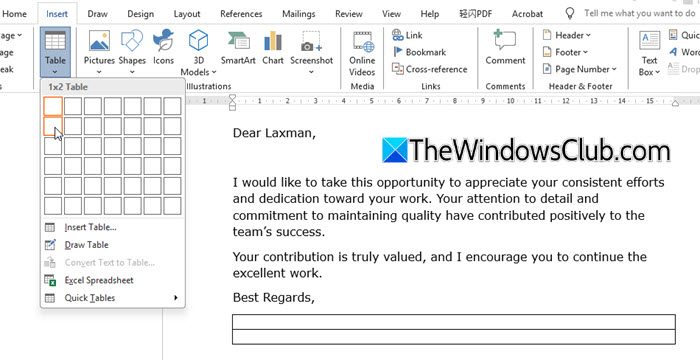
Type underscores or insert a horizontal line in the first cell to create the signature line. Add the signer’s name or date in the same cell or in the row below.
Once done, select the table, go to Table Design > Borders, and choose No Border to hide the table lines.

5] Use shapes
Shapes offer more control over the appearance and placement of a signature line. You can insert a simple line shape and adjust it exactly where you want it.
Open your document in Microsoft Word and go to the Insert tab. Select Shapes and choose the Line shape.
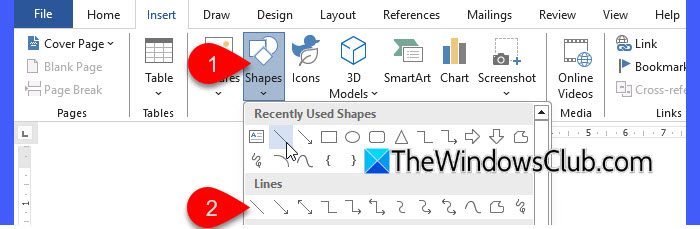
Draw the line where you want the signature to appear. Then use the Shape Format options to adjust the line’s color and weight.

You may then type the signer’s name below the line, and optionally, add the designation or date beneath the name.
That’s all! I hope you find this useful.
Read: Fix Recoverable Signature error in Word.
How do I remove x from a signature line in Word?
To remove the X placeholder from a signature line in Word, you must avoid using Word’s built-in Signature Line feature. Instead, use the workarounds described in this post. These methods do not create a digital signature, but they let you place a clean signature area in your document. They work well for letters, resumes, and documents that don’t require authentication.
How do I insert a signature line in Word?
To insert a signature line in Microsoft Word, place the cursor where you want it to appear. Then select the Insert tab from the top ribbon and click Signature Line under the Text group. Enter the signer’s details (name, title, email address) and instructions for the signer. Then click OK. Word inserts a signature line with an X, indicating where the document needs to be signed.
Read Next: Signature Line greyed out in Word or Excel.
