
Some users encounter the “Hard disk SMART Command Failed” error when they turn on their computer. This error usually occurs when there is a hardware fault in your system. However, sometimes it can be due to loose cable connections or a temporary glitch. If you encounter this error, this article will help you resolve the issue.
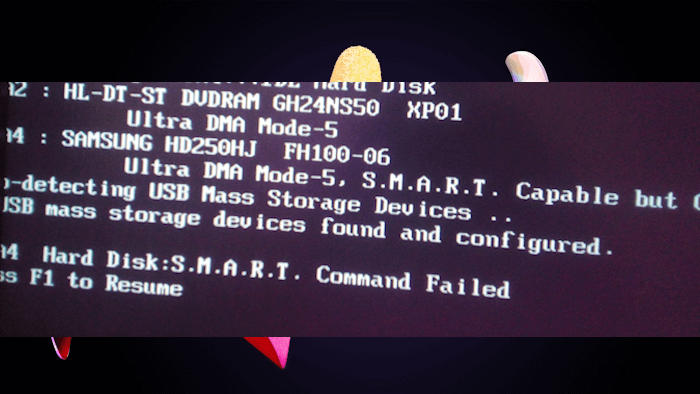
The complete error message is:
Hard disk SMART Command Failed
Press F1 to Resume
Pressing the F1 key temporarily bypasses the warning and allows you to continue booting into Windows, but it does not resolve the underlying issue.
Hard disk SMART Command Failed
Use the following suggestions if you cannot use Windows due to the “Hard disk SMART Command Failed” error:
- Perform a hard reset
- Check cable connections
- Clear CMOS
- Backup your data and replace the hard drive
All these fixes are explained in detail below:
1] Perform a hard reset
If the error occurred due to a temporary glitch, it may be fixed by performing a hard reset. Follow these steps:
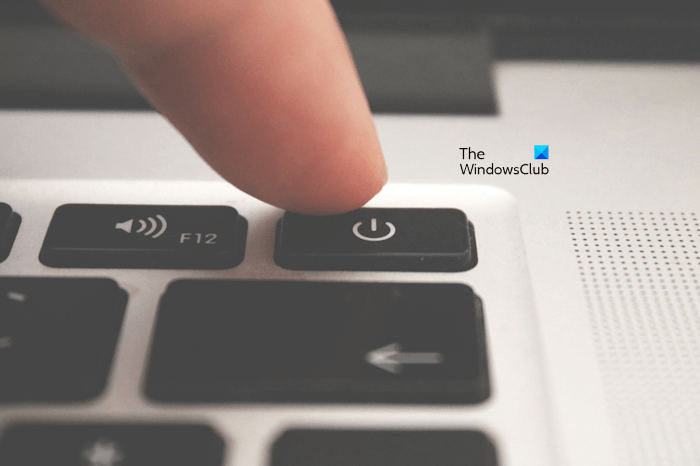
- Turn off your computer.
- Disconnect all peripherals and remove the power cord. If you have a laptop, disconnect its charger.
- Press and hold the power button for 30 seconds.
- Connect the power cord and turn on your computer.
Now, check if the error occurs.
Read: What is S.M.A.R.T or Self-Monitoring, Analysis and Reporting Technology
2] Check cable connections
The cable connecting your hard drive to the motherboard might be loose or damaged. Open your computer case and check this. Also, physically examine the cable. If it is damaged, replace it. If you have a laptop with an NVMe SSD, remove it from the M.2 slot and reinstall it carefully.

If your system has additional slots for a hard drive or SSD, install your hard drive or SSD in those empty slots. Change the SATA cable if possible. Turn on your computer after doing that. If the error does not occur this time, it means that the problem is with the slots for your hard drives.
Read: How to check SMART Failure Predict Status of Drives in Windows
3] Clear CMOS
If the error persists, you can try clearing CMOS. To do this, you have to open your computer case and remove the CMOS battery from its socket. Gently pull the battery out of the socket, then wait a few minutes. After that, reinstall the battery with the right polarity. Now, turn on your system and see if the error occurs.
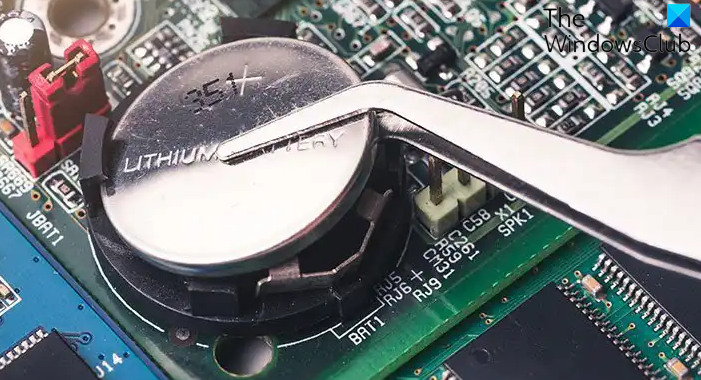
This step also resets your BIOS settings to their default values. Therefore, before proceeding, enter your BIOS and note down the current BIOS settings, so you can restore them after resetting the CMOS.
Read: SMART Hard Drive detects imminent failure
4] Backup your data and replace the hard drive
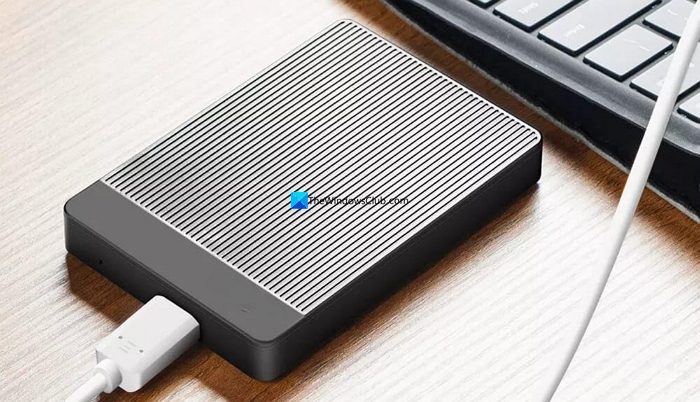
If none of these fixes work, the problem is with your hard drive or SSD. It may be dying. Therefore, back up your data and replace your hard drive, so you won’t lose your important files if the hard drive or SSD fails in the future. Pressing the F1 key boots you into Windows, where you can back up your data.
That’s it. I hope this helps.
Also read: How to fix SMART Hard Disk Errors 301, 302, 309, 30A, 30B, 30C, 3F1, and 3F2.
Can a hard disk failure be fixed?
If the disk failure occurs due to logical errors on a hard drive, it can be fixed. Logical errors occur when the file system of a hard drive is corrupted. If the hard drive has physical damage, it cannot be repaired. In such a case, back up your data immediately and replace your hard drive.
Read: SMART Failure Predicted on Hard Disk
Can I ignore the SMART error?
A SMART is a critical warning message that shows your system has detected an underlying hardware issue with your hard drive or SSD. You should not ignore these warnings, as they indicate that your hard drive or SSD may be failing. Ignoring these warning messages can result in permanent data loss.
Read next: Hard Drive spinning but not detected on Windows.
