
Google suspends many GMB business listings, especially when it updates its algorithm. A suspended listing results in a significant loss of business for the business owner. Unfortunately, Google does not provide a reason for your listing’s suspension. If your Google My Business has been suspended due to quality issues or policy violations, here’s how to request reinstatement.
Google My Business account suspended or disabled
While you can request a review, Google’s support rarely responds to queries. In such a situation, prevention is way better than a cure. Since it would be very difficult to recover your listing, we recommend reviewing this article to help prevent suspension of your GMB account.
GMB Soft suspension and Hard suspension
There are two types of suspensions of Google My Business accounts: Soft suspension and Hard suspension. In case of a soft suspension, you would notice a suspended label on the GMB homepage and you wouldn’t be able to change any details. However, the listing will remain in Google search and if it has a store location, you can also navigate to it on Google Maps. In the event of a hard suspension, the listing is removed from Google Search and Google Maps.
- Never fake GMB reviews
- Make sure no other verified business is listed at your business address
- Keep the address on your website the same as that on your business’s GMB listing
- Keep the address and phone number on online citations same as those on your GMB listing
- Don’t make unnecessary changes to the GMB profile information
- Don’t use a physical address for a service area business
- Don’t use forwarding URL for your website
- Don’t add unnecessary keywords to your business name
- Don’t mention a virtual office address as your address on the GMB listing
Prevent Google My Business listing suspension
You could prevent the suspension of your GMB accounts as follows:
1] Never fake GMB reviews
Google recently clarified that fake reviews are illegal. It means that faking reviews wouldn’t only result in a hard suspension of your GMB account but also legal trouble. The problem is that many users believe they can get away with fake reviews if they are clever enough, but Google monitors your data, location, and interactions and knows exactly when you are attempting to fake reviews.
It is advisable to convince your customers to give positive reviews, but never try to build reviews for a business you have never provided.
2] Make sure no other verified business is listed at your business address
Google allows multiple businesses to share the same address only if there are separate cubicles for each business. A perfect example is a co-working private office. However, you are not allowed to run two businesses from the same address.
In case another business has falsely verified its listing for your business address, you can contact it to modify its listing. Otherwise, you could report it to Google.
3] Keep the address on your website the same as that on your business’s GMB listing
You must use the exact same address and phone number listed on your business license for all Google Business accounts. This means the address should be the same across your domain email account, website, and GMB listing. A different address or phone number is a clear flag.
4] Keep the address and phone number on online citations same as that on your GMB listing
Google checks online citations of your business you judge the authority of your GMB listing. While the address may vary slightly across online platforms, if it is at a different location, Google may issue a soft suspension on your GMB account. In this case, you would have to produce a business license.
5] Don’t make unnecessary changes to the GMB profile information
We honestly don’t know the reason, but most accounts are suspended when the account owner tries to change information like business address, website, primary category, phone number, etc. Thus, it is advisable to sort this information for the long-term before creating your GMB business account.
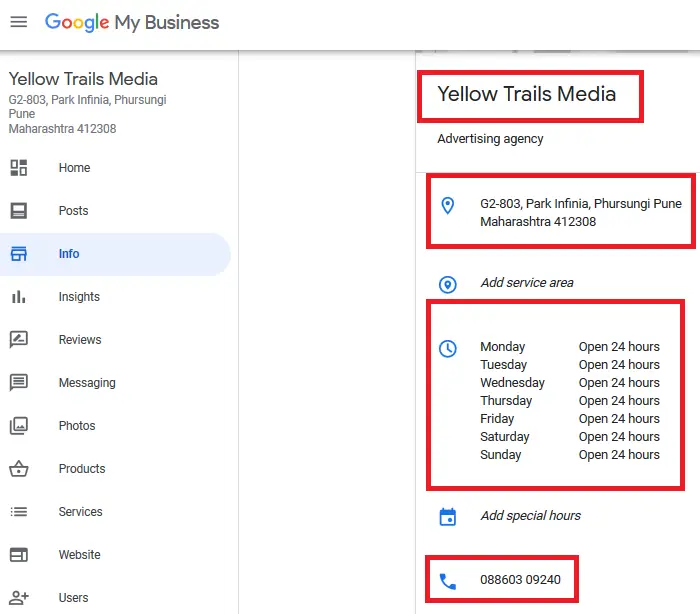
6] Don’t use a physical address for a service area business
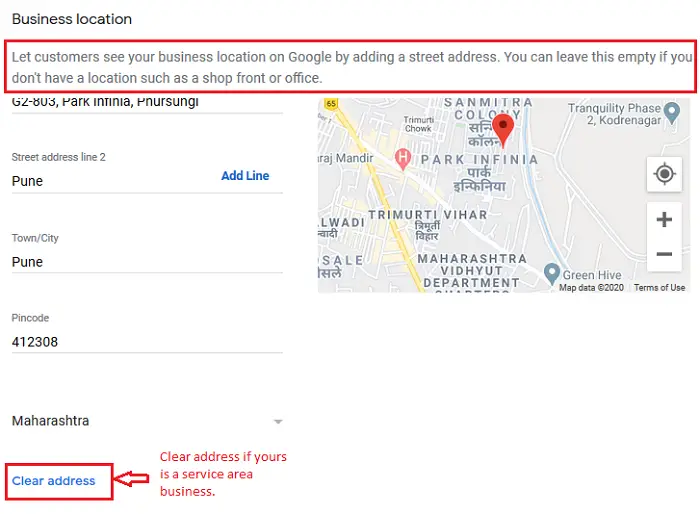
A service area business is a business in which you visit the customer’s location to provide services. Google doesn’t want business owners to use a physical address for service area business listings since that would mess the algorithm.
The simple logic is to use a physical address for your business only if your clients actually visit your store location or business location.
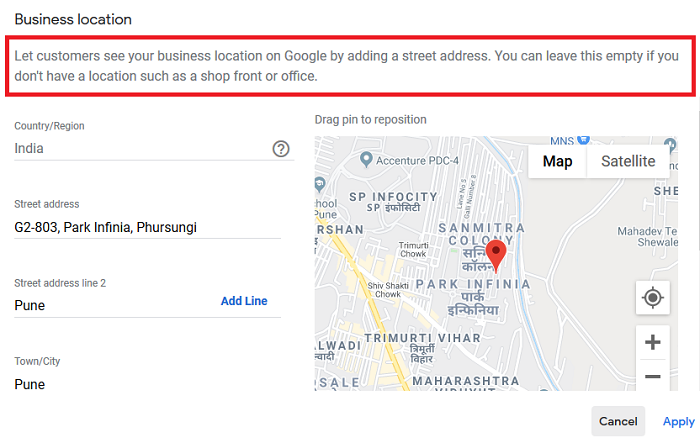
7] Don’t use forwarding URL for your website
A forwarding URL is a URL that redirects your website to another site. This typically occurs when you update the website after listing it on your GMB profile. Google typically verifies your business using your domain email address. If you modify this listing, Google may place a soft suspension and request your business license.
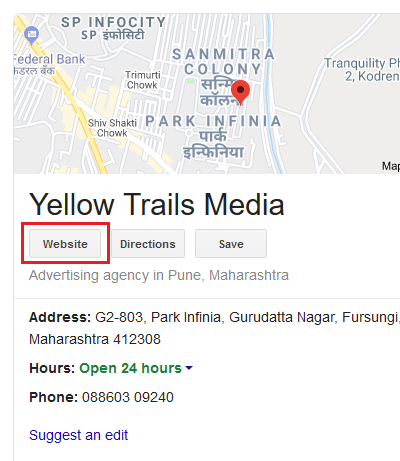
Changing details in a GMB profile can cause the suspension of their GMB accounts, and thus users try redirecting the website URL. However, if the Google team finds it, they will likely suspend your account.
8] Don’t add unnecessary keywords to your business name
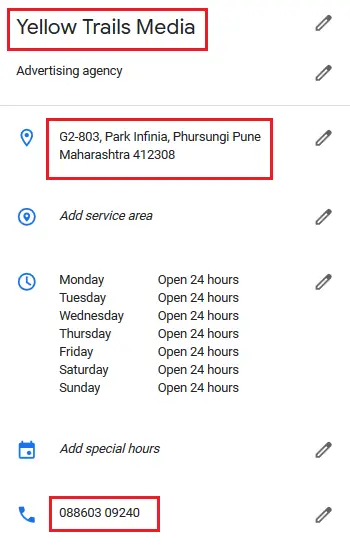
To improve their GMB rankings, business owners often add a location or business trait as a secondary keyword to their business name. Eg. Writing “Yellow Trails Media Pune” instead of “Yellow Trails Media.” Google understands the purpose behind such modifications.
If Google flags an unnecessary keyword in your business name, it could result in a soft suspension and a demand for a business license. The business name must match the one on the business license; otherwise, your listing will be removed from Google Search and Google Maps.
9] Don’t mention a virtual office address as your address on the GMB listing
A virtual office is an address you have rented at a premier location, where neither your office actually exists, nor do you visit as a professional. You simply pay a reasonable monthly rent for using their address as your business address and at times they can receive and forward your mails.
Google strongly opposes this practice, and if your business address is found to be a virtual address, it will result in a hard suspension of your account.
GMB account suspended upon entering verification code, This location has been suspended due to quality issues
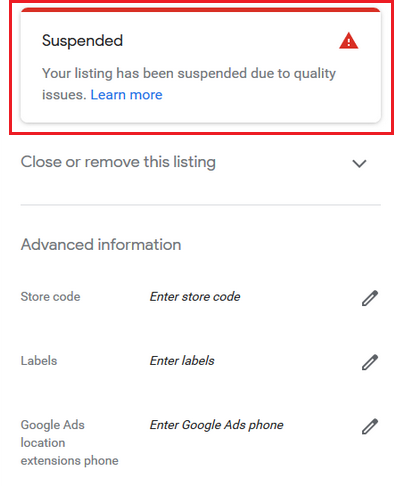
While the issue is strange, it definitely isn’t uncommon. The reason local business accounts get suspended during verification is that Google is aware of the extensive spam over local business accounts and has thus made its spam filters so strict that they push any suspicious business for review.
When you enter the verification code, it triggers a change request to Google and Google’s filters check for spam indicators. Any discrepancies could lead to a ban on your account.
While the only resolution when your GMB account is suspended upon entering the verification code is to request reinstatement, it is neither easy, nor quick, nor confirmed. Thus, prevention is better than cure, and you could read this resource on preventing suspension of GMB accounts if you own a local business listed on Google.
Google Business Profile suspended due to policy violation
If your Google Business Profile is suspended due to a policy violation, take these steps:
- Review Google’s guidelines carefully to understand the specific violation (e.g., misleading info, prohibited content, or address issues).
- Correct your profile details. Ensure business name, address, phone number, and categories match real-world information.
- Gather evidence such as utility bills, business licenses, or photos of your storefront to prove legitimacy.
- Submit an appeal through the official reinstatement form in Google Business Profile Help, attaching all supporting documents.
- Wait for Google’s response (usually a weekor two) and be prepared to provide additional clarification if requested.
GMB profile has been put under restriction due to policy violation
If your GMB profile has been restricted due to a policy violation, the recovery process is similar to suspension but slightly different — restrictions usually mean your profile is visible but limited in functionality (e.g., not fully appearing in search or maps). You need to identify the violations, rectify them and then submit for reinstatement.
What all should you check before requesting reinstatement of your GMB account?
- Check for duplicate GMB listings
- Verify the name, address, and other details on your business license
- Flag any spammy reviews on your profile
- Judge whether you to show your business address or not
Since reinstatement takes time, it is best to check a few conditions before requesting reinstatement. Otherwise, Google might reject the request, and you would have to appeal again.
1] Check for duplicate GMB listings. Search Google for your business name, business address, phone number, etc. and check the citations online. If you find a duplicate GMB listing, report it to Google as a duplicate.
2] Verify the name, address, and other details on your business license. One of the primary methods of spamming GMB listings is to use other people’s residential addresses for businesses. This is to spoof the business’s original location. Thus, Google would request your business license for verification. Any mismatch between the details on the business license and the GMB listing would result in the rejection of the account reinstatement request.
3] Flag any spammy reviews on your profile. You might not have created these reviews, but Google will still suspect they were written to influence rankings.
4] Judge whether you should show your business address or not. Use a business address for your business, but hide or show it depending on whether your business is a service area business or people visit the location. If your business address is visible in service area listings, it affects the rankings of other businesses in the area and is thus against Google’s policies.
You now have to request for reinstatement.
How to request for Google My Business (GMB) reinstatement?
The procedure to request reinstatement of your banned GMB account is as follows:
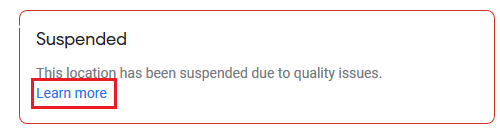
Click on Learn more in the frame where it mentions Suspended.
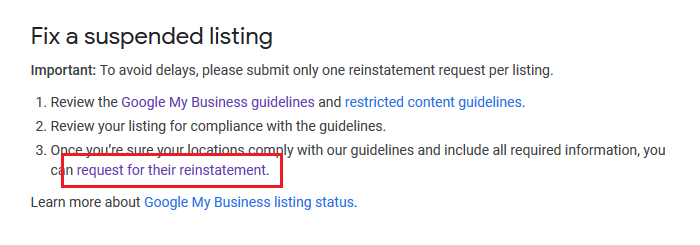
Scroll down to Fix a suspended listing and click on “request for their reinstatement.”
Answer the questions asked on the reinstatement form (they can be different for different users.”
Submit the form and wait for a reply. The reply could take weeks.
Remember to mention your case to Google in the Additional comments box. Eg. If you have a duplicate listing, report it and explain the details in the section.
These Google links will help you:
We hope this article helps you in preventing the suspension of, and reinstatement of your GMB account.
Also read: How to remove fake or bad Google Reviews.
