
This tutorial shows how to force users to sign in to the Microsoft Edge browser on a Windows 11/10 PC. This means that without signing in to an existing profile or creating a new one, users can’t browse in Edge, access Settings, or perform other actions. You can do this using two native Windows 11/10 features. This tutorial includes separate step-by-step guides for both options.
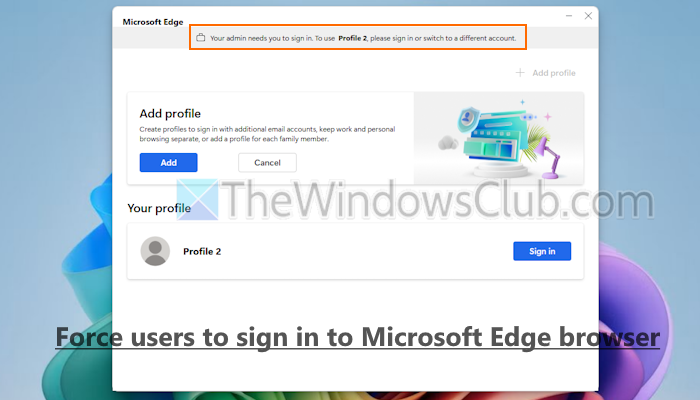
Once you have restricted access, whenever you open the Edge browser window, you will see a Sign in button to access your existing profile and an Add Profile option to add or create a new profile. You will also see a message: Your admin needs you to sign in. To use Profile, please sign in or switch to a different account, as highlighted in the image below.
Additionally, the browser window will be fixed to the screen after applying the restrictions. You can’t move or resize the browser window until you sign in to a profile. The only options that will remain active are to minimize the window and close it. Do not worry, as full control remains in your hands. You can undo the changes whenever needed to use the Edge browser as usual.
Force users to sign in to Microsoft Edge browser
There are two ways to force users to sign in to the Microsoft Edge browser on Windows 11/10:
- Force users to sign in to Microsoft Edge using Local Group Policy Editor, and
- Force users to sign in to the Edge browser using the Registry Editor.
Let’s check both options.
Your admin needs you to sign in. To use Profile, please sign in or switch to a different account
1] Force users to sign in to Microsoft Edge using Local Group Policy Editor
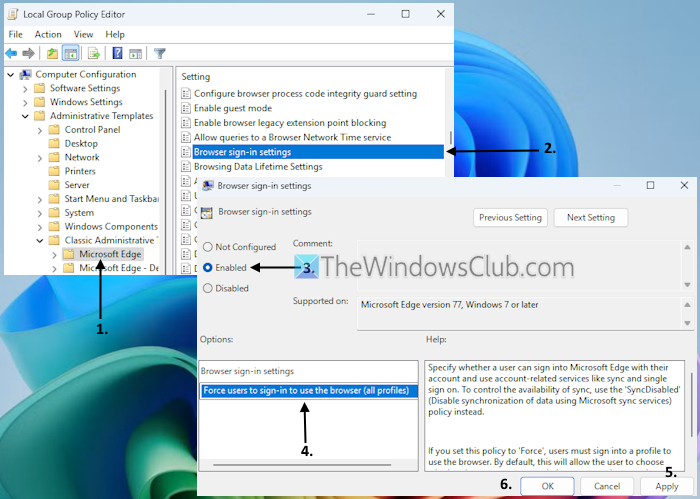
These are the steps to force users to sign in to Microsoft Edge using Local Group Policy Editor:
- First, download and install the classic Group Policy templates for Microsoft Edge on your Windows 11/10 PC
- Type gpedit.msc in the Search box
- Press Enter to open the Local Group Policy Editor window
- Access the Microsoft Edge folder. Use the following path:
Computer Configuration > Administrative templates > Classic Administrative Templates (ADM) > Microsoft Edge
- Scroll down the settings on the right section
- Look for the Browser sign-in settings and double-click this setting to open it in a separate window
- Select the Enabled option
- Open the drop-down menu for the Browser sign-in settings option present in the left-middle section
- Select the Force users to sign-in to use the browser (all profiles) option
- Press the Apply button and then the OK button
- Close the Local Group Policy Editor window
- Restart File Explorer if needed.
This will prevent you and other users from using the Microsoft Edge browser until you sign in with a profile or add a profile.
To undo the changes, you can follow the above-mentioned steps and open the Browser sign-in settings window. Select Not Configured and press OK.
Related: Make Edge require Authentication for Password sign-in
2] Force users to sign in to the Edge browser using the Registry Editor
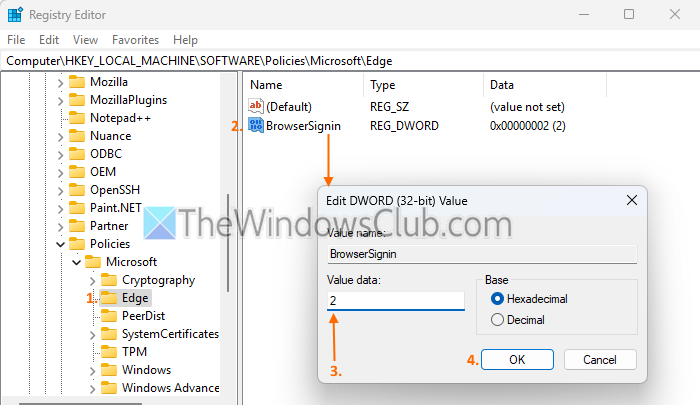
You should back up the Windows Registry Editor before tweaking any settings or making any changes to it. Once done, follow these steps to force users to sign in to the Edge browser using the Registry Editor window:
- Press Win+R to open the Run Command box
- Type regedit in the text field
- Hit the Enter key to open the Registry Editor
- Access the Microsoft key using this path:
HKEY_LOCAL_MACHINE\SOFTWARE\Policies\Microsoft
- Create a new Registry key. Right-click on the Microsoft key > New > Key
- Rename the key to Edge. In case the Edge key is already present, you don’t need to create one
- On the right section, create a new DWORD (32-bit) Value
- Rename the new value to BrowserSignin
- Double-click on the BrowserSignin value to open its Edit box
- Add 2 in the Value data field
- Press OK
- Close the Registry Editor window.
To revert the changes, access the Edge Registry key and delete the BrowserSignin DWORD (32-bit) Value. You can also delete the Edge key if no other DWORD (32-bit) values are present.
How do I enforce Edge in browser when accessing business apps?
In the Microsoft Defender portal, access the Edge for Business protection page. For this, access System > Settings > Cloud apps > select Conditional Access App Control > and Edge for Business protection. Enable the Turn on Edge for Business browser protection option. In the Enforce usage of Edge for Business section, select the Allow access only from Edge option or the Enforce access from Edge when possible option to enforce Microsoft Edge browser protection when accessing business apps.
How do I sign in to Microsoft Edge with a Google account?
How do I force users to sign in to use the browser?
If you are a Chrome user and want to force users to sign in to use the Chrome browser on your Windows 11/10 system, use the Group Policy settings. Access the Browser sign-in setting in the Group Policy and set this setting to ‘force’. If you don’t find this setting, then first you have to add Google Chrome templates so that you can configure the Chrome browser using Group Policy. Additionally, you can also use the Registry Editor method to force Chrome users to sign in to use the browser.
Read next: Cannot sign into Edge with a Microsoft account.
