
VRChat is one of the leading 3D Avatar virtual platforms in the world. However, there are a number of complaints that VRChat is not loading or that its long load times are irritating gamers. In this article, we have written solutions to fix this issue.
Why VRChat is not responding?
The most common reason VRChat doesn’t respond is a network issue. Your Internet may be slow, you may have a network issue, or there may be a glitch. Other than that, your Firewall can block VRChat from functioning after misidentifying it as a virus. Resolving this issue is quite easy, and you will see why. An outdated graphics driver is pretty close to being the third factor. Enabled IPV6 is also contributing to issues such as VRChat not responding, Can’t connect to VRChat or VRChat is not loading.
VRChat is not loading or working on Windows PC
If VRChat isn’t responding, launching, opening, working, or loading, or if you can’t connect to VRChat on your Windows PC, here are fixes to get it working again.
- Clear VRChat temp files
- Try switching launch options
- Update your Graphics Driver
- Disable IPV6
- Opt-out of Beta
- Enter it through the firewall
- Use a VPN service
- Repair system files.
1] Clear VRChat temp files
When you install VRChat, it won’t take a huge chunk of your memory, but eventually, it will take more space than some of us can comprehend. And this can be really disastrous if you don’t have a large hard drive. It can also sometimes get corrupted for no apparent reason. So, deleting it from time to time is an ideal method, and you will be able to kill two birds with one stone.
- Open File Explorer and delete the files from the following location
%Username%AppDataLocalTempVRChat
- Now launch VRChat.
- If it didn’t load then switch off your device and relaunch VRChat.
Hopefully, you won’t have any further issues while loading VRChat.
2] Try switching Launch Options
You can switch Launch options to some special launching options. These Special Launching options can resolve the issue. Here’s how to do it.
- Open Steam.
- Navigate to Library.
- Right-click on VRChat and on Properties.
- Select Set Launch Options.
- Execute anyone of them and then check whether the issue persists or not.
- For Zarniwoop’s Avatar Dungeon
vrchat://launch?id=wrld_1a6f881b-fdd0-4551-af2c-6ef8e16577f6
- For Hyperdimension of OziCom
vrchat://launch?id=wrld_d0b62423-fd59-48f7-9e4b-e6fece81b7ed
- For X1 Seisoken City
vrchat://launch?id=wrld_69ab9cdf-5436-46bd-98b5-714837a53b4f
You can add any one of the commands to enter the world of your choice.
3] Update your Graphics Driver
You can not run a game, let alone a 3-D avatar creation app on an outdated Graphics Driver. You need to make sure you are running the latest version of your Graphics Driver, as it will help ensure there are no compatibility issues. So, go ahead and update your Graphics Driver and check if the issue persists.
4] Disable IPv6
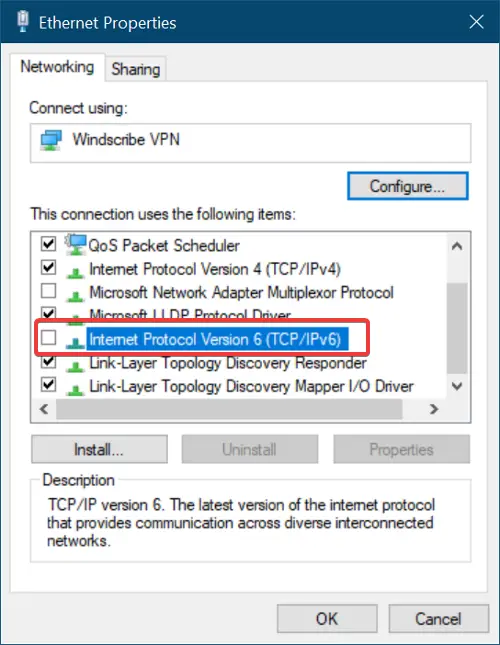
You can try disabling IPv6, as most network devices can’t handle it, which can lead to such issues. To do the same, follow the steps.
- Right-click on the Network icon and navigate to Open Network & Internet Settings.
- Click on Change adapter options.
- Right-click on Wifi or Ethernet and select Properties.
- In the Networking tab, untick Internet Protocol Version 6 (TCP/IPv 6).
- Select OK to ensure the changes are saved.
Launch the app to test the issue. If you are still facing the issue then move on to the next fix.
5] Opt-out of Beta
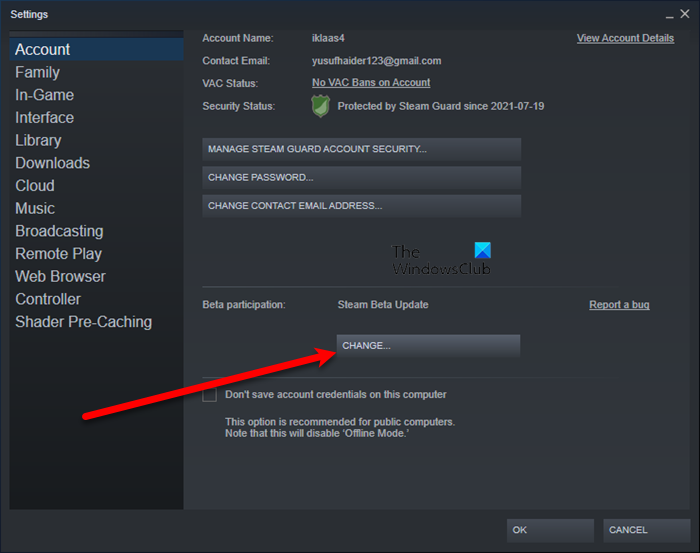
If you are on Steam Beta then chances are you will see the issue in question. Not only VRChat, but you may also see a somewhat similar issue with a different game. Follow the given steps to do the same.
- Open Steam.
- Click Steam > Settings.
- In the Account tab, click on the Change from Beta Participation section.
- Select NONE- Opt out of all beta programs.
Finally, restart your computer, and check if the issue persists.
6] Enter it through the firewall
The reason behind your VRChat issue can be your antivirus or firewall. They can forbid VRChat from accessing some important files. So what you can do is either allow the platform through the firewall or temporarily disable it.
If VRChat is still giving you headaches, then here’s the next fix.
7] Use a VPN service
A VPN is a tunnel that allows users to connect to servers around the world, and in this case it can bypass the faulty server and resolve the issue. So get yourself a free VPN service and see if that helps. If it does, you can get their premium subscription. If it doesn’t, then move to the next solution.
8] Repair system files

Your system files can become corrupted due to forced shutdowns, restarts, and other unusual circumstances. Hence, open Command Prompt as an admin and run the following command.
sfc /scannow
It will take some time. So, let the command run and resolve the issue for you.
That’s it!
Do I need VPN for VRChat?
VPN is not mandatory for using VRChat, but it can help if you are facing such issues. A VPN will let you connect to a different server, bypassing server issues. So, invest in a good VPN service. But you don’t need a VPN for VRChat.
Also Check: Fix Steam Voice Chat not working on Windows PC.
