
If you get PUR-AuthenticationFailure error in Microsoft Store when trying to download, install or purchase an app from Microsoft Store, then here are some suggestions to help you. The following error message is displayed when the error occurs:
Sign in again
Then try again
PUR-AuthenticationFailure
Error code 0x8007426 could also accompany this error message.
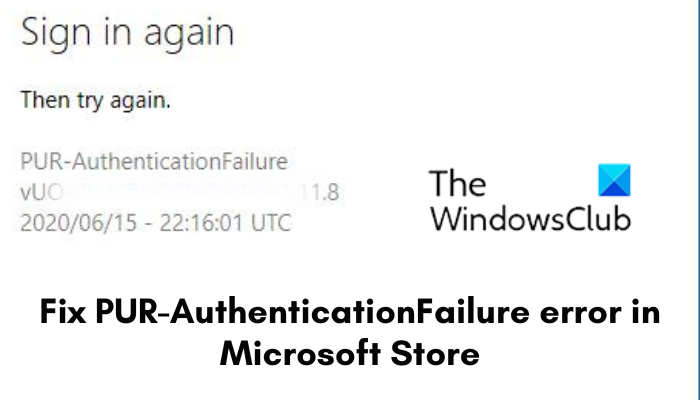
It is followed by error time and other details. This error could be triggered due to various reasons including region conflicts between your Microsoft account and computer, corrupted Microsoft Store cache, problems with your current user account, enabled proxy settings, and antivirus interference. It can also be caused by the Microsoft Account Sign-in Assistant service being disabled on your computer.
In this post, we will discuss the fixes to get rid of the PUR-AuthenticationFailure error in the Microsoft Store.
Fix PUR-AuthenticationFailure error when installing an app from Microsoft Store
If you encounter the PUR-AuthenticationFailure error when installing an app from Microsoft Store, you can use the fixes below to get rid of the error:
- Run Windows Store Apps troubleshooter.
- Switch to a different region.
- Reset Microsoft Store cache.
- Use a different user account.
- Turn off proxy settings.
- Enable the Microsoft Account Sign-in Assistant service.
- Try purchasing the app from the Microsoft Store website.
1] Run Windows Store Apps troubleshooter
The first thing you should do to fix the error is run the Windows Store Apps troubleshooter. If there are some general issues that are causing the error at hand, it will fix them and you will get rid of the PUR-AuthenticationFailure error. Here’s how you can run the Windows Store Apps troubleshooter:
- Firstly, press the Windows + I hotkey to open the Settings app.
- Now, move to the System > Troubleshoot option.
- Next, click on the Other troubleshooters option.
- After that, look for the Windows Store Apps troubleshooter under the Others section and click on the Run button associated with it.
- Let Windows detect and fix associated problems.
- When done, check whether the error is fixed.
2] Switch to a different region
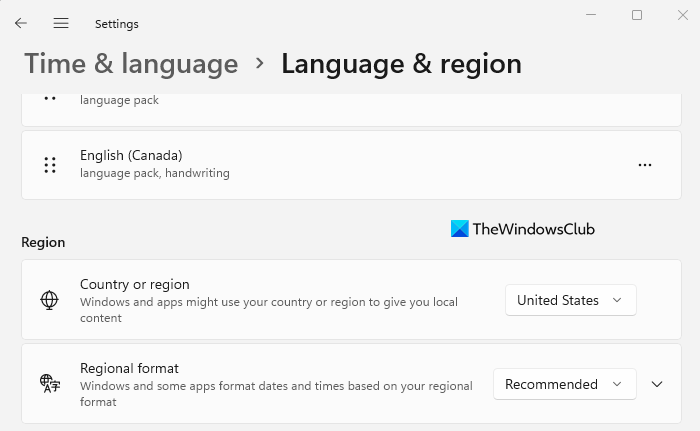
If you are getting this error when purchasing an app, make sure your computer’s region matches the region of your Microsoft Account. Else, you won’t be able to make your purchase and might face this error. Here’s how you can change your region on Windows 11/10:
- Firstly, open the Settings app and go to Time & language.
- Now, click on the Language & region option.
- Next, under the Region section, select the correct Country or region.
Similarly, if you want, you can change your language and region in the Microsoft Store online. Open the Microsoft Store online and make sure you have signed in with your account. Scroll down to the bottom and click on the globe icon to set your region.
If this doesn’t help, move on to the next potential fix.
Read: Fix 0x80240024 Microsoft Store or Windows Updates Error.
3] Reset Microsoft Store cache
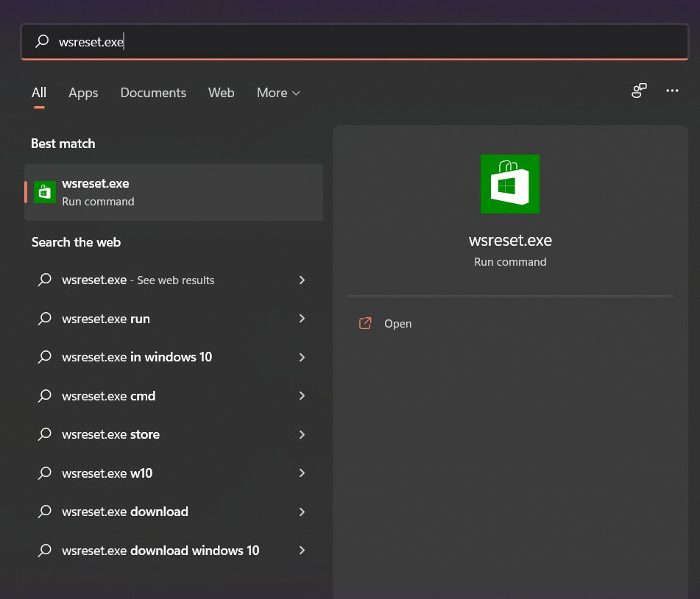
If you tried the above solutions and the error is still the same, you can try resetting the Microsoft Store cache and see if it helps. A corrupted Store cache might be preventing you from installing apps on the Microsoft Store and giving you the error at hand. Hence, this will fix the error. Here’s how to do that:
- Firstly, click on the taskbar search option and type “wsreset.”
- Now, tap on the executable command from the search results and it will reset the Microsoft Store cache.
- Next, reopen the Microsoft Store and check if the error is fixed now.
If you still encounter the same error, there are additional fixes you can try. So, move on to the next potential troubleshooting method.
4] Use a different user account
You can try logging into a different user account and then see if you are able to download or purchase apps from Microsoft Store without the PUR-AuthenticationFailure error. In case your user profile is corrupted which is causing the error at hand, you can create a new user account and then sign in with it to check if the issue is resolved.
5] Turn off proxy settings
Your proxy settings can also cause issues and errors like this in the Microsoft Store. Hence, if the scenario applies, disable your proxy settings and check if the error is gone. Here’s how to do that:
- First, open Settings using Win+I and go to Network & internet.
- Next, click on Proxy and then disable the proxy settings.
If the issue continues, use the next potential fix.
See: The app can’t update when it’s open – Microsoft Store app error.
6] Enable the Microsoft Account Sign-in Assistant service
This fix is recommended on the official Microsoft Community page. If you are receiving this error when installing a Microsoft Store app on a hybrid Azure AD-joined computer, the Microsoft Account Sign-in Assistant service is likely disabled on your computer. Hence, if the scenario applies, this method should fix the error for you, as it did for many other affected users.
Note: Before making any Registry tweak, it is highly recommended to take a backup of the Registry to be on the safer side.
Here are the steps to enable the Microsoft Account Sign-in Assistant service using Registry Editor:
Firstly, open the Registry Editor and go to the following key:
HKEY_LOCAL_MACHINE\SOFTWARE\Microsoft\PolicyManager\current\device\Accounts
Next, select the AllowMicrosoftAccountSignInAssistant key on the right-side pane and double-click on it.
Then, set its value from 0 to 1 and exit Registry Editor.
Finally, reboot your PC to apply the changes, then check whether you can download apps from the Microsoft Store.
To enable the Microsoft Account Sign-in Assistant service using Command Prompt, follow the steps below:
Firstly, open Command Prompt with elevated privileges.
Now, enter the below commands one by one:
reg ADD "HKEY_LOCAL_MACHINE\SOFTWARE\Microsoft\PolicyManager\current\device\Accounts" /v AllowMicrosoftAccountSignInAssistant /t REG_DWORD /d 1 /f
sc config wlidsvc start= demand
Once done, check whether the problem is resolved.
7] Try purchasing the app from the Microsoft Store website
If the Microsoft Store app is not working, you can try making the purchase from the Microsoft Store website instead. This workaround worked for many users.
Hopefully, this will resolve the error for you.
Read: How to fix Windows Store Error code 0x80072EFD?
How do I fix Microsoft Store not purchasing?
If you can’t purchase apps from Microsoft Store, make sure that you selected the correct payment method and that the payment details are correct. Also, verify and ensure that your account’s address matches the payment method’s address. Other than that, reset Microsoft Store, sign in with a different Microsoft account, and make sure the Time and Date settings are correct.
How do I fix Microsoft Store Update error?
If you keep getting an error when trying to update an app on the Microsoft Store, try running the Windows Store Apps troubleshooter to fix generic issues that may be causing the error. Apart from that, you can also try methods such as resetting the Microsoft Store cache, checking the status of Windows Update services, re-registering the associated DLL files, or resetting Winsock to fix the error.
Now read: Fix 0x80073D02 Microsoft Store Error Code.
