
Is your Football Manager 2024/2022 not launching or starting at all? If yes, then the solutions to resolve this issue are written in this article. So, be sure to review all of them and determine which one works best for you.
Why is Football Manager not launching on my computer?
Many reasons can prevent a game from working on your system. However, first and foremost, you must check the minimum system requirements to ensure your computer is compatible. Other than that, your antivirus may mistake the game as a virus or malware and can block it resulting in abrupt crashes. Corrupted game files and outdated Graphics Drivers are other potential reasons that can cause this issue. A bug is exclusive to some AMD CPUs that can make the game crash, we have discussed a workaround later in this article, so, do check that out if you are using an AMD processor.
System Requirements to play Football Manager 2024
Always check the system requirements before downloading the game to ensure your system is compatible. The following are the system requirements to run Football Manager.
- Operating System: Windows 11/10 (64-bit, fully updated)
- Processor: Intel Core 2 or AMD Athlon 64 X2
- Graphics Card: Intel GMA X4500, NVIDIA GeForce 9600M GT, or AMD/ATI Mobility Radeon HD 3650
- Must support DirectX 11 and have at least 256MB VRAM
- Memory (RAM): 4GB
- Storage: 7GB available space
- Display Resolution: Minimum 1024×768.
If you want your system’s configuration in detail, open Run, type “dxdiag” and then click Ok.
Ensure that your system meets the given requirements. If it does, but you are still experiencing the issue, refer to the solutions mentioned later in this article.
Fix Football Manager not starting on Windows PC
If Football Manager 2024/2022 is not launching, loading, opening or working on your Windows 11/10 PC then these fixes are sure to help you. You can start your fixing procedure by checking for updates and then coming to these fixes.
- Check your Anti-virus
- Update your Graphics Driver
- Verify the Integrity of Game Files
- Delete the cache and preferences files
- Run the game as admin
- Change Beta Settings
Let’s get on track with the first fix.
1] Check your Anti-virus
Most of the gamers overlook their anti-virus. Mistakenly, anti-virus software detects important game files as viruses and adds them to the block list. There are two options available for you to choose from.
To start with you can add Football Manager to the whitelist. Or, you can also temporarily disable your antivirus. Either of them can resolve the issue.
2] Update your Graphics Driver
Updating your Graphics driver is the foremost task that one should do to fix launch issues. So before going for any other solution, check your Graphics Driver status. Try updating your Graphics, if there is an update available, and see if the issue persists.
3] Verify the integrity of game files
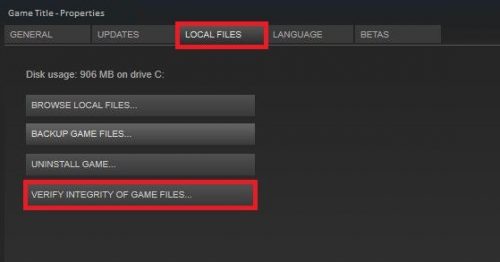
The game may fail to start due to corrupted files. But Steam has a feature that allows you to check and resolve the issue and in this section, we are going to do just that. You can follow the steps to resolve this error.
- Navigate to Library after opening Steam.
- Right-click on Football Manager 2022.
- Now click on Properties.
- In the Local Files tab, press on VERIFY INTEGRITY OF GAME FILES.
After it’s done, launch the game to see if you are still facing the same issue.
4] Delete the cache and preferences files
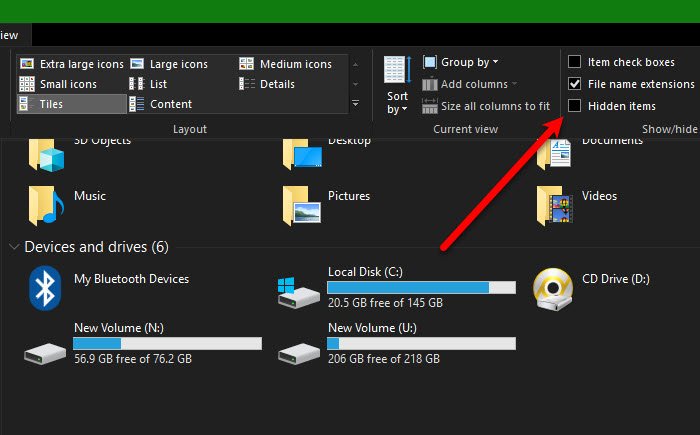
The game may not launch due to corrupted cache and preferences files, and deleting them may resolve this issue.
To do that, open File Explorer by pressing Win + E. In the View tab, tick the Hidden items option. Now, navigate to the following location.
C:\Users\<Your Username>\AppData\Local\Sports Interactive\Football Manager 2022
Note: Make sure to replace <Your Username> with your actual username
and then delete the Caches and Preferences folder.
5] Run the game as admin
You can also run the game executable files as admin if all the above fixes didn’t work out. You can just right-click on the game and select Run as admin, but if you always want to open it with administrative privileges, then we have some steps for you.
- Right-click on the .EXE file of Football Manager.
- Go to the Compatibility tab.
- Tick Run this program as an administrator and click Apply > Ok.
Now, you can reopen your game, and hopefully, it will work this time.
6] Change Beta Settings
If you are using an AMD processor then you should change the Beta Settings to resolve the issue. You can follow the given steps to do the same.
- Open Steam and go to Football Manager 2022 from the Library.
- Right-click on it and select Properties.
- Go to ‘Betas’ and from the ‘Select the beta you would like to opt into’ dropdown menu, click public-test.
Finally, reopen the game and see if the issue persists.
Hopefully, these procedures will stop the issue from disturbing your gaming sessions and you will be able to rule Football Manager.
Why does Football Manager keep crashing?
There could be several reasons why Football Manager keeps crashing on Windows PC. The first thing you need to check is the minimum system requirements. Additionally, it is recommended to temporarily disable your antivirus, update your graphics driver, and verify the integrity of game files, among other steps.
Also Check:
