
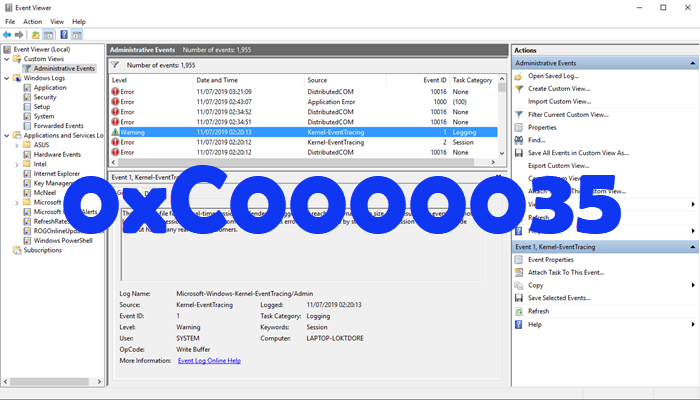
Error 0xC0000035 is STATUS_OBJECT_NAME_COLLISION, and it is an error you will see logged by PerfDiag Logger, which implies that the logger is already running. It can also occur if an attempt is made to write over an existing file name. This error is usually harmless and benign, and you may safely ignore it. Nevertheless, if you feel that it is causing issues and you would like to troubleshoot it, read on.
What is error 0xC0000035?
The 0xC0000035 error code comes back as ‘STATUS_OBJECT_NAME_COLLISION’. This error code has been linked with an identical domain security identifier (SID) being detected. Furthermore, because ‘the event logger is full’ with Session, the “Circular Kernel Context Logger” did not start successfully.
PerfDiag Logger or Performance Diagnostics refers to a diagnostic logging session in Windows that’s used for performance tracing. It is one of several processes that can trigger the 0xC0000035 error in the Windows Event Viewer.
What is the cause behind error 0xC0000035 in Windows 11?
It occurs when some processes fail to start. They could be network-related or other processes. some examples are PerfDiag Logger, NetCfgTrace, Microsoft.Windows.Remediation, sensorframework, etc.
Fix STATUS_OBJECT_NAME_COLLISION error in Windows 11/10
Because there are several ways to trigger error 0xC0000035 on a Windows machine, this article will focus on explaining how to resolve this issue via several of these ways.
- Run System File Checker
- Restart WMI Service
- Clean Up Orphaned Sessions
- Modify the Autologg registry key
- Disable or remove your third-party antivirus
- Update Intel or other Network drivers
- Run Network Reset
- Run DISM scan to repair system image.
Please go through the entire list and see which of these suggestions apply in your case.
1] Run System File Checker
Run Run System File Checker and see.
2] Restart WMI Service
Restarting the Windows Management Instrumentation (WMI) service can resolve issues related to ETW sessions. To do this, open a Command Prompt with administrative privileges and execute the following commands:
net stop winmgmt
net start winmgmt
3] Clean Up Orphaned Sessions
You clean up Orphaned ETW sessions using the wevtutil commands and see if that helps. Open a Command Prompt with administrative privileges and execute the following command:
wevtutil el
Look through the list and if you can identify the offending session, use the following command to clear the session:
wevtutil cl "SessionName"
4] Modify the Autologg registry key
There are times when this error code doesn’t cause any form of problem at all. If you realize this is indeed the case, then the best step to take here is to prevent it from appearing in the first place.
Do this by opening the Run dialog box. Click on the Windows key + R, and from there, type Regedit and hit the Enter key. Right away the Registry Editor will appear
From within the editor, please navigate to the following:
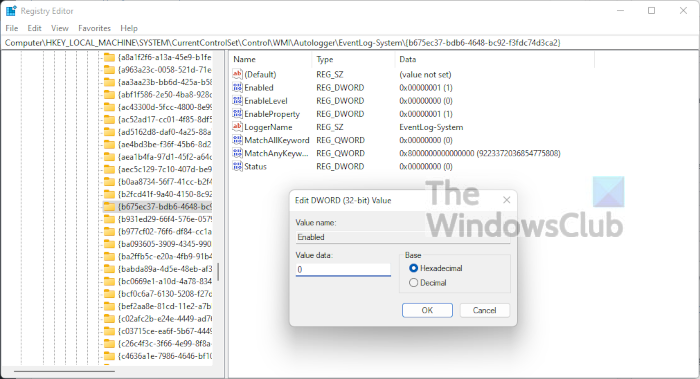
Computer\HKEY_LOCAL_MACHINE\SYSTEM\CurrentControlSet\Control\WMI\Autologger\EventLog-System\{b675ec37-bdb6-4648-bc92-f3fdc74d3ca2}
Once you’re within the right section, the next step is to go to the right of the Registry Editor and be sure to double-click on the Enabled key.
Now, from within the Edit DWORD (32-bit) Value, change the Base to Hexadecimal, then edit the Value data from whatever it is now, to 0. Click OK to save the changes.
After you have completed that task, you will want to double-click on EnableProperly and then change the Base to Hexadecimal and set the Value data to 0. Finally, click OK to save the changes.
The next step, then, is to reboot your computer and then check to see if error 0xC0000035 still persists.
5] Disable or remove your third-party antivirus
In some cases, your third-party antivirus could be the reason behind the 0xC0000035 error within the Event Viewer. We believe you need to disable your anti-virus program, then restart your computer to resolve the issue.
If that doesn’t work, then chances are you may need to remove the utility altogether. To get the job done in Windows 11, you need to fire up the Settings app by clicking on the Windows key + I. From there, select Apps > Apps & Features, then scroll down until you see your anti-virus program on the list.
6] Update Intel or other Network drivers
OK, so there are a few ways you can update Intel or other network drivers on your Windows computer.
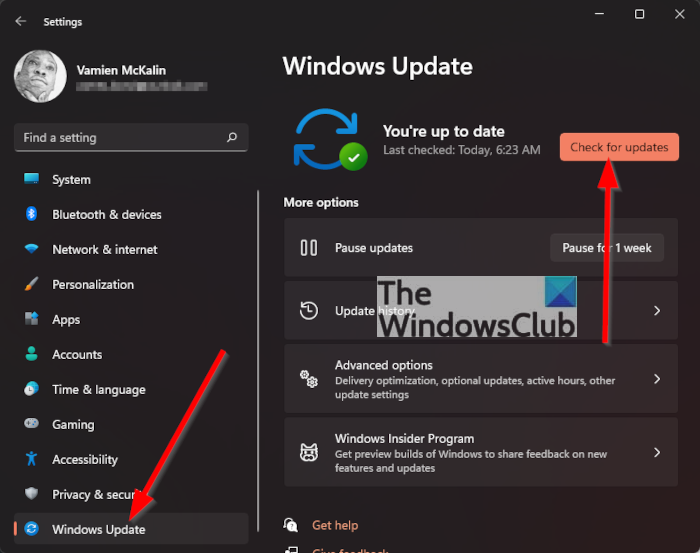
To begin, open the Settings by pressing the Windows key + I. From there, select Windows Update from the bottom, then click on the Update button to have the operating system check for new updates.
Should any drivers be available, Windows 11 will download and install them automatically, or request your assistance. This all depends on your particular Windows Update settings.
7] Run Network Reset
Another means to get rid of error code 0xC0000035, is to reset your network. This is a simple task to accomplish. All you have to do here is read How to Reset Network Adapters using Network Reset feature in Windows 11.
8] Run DISM scan to repair system image
Repairing your system image is one of the best ways to solve error code 0xC0000035. To do this, you must run DISM (Deployment Imaging and Servicing Management) right away. To learn how to scan your computer system using DISM, we suggest reading Run DISM to repair Windows System Image and Windows Component Store.
Similar error code: Microsoft Windows Remediation failed to start Error 0xC0000035
How do I fix Kernel Power Critical error?
To fix the Kernel power critical error in Windows 11/10 PC, you need to turn off Fast Startup first. Then, you can run the CHSDSK tool to identify the potential error and fix it accordingly. Apart from that, you can test your PSU and check for any issues.
Read: How to find and view BSOD log files in Windows Event Viewer
