
The Save for Web feature is used to optimize images for web use and export files in Adobe Photoshop. But while exporting files of different formats, including JPEG, PNG and more, many users have reported coming across Save for Web Error. Worry not, if you’re also having the same problem. Try the solution mentioned below to fix the issue.
Adobe Save for Web Error, Could not complete this operation. An unknown error has occured.
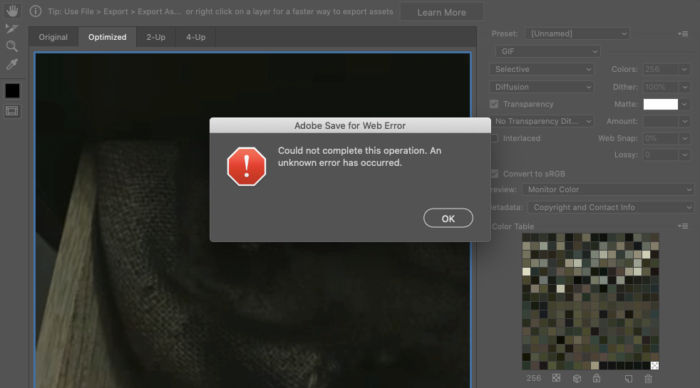
What causes Adobe Photoshop Save for Web Error?
There are multiple reasons behind the Photoshop Save for Web Error. But among all, the most common ones are below.
- If the Photoshop Preferences settings file have been corrupted for some reason, you are most likely to deal with the mentioned problem.
- The Save for Web error will occur if the feature conflicts with the Preferences settings.
- An outdated version of Photoshop is another primary reason behind the problem.
Now that you have a basic knowledge of the different reasons causing the problem let’s check out how to eliminate them.
Fix Adobe Save for Web Error
Below is a list of all the effective solutions you can try to fix Adobe Save for Web Error on Windows 11/10 PC.
- Restart Photoshop
- Clear Temporary Files
- Download the latest update
- Change Image and Canvas size
- Enable Optimized Export As feature
- Adjust RAM usage
- Reset Adobe Photoshop Preferences
- Reinstall Adobe Photoshop
- Contact Adobe Support
Now, let’s take a look at all the solutions in detail.
1] Restart Photoshop
The Save for Web Error can be caused due to a temporary glitch. If this is the case, you will need to restart Photoshop to resolve the issue. Go through the process and check if it makes any difference. If not, try the next solution on the list.
2] Clear Temporary files
A large number of temporary files stored on a system can be another significant cause of the issue. As it turns out, if the temporary files associated with Adobe Photoshop become corrupted for some reason, you will encounter the issue mentioned. You will have to clear all the temporary files to solve the problems. Here’s how’s.
- Open the Run dialogue box by pressing Windows + R shortcut key.
- Type %temp% and press the enter key.
- Select all the folders by pressing Ctrl + A hotkeys.
- Press the Shift + Del key to permanently delete the selected folders.
Now, restart your system and open Adobe Photoshop. Check if the problem is fixed or not.
3] Download the latest update
Not having the latest version of Adobe Photoshop can also be a primary reason for the issue mentioned. You will have to update the software to fix the problem. Here are the steps to do it.
- To begin with, launch the CC application on your system.
- Click on the Updates option. It will look for all the available updates for the application.
- If there is an available update for Adobe Photoshop, click the Install option.
Once the installation process is complete, restart your system and launch Adobe Photoshop. Check if the problem continues. If not, you are good to go. But if you are still experiencing the issue, continue with the guide.
Read: Adobe Photoshop Express for Windows
4] Change Image and Canvas size
As reported by users, the Save for Web Error mainly occurs when the image size is not the same as or larger than the canvas size or vice versa. So, make the changes and ensure both are the same size. Once done, use the Save for Web feature and check whether the problem persists.
5] Enable Optimized Export As feature
The issue may also occur if you haven’t enabled the Optimized Export As feature. You can enable it by following the steps below.
- Open Adobe Photoshop and click on the Edit option.
- Choose Preferences from the list of options.
- From the context menu, click on Technology Previews.
- In the following window, check the Enable optimized Export As option.
Now, restart Adobe Photoshop and check if the problem continues.
See: Fix Photoshop Scratch Disks are full issue on Windows and Mac
6] Adjust RAM usage
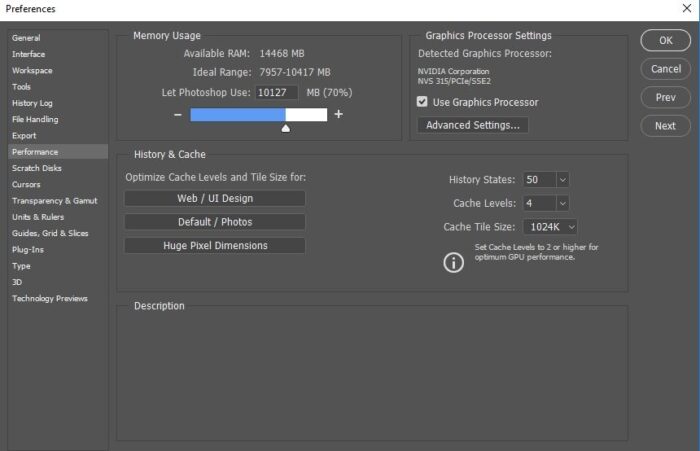
Adobe Photoshop is a high memory consumption application. But if you have restricted it to the limited use of available resources, you are most likely to face the problem. You will have to remove the RAM usage restriction to solve the problem. Here’s how to do it.
- Open Photoshop, and navigate to the Preferences option.
- In the Preferences section, select the Performance option.
- Under Memory usage, adjust the RAM you want to allocate to Photoshop. We recommend giving at least 85% of the available resources.
- Click on OK to save the settings.
Now, restart the application and check for the problem.
7] Reset Adobe Photoshop Preferences
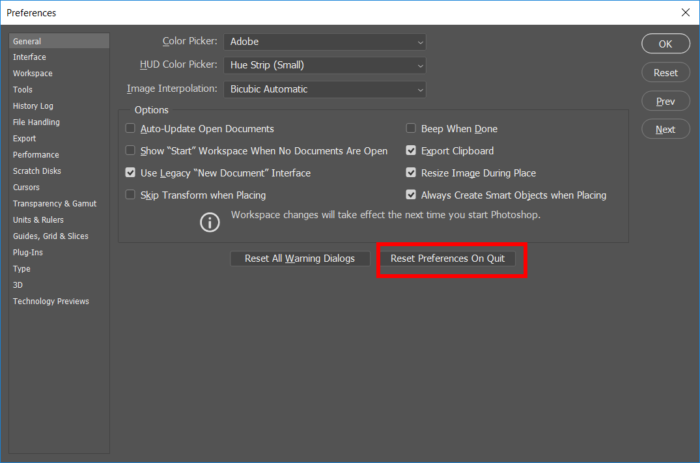
If you made any wrong move in the Preferences settings, you would face the problem. To solve the problem, you will have to Reset Adobe Photoshop Preferences. Here’s how to do it.
- Open Photoshop > Edit > Preferences > General.
- Click on Reset Preferences On Quit.
- Confirm your selection by clicking OK in the prompt that appears.
Read: Adobe Reader not working in Windows 11/10
8] Reinstall Adobe Photoshop
The issue can also be related to an installation error. If this is the case, you will need to reinstall the application to resolve the issue. Go through the process and check if it makes a difference.
9] Contact Adobe Support
If none of the steps were helpful, you could contact Adobe Photoshop support. Contact them and ask for further guidance on the issue.
Why is my Photoshop crashing when I Save for web?
The main reason behind the crash can be misconfigured Preferences settings. You will have to reset the Photoshop preferences to resolve it. To do so, Open Photoshop > Edit > Preferences > General > Reset Preferences On Quit.
What is Adobe Save for Web?
Adobe Save for Web is available in the latest versions of Adobe Photoshop and ensures you do not have to compromise on the size and quality of different image formats. To do so, the application removes unnecessary metadata from the object. It mainly optimizes images for web use.
Read Next: Photoshop keeps crashing or freezing on Windows PC.
